Settings > Calendar > User Availability
Steps to Add User Availability
Navigate to the Settings tab.
Click on Calendar in the left-hand panel.
Once in the Calendar tab, select User Availability.
Within this view, you can see all of the different users in your platform. Fold recommends configuring user availability for each individual user. If you do not configure calendars at the individual user level, the Fold system will default the user to the practice hours you have set. This affects when in-office versus out-of-office phone trees and away messages are active.
Editing an Existing User's Schedule
Click on the three-dot ellipsis next to the user you wish to edit.
Select Edit.
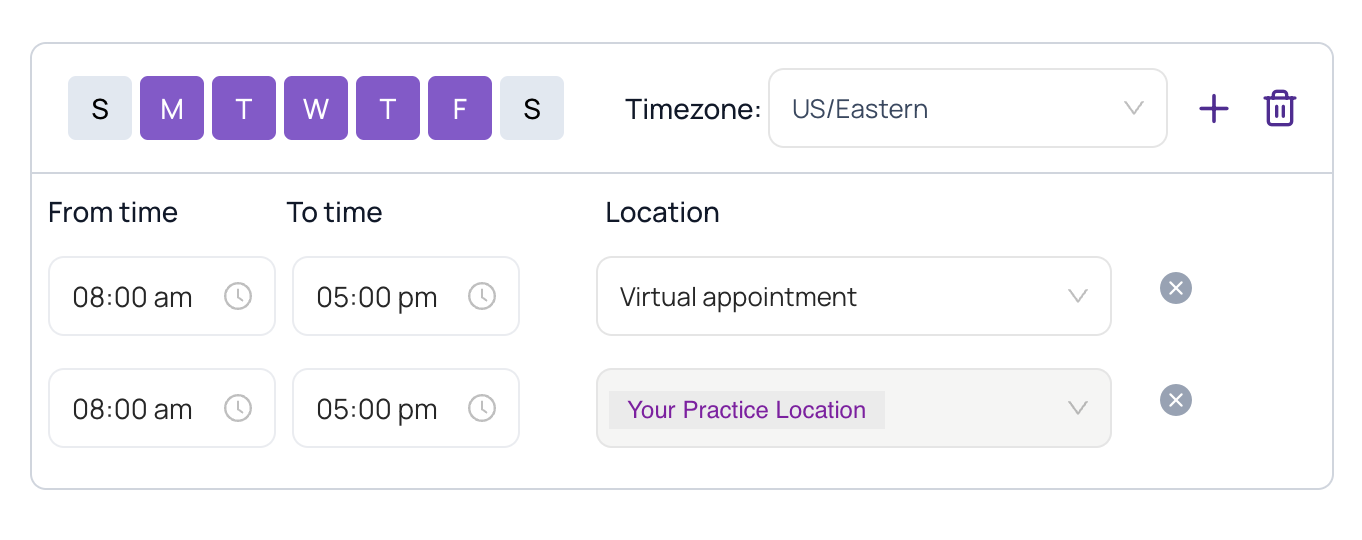
Toggle on the days of the week you'd like this schedule to apply to. For example, if you work on Monday, Wednesday, and Friday, select these days.
Change your time zone if necessary, e.g., to U.S. Eastern.
Set your working hours for the selected days, e.g., 9:00 a.m. to 5:00 p.m.
Select whether these hours are applicable for virtual appointments or a specific location.
Add additional slots for other days of the week if needed. For example, on Tuesdays and Thursdays, set your hours from 9:00 a.m. to noon for half-day work.
When ready, click Save to update your schedule.
Once saved, you will see that your schedule has been updated accordingly.
If you offer both in-clinic and virtual appointments, for anyone who uses Fold for scheduling, add User Availability for both virtual and onsite locations:
Was this article helpful?
That’s Great!
Thank you for your feedback
Sorry! We couldn't be helpful
Thank you for your feedback
Feedback sent
We appreciate your effort and will try to fix the article