Note for Elation Users: Providers created as users in Fold will not appear in Elation. Providers should be created as users in Elation first.
When adding a new staff member, Fold recommends that you complete the following steps:
| Checklist | Notes |
|---|---|
| Invite the staff member to Fold. Settings → Account → Team → Invite User | When you add a new user, you will need to fill in the following information:
Adding a user will send the staff member an email with their credentials to login to Fold. Credentials work for both the web and the Fold Grow mobile app. Invites expire after a specific time period & can be resent from the Invite User page. Please ask the staff member to check their Spam or Junk mail folders for the invite if they haven't received it. |
| Stop here! Your new users will need to login to Fold before completing the remaining tasks. | |
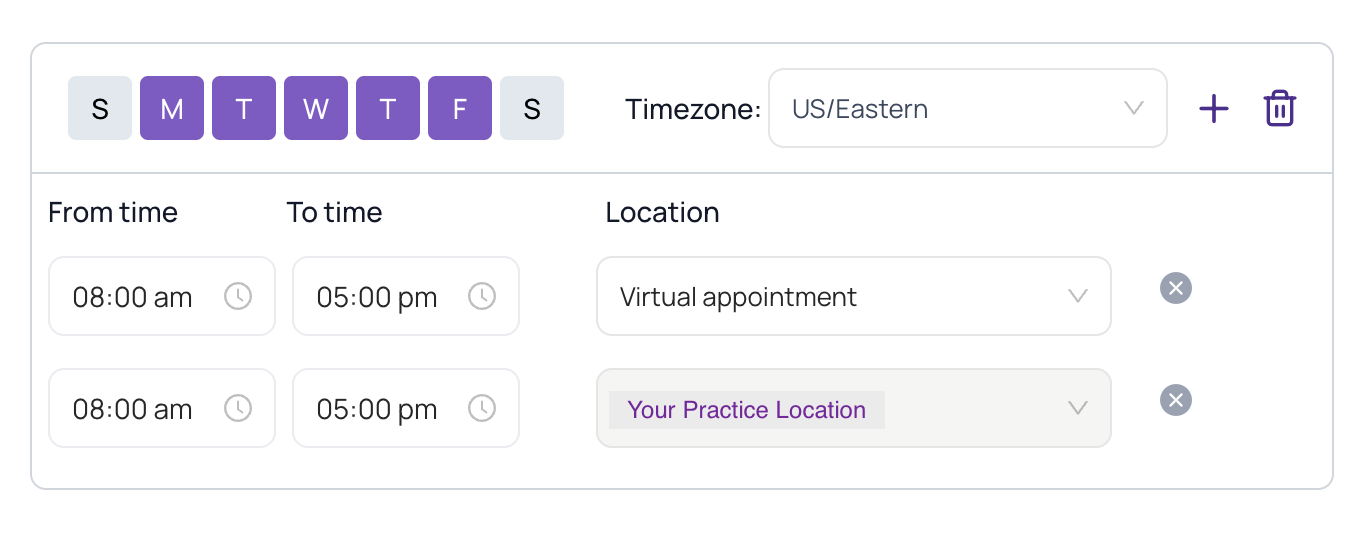
Settings > Calendar > User Availability > Search for user > Click Ellipsis next to user name > Edit | This affects staff appointment scheduling and patient self-scheduling.
|
| If using Fold phones, add the new user to any relevant SMS inboxes Settings → Messages → Inboxes | Allows the staff member to see incoming SMS messages for that phone number and send outbound SMS messages from that phone number. Also allows the staff member to be tagged in, or assigned to, any SMS conversations using that phone number. |
| If using Fold phones and the new user needs a new phone number, purchase a phone number and configure phone number settings Settings > Calls > Phone Numbers | Click on your new phone number and assign it to the appropriate user. Assign phone trees for office hours use, out of office use, and holidays. Select other users who should have access to the SMS inbox of the number. Add an auto reply for the number to trigger outside of the assigned user's or location's business hours. |
| If using Fold phones, add the user to dial nodes within phone trees | Click into any phone trees where the user should be dialed to. Add the user to relevant dial nodes. |
| If using the Fold Care Patient App for secure patient communications, add the new user to relevant chat inboxes. Settings → Messages → Chat Settings | Allows the staff member to see incoming secure app chat messages at a specific location, send outbound secure app chat messages, and allows a staff member to be tagged from any chat conversations or assigned to any chat conversations. A pop-up will appear and ask if you want to add the new user to existing chat groups or only new groups moving forward. Most of the time, you will want to add the user to existing chat groups. |
| Grant staff member permissions to edit other users' schedules. Settings → Calendar → Manage Calendar | Essential for staff members to be able to add/edit another user's schedule. By user, select the “edit” (pencil) icon and select the names of the users for whom this user can view, edit and schedule appointments. For example: Medical Assistant A can manage the calendars for Physicians X, Y, and Z. |
| Add the new user to relevant Task Pools. Settings → Tasks → Task Pools | Task pools allow the staff member to be assigned tasks with their colleagues. When a colleague inside a task pool completes a task, the task is marked completed for everyone in the task pool. Document the name of the task pool, select the users who should be part of that task pool, and select a designated assignee for the task pool. Best Practice: Fold customers frequently use task pools for groups of people who complete similar types of work, for example, Front Desk Task Pool. This allows users to send tasks to the entire group, allowing the task to be picked up by the staff member who is first available to complete it. |
Grant the new user permissions to manage tasks for others. Settings → Tasks → Manage Tasks & Alerts | Essential for staff members to be able to view or manage tasks for another user. By user, select the “edit” (pencil) icon and select the names of the users for whom this user can view, edit and complete tasks. For example: Medical Assistant A can manage tasks for Physicians X, Y, and Z. |
Whitelist users for Sidecar (If applicable) | Mapping users in Fold to the EHR is required to connect actions in Fold back to actions in the EHR. A “provider” user is mapped to the EHR if they have the EHR tag next to their name. If a user does not have the EHR tag next to their name, click on their name to edit the user and ensure there is a practice location added with the correct user selected under Map User to EHR.
To whitelist non-provider users (e.g., administrative staff, nurses) for Sidecar, please reach out to your implementation manager and include the user’s EHR username. |
| Whitelist users for Clinical Synopsis and add to Synopsis templates (if applicable) | The Clinical Synopsis flag is enabled on a user-by-user basis. Please reach out to your implementation manager to request access for each user. Once users are whitelisted, they will need to be added to each relevant Synopsis template (Settings → Content → Synopsis Template). |
Optional steps for new Fold users to take after logging in:
| Checklist | Notes |
|---|---|
Update your notification settingsFold web app > Click on your initials in the top right > Notification Settings. | The notification settings you select here will apply to both the Fold Web app and the Fold Grow mobile app. |
| Users can download the Fold Grow App from their respective App Stores (iOS or Android) | Fold Grow allows users to check messages, manage tasks, make or receive calls, or view their schedule from a mobile device. The Fold Grow Password is the same as the password to the Fold Web App. |
Add block time to your calendar | This step is only needed if you are not integrating with your EHR. Elation and Athena automatically sync block time into Fold. |
| Integrate your Outlook or Gmail accounts Settings > Messages > Inboxes > + New > Email > Outlook or Gmail > Add Agents | Please contact your implementation manager to enable the Outlook or Gmail integration in your tablespace. After setting up the email in Fold, it will sync all incoming and outgoing emails, regardless of whether they were sent through Outlook. Note that Fold will not sync previous emails; the sync begins from the moment the Outlook account is configured in Fold. Best Practices:
|
| Instruct the user to install Sidecar (If applicable) For Athena For Elation | The Fold Health Sidecar is a tool designed to integrate insights and functionalities from Fold directly into the EHR interface. For users who spend most of their time within the EHR, this is a useful tool to centralize Fold tasks, insights, alerts, and patient communications. |
Was this article helpful?
That’s Great!
Thank you for your feedback
Sorry! We couldn't be helpful
Thank you for your feedback
Feedback sent
We appreciate your effort and will try to fix the article