TABLE OF CONTENTS
Welcome
Welcome to Fold Health! We look forward to partnering together to set you up for success and support your organization in achieving your goals. Fold is a powerful one-stop engine that supports care teams to focus on what they do best: providing excellent care to patients. Fold was designed to address critical needs in the healthcare technology landscape.
Learn more about Fold Health:
Implementation
Designating Super Users
We recommend that you select 2-3 Super Users who can serve as a dedicated resource during the implementation process and ongoing, as you move into a steady state. Super User responsibilities typically include managing the implementation, making decisions about your tablespace configuration, managing questions and user issues, and implementing new features as desired.
We see the most success when multiple Super Users manage the Fold platform collaboratively. Depending on your organization's setup, this could be a lead from each team or a technical lead who pulls in subject matter experts as needed. The most successful Super Users are influential champions for change at your organization. They are excited about adopting the Fold platform, have the authority to lead and make decisions, and are comfortable learning new technology.
Upon request, your Fold Health implementation manager can share super user resourcing estimates based upon the scope of your organization's implementation.
The Fold Health Knowledge Base
Throughout our Knowledge Base, you will find details about how to use and implement each Fold feature, as well as recommendations based on best practices.
Discovery
Your Fold Health implementation manager will work with your super users to seamlessly incorporate Fold into your existing workflows. To help us better understand your organization and tailor an implementation plan to your unique organization, we will ask you to complete a discovery questionnaire.
Platform Orientation
Learn more about how Fold Health is structured:
Logging into Your Tablespace(s)
Upon receiving an email from Fold Health with your username, temporary password, and login link, you can access your Fold Health account.
Fold offers a few different types of Tablespace for different purposes. Your Tablespaces will be allotted based upon your organization’s unique needs.
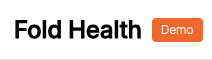
- Sandbox – this type of environment allows a super user to test different settings and practice your configurations. We also encourage front end users to complete training in the Sandbox. This is not a secure environment and there is no PHI hosted within a Sandbox, which makes it safe for testing different features. A Sandbox has the orange Demo tag in the top left.
- Preview – this type of environment is paired with a Preview EHR environment, if your organization has one.
- Production – this is your live Fold Health tablespace.
NOTE: For security reasons, Fold does not allow users or patients to login with IP addresses outside of the US. If a staff member is traveling internationally, they have the option of logging into Fold from a US-based VPN.Overview of Fold Health Features
- Patients Tab - A healthcare database where you can search, filter, and manage patients. It includes the Population Group feature to organize patients based on specific criteria, allowing for dynamic updates and targeted campaigns.
- Calendar Tab - A rules-based scheduling engine similar to Calendly, Outlook, or Google Calendar, optimized for healthcare. It allows for configuring appointment rules, care team availability, and self-scheduling options.
- Tasks Tab - An organizational tool for tracking appointments, chart reviews, and patient care steps. It functions as a task management system triggered by automations to ensure efficient healthcare operations.
- Messages Tab - An omni-channel messaging hub for SMS, chat, emails, phone calls, voicemails, and faxes. It centralizes all communications with patients and external contacts.
- Calls Tab - Focuses on Fold's cloud telephony system, managing inbound and outbound calls, and checking missed calls and voicemails.
- Leads and Contacts Tab - A CRM tool for non-patient contacts, enabling information capture, communication logging, form sending, scheduling, and action-taking.
- Campaigns - Allows for bulk communication actions similar to MailChimp or HubSpot, used for clinical, administrative, or sales purposes, providing insights into campaign performance and patient engagement.
- Analytics Tab - Automates data aggregation for population-level analytics and reports on engagement, financial, clinical, and operational metrics.
- Settings Tab - The backbone of Fold Health, where configurations are made to meet organizational needs and workflows.
Adding "Allowed" Emails & Phone Numbers to Practice Environments
To prevent emails, calls, and SMS from going out to patients or other members within a practice environment, Fold’s Sandbox and Preview environments require users to add “Allowed” emails and phone numbers. Only email addresses and phone numbers listed on the “Allowed” setting will receive emails, SMS, and calls from this environment.
Settings > Account > Navigate to the Allowed Phone and Allowed Email Tabs > Add the phone number(s) and email address(es) and you will be testing with.
Depending on your screen width, you may need to click on the yellow ellipsis button to see all available Tab options within a Fold menu.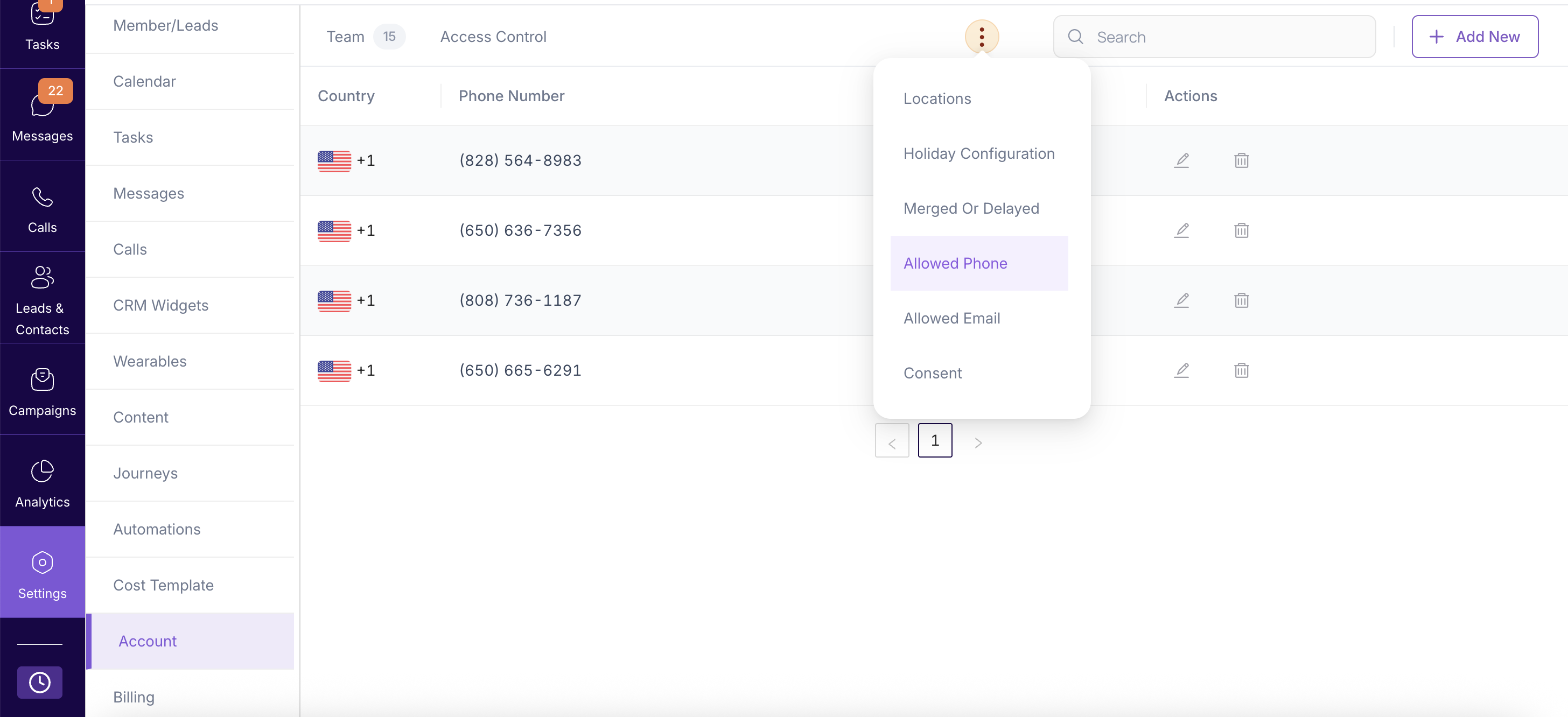
Was this article helpful?
That’s Great!
Thank you for your feedback
Sorry! We couldn't be helpful
Thank you for your feedback
Feedback sent
We appreciate your effort and will try to fix the article