TABLE OF CONTENTS
- Getting Started with Fold Forms
- How do I create, send, score and view form responses?
- Frequently Asked Questions
- What are “Note” forms and where are they used?
- Where can I see Analytics on Forms?
- How do I interpret the form analytics?
- Are forms connected to the EMR?
- Can I automate actions based on form responses?
- What are Custom Components?
- Can one change the Form questions based on Forms responses within the form?
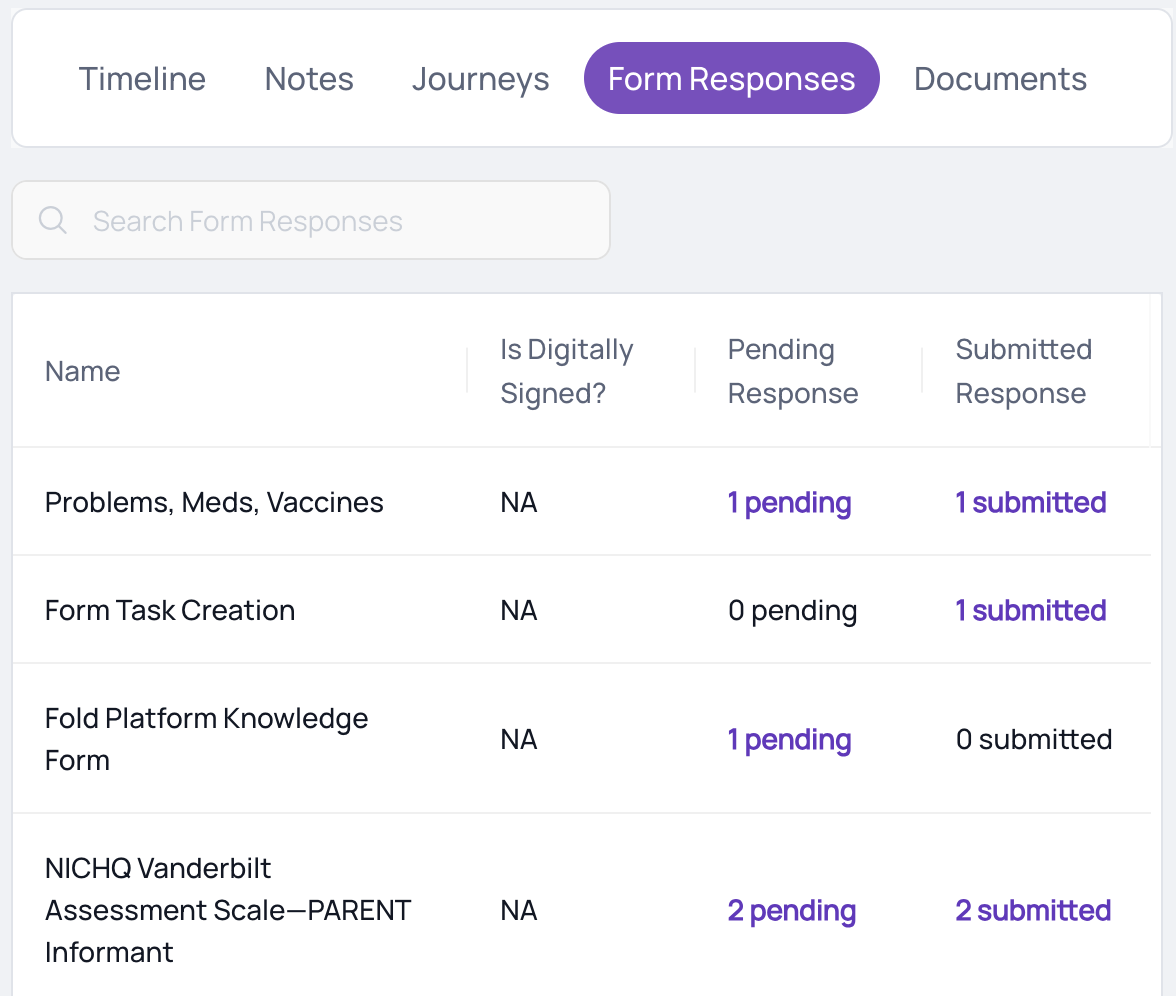
- Where can a staff member view the forms sent to a patient and the forms pending completion by a patient?To view all forms in Pending and Completed status for a patient, click on the patient’s profile and click ‘Form Responses.’
- Can a staff member retract a form that was sent?
- If a form is sent to a patient twice, is the previous form overwritten?
- How can a staff member be alerted when a Form is submitted?
- If a change is made to a form, do all pending forms (ie. forms sent but not completed by patients) get updated?
Getting Started with Fold Forms
Within Fold Forms, you can create patient surveys, intake forms, consent forms, and clinical notes.
Below is a list of standard “seed” forms, which Fold can transfer into your tablespace for you to customize. Please let your Implementation Manager or Customer Success Manager know if you would like any of these seed forms in your tablespace (you can always delete forms you decide not to use).
- PREMS
- Falls Risk Assessment Tool (FRAT)
- Mini-Cog©
- Advance Directive (PREPARE-Texas state)
- Clinical Frailty Scale
- Instrumental Activities of Daily Living (IADL) - Lowton-Brody Scale
- Neuropsychiatric Screening
- Substance Abuse Screening - Alcohol: CAGE
- ADL - Katz Index
- PHQ-9 (Patient Health Questionnaire-9)
- Smoking Addiction Scale - Fagerstrom
- Memory Impairment Screen (MIS)
- COPD Assessment Test (CAT)
- K10 - Kessler Psychological Distress
- HIPAA Compliance Patient Consent Form
- Informed Consent for Telemedicine Services
- Fatigue Severity Scale Questionnaire (FSS)
- Practice Policies and Treatment Consent Form
- Client Intake Form
- AD8® Dementia Screening Interview
- AHC HRSN Screening Tool
- Mood Disorder Questionnaire (MDQ)
- Health Wellness Assessment
- Geriatric Pain Measure (GPM)
- Health Risk Assessment (HRA)
- Chronic Care Management (CCM) Consent Form
Implementation Best Practices:
- When building out new templates, we recommend numbering your templates for easy reference.
- The name of your form appears externally to patients, whenever shared with a patient.
- Use form scoring to add weights to specific answers. Scoring can be used to direct the form to the appropriate staff member or team, for example, this can be helpful in identifying patient satisfaction survey scores that need follow-up, or identifying patients who might need more emergent follow-up on a clinical assessment. The Basic Components ‘Single Select’, ‘Multi Select’, and ‘Rating’ can be used to score.
- Forms are not listed in any priority.
- Health components write back to the EHR (varies by EHR).
- Use the display rules to determine if/when a node will be displayed.
How do I create, send, score and view form responses?
- Forms are created by navigating to Settings → Content → Forms.
- Forms can be sent via several methods. Regardless of the method, every form sent to a patient via Fold automatically generates a task that appears in the patient's app (if you are using Fold Care):
- Navigate to the patient profile, click on the vertical ellipsis under the patient name and click ‘Send Forms’. This will send a form via email and inside the patient app.
- Navigate to Settings → Content → Forms → Click on “Send”. This will send a form via email and inside the patient app.
- From Messages: In a chat message, SMS message or email message window there is a ‘Send Form’ button that will send a form via the prospective medium. Forms send via chat message, SMS or email will also appear on the patient app.
- Inside Automations, the ‘Send Form’ node allows you to choose whether to send a form via email, SMS or App or a combination of the three.
- Forms can be scored by adding weights to specific answers. All scored answers are summed at the end to give a range of results. To score a form click on the Form in question and the “Score” button near the top of the form builder while editing the form.
- To view responses for a form, click on the “View Analytics” icon next to the appropriate form on Settings → Content → Forms.
- Forms can be assembled in Fold using the components below.
Basic Component
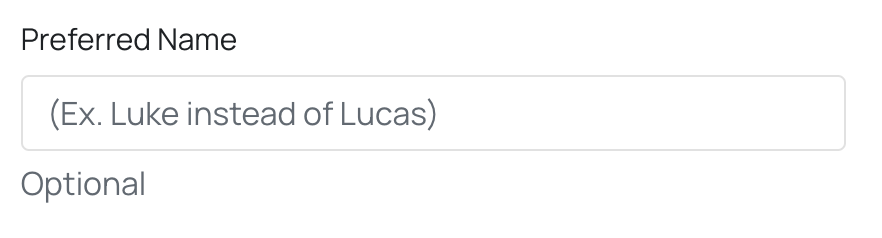
Example Small Text
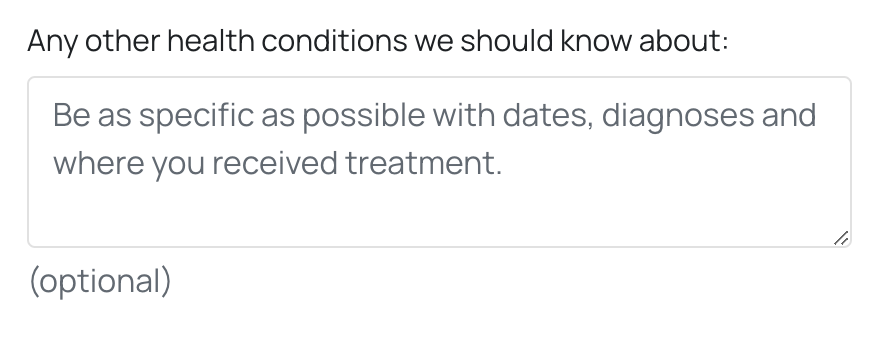
Large Text
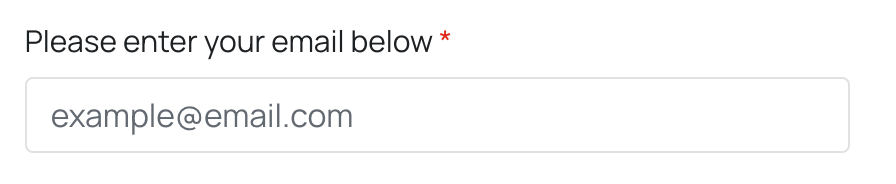
Email
Consent

Single Select

Multi Select

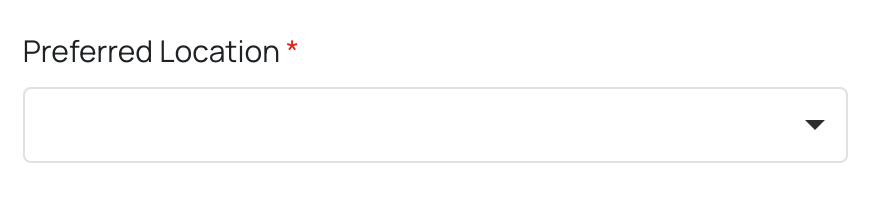
Dropdown
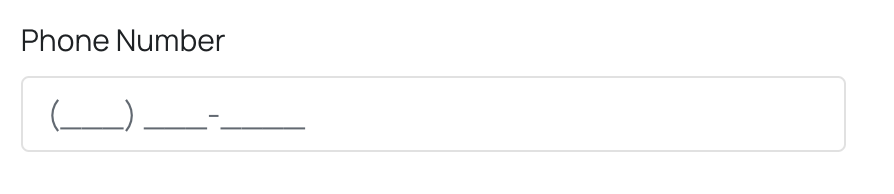
Phone Number
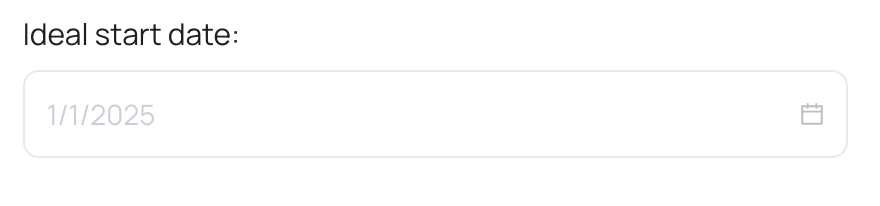
Date
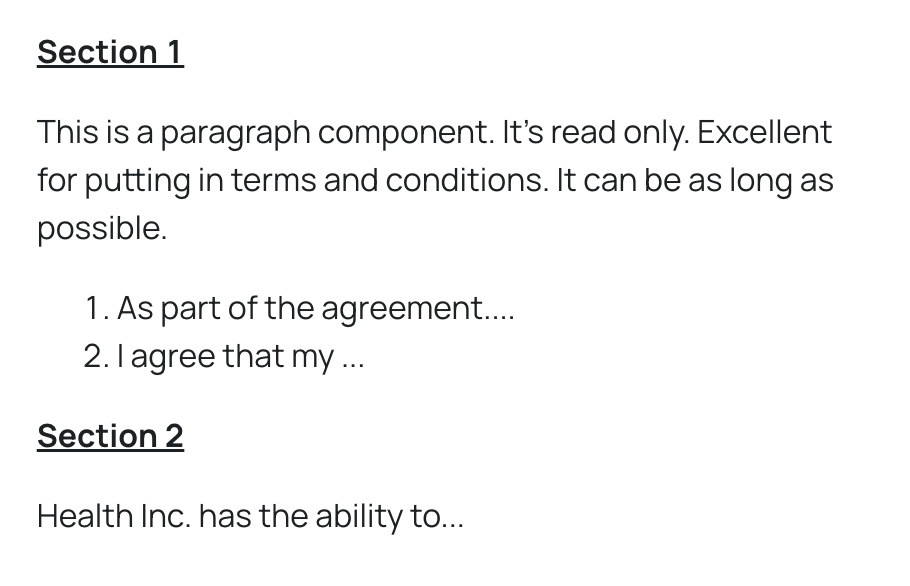
Paragraph
Image

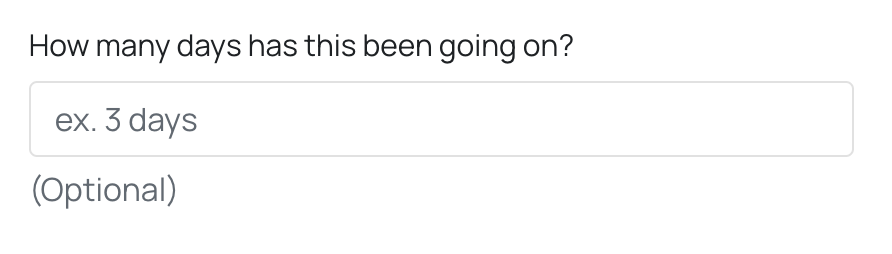
Number
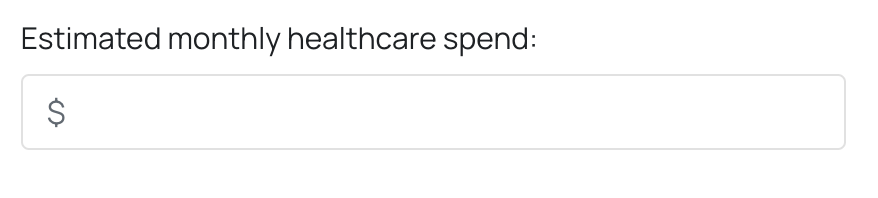
Currency
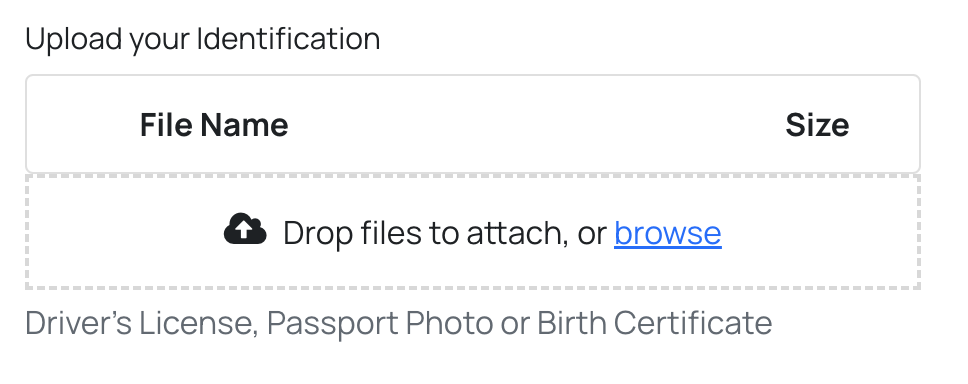
File Upload
Rating

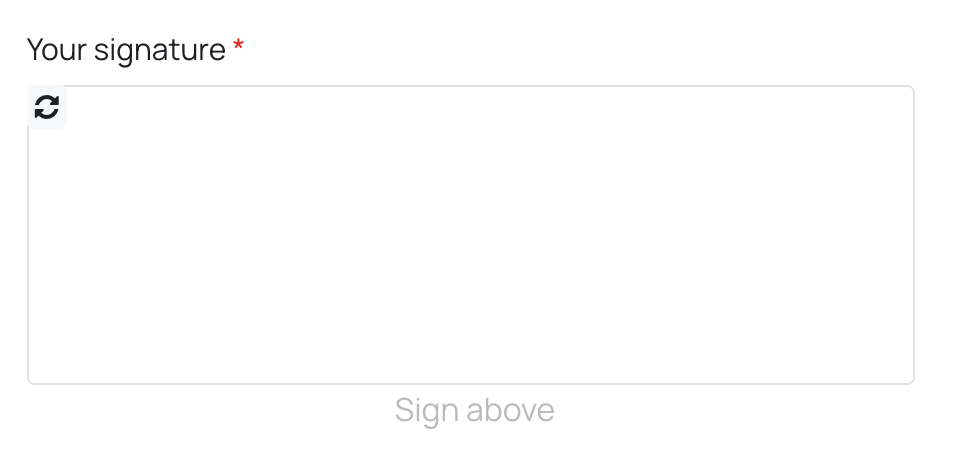
Signature
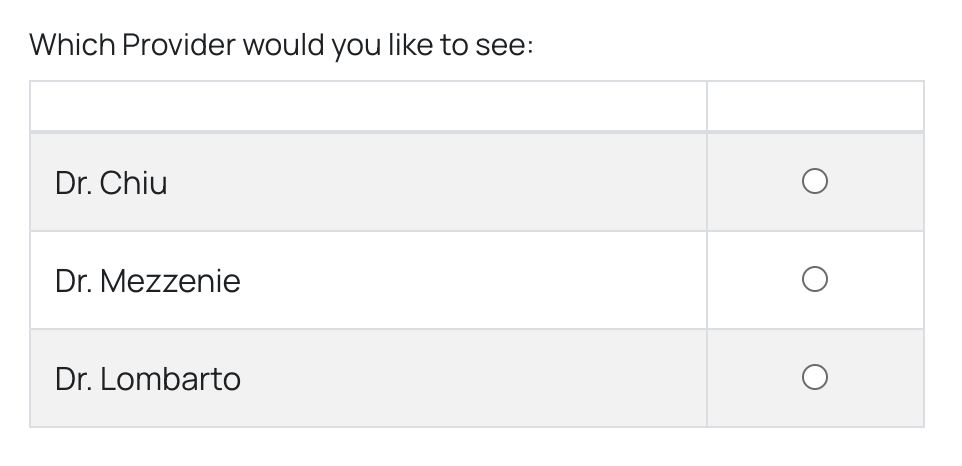
Table
Multi Column
Makes multiple columns. Container
Makes a container.
Frequently Asked Questions
What are “Note” forms and where are they used?
“Note” forms are templates that are used to create clinical/patient notes. Note templates cannot be sent from Automations, nor can they be sent to patients via automations or the patient profile.
Where can I see Analytics on Forms?
All forms come with Form Analytics that can be accessed via the Bar Graph next to the edit button on Settings → Content → Forms.
How do I interpret the form analytics?
From the Forms page, you can see a quick view of the total number of links sent, the number of complete forms, the number of in progress forms (e.g., those that were clicked but not submitted), and the number of forms that have been sent but not completed.

Clicking on the Bar Graph icon brings you to the Form Insights page, where you can see a detailed breakdown of form response statuses, with the ability to filter by date range.
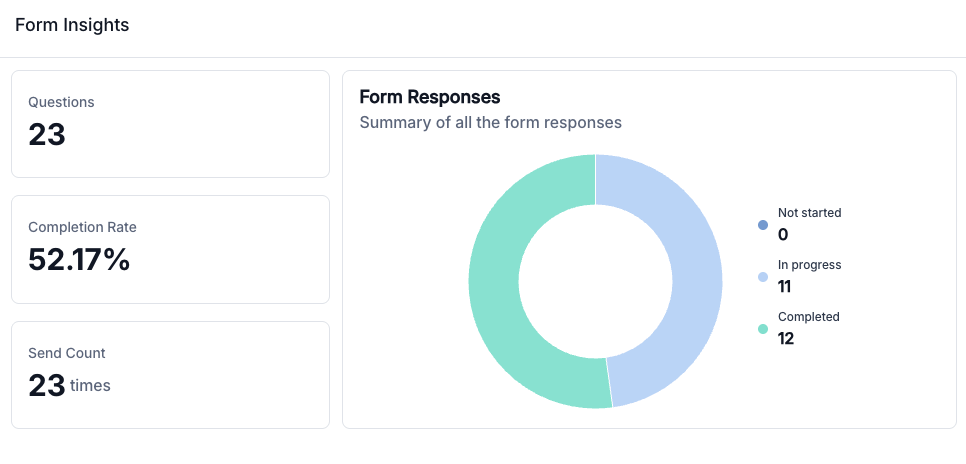
Definitions:
- Not Started - The form page has not been loaded.
- In Progress - When a patient opens the form and the page loads, the form status moves from Not Started to In Progress. This count does not increase if a patient opens the form link multiple times.
- Completed - When a patient submits the form, the form status is changed from In Progress to Completed.
- Send Count - Shows the number of times the form has been sent (i.e., the number of unique form links). This count includes send attempts where the SMS or email failed. For forms with an automated reminder set up, the reminder is not counted as an additional send; Fold does not generate new form links for reminders, so the send count does not increase.
Are forms connected to the EMR?
Fold’s form engine consists of smart health components that read and write specific clinical information in patient record. Depending on which EMR you are using, the below components have an optional directional sync to your EMR. Any of these can be made “read only” by unselecting the “Keep fields editable” checkbox.
- Chief Complaint
- Patient Demographics
- Patient Communication
- Patient Address
- Emergency Contact
- Vitals
- Medications (only for Athena users)
- Allergies
- Immunizations
- Social History
- Family History
- Surgical History
- Subjective Complaint
- Objective Findings
- Assessment
- Plan
- Medical History (only for Elation)
- Consent for Communication
Can I automate actions based on form responses?
Yes, if sending a form via automations you can add a “Match form Response” node that will create different branches of an automation depending on what the form score was. You can also create a separate Forms Automation that perform actions based on the form and the form response received. Types of actions that can be automated including sending an email, sending an SMS, sending a push notification to Fold Grow or creating a task.
What are Custom Components?
Any basic component that you plan to re-use in the future can be saved as a custom component. This is to save you time from re-creating the basic component in future forms or later on the same form.
Can one change the Form questions based on Forms responses within the form?
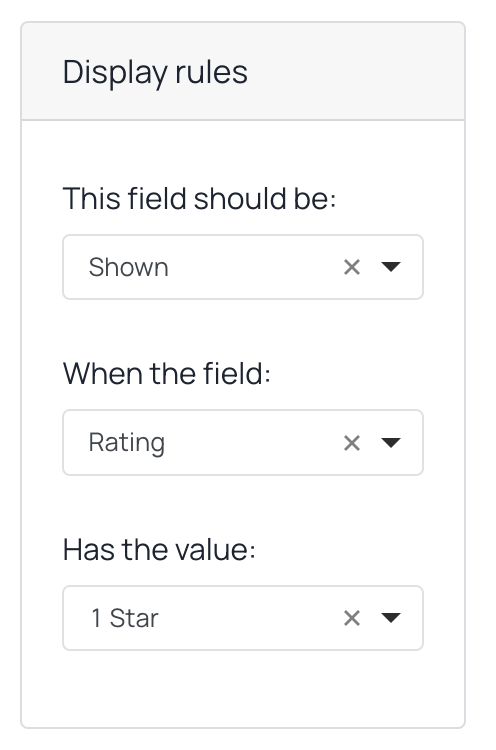
Yes. Using the Display Rules, one can select specific form components to display only when specific answers are given/fields are selected. For example, if someone provide a one star rating, you can design the form via Display Rules so a text pop shows up asking for more feedback.
Where can a staff member view the forms sent to a patient and the forms pending completion by a patient?
To view all forms in Pending and Completed status for a patient, click on the patient’s profile and click ‘Form Responses.’
Can a staff member retract a form that was sent?
At the moment, Fold does not allow retracting forms or editing of forms after they have been sent.
If a form is sent to a patient twice, is the previous form overwritten?
No, if a form is sent twice, the patient receives a 2nd form and has not complete the 1st form, the patient will see two forms pending completion.
How can a staff member be alerted when a Form is submitted?
To receive notifications, emails, tasks or SMS’s when a form is submitted (of even based on what responses are submitted in the form) you would create a Forms automation. To create a Forms automation navigate to Settings → Automations → +Create → Forms Automation.
If a change is made to a form, do all pending forms (ie. forms sent but not completed by patients) get updated?
No, if a form is updated it does not change any forms currently in pending status for patients.
Reference : Confluence
Was this article helpful?
That’s Great!
Thank you for your feedback
Sorry! We couldn't be helpful
Thank you for your feedback
Feedback sent
We appreciate your effort and will try to fix the article