Duo SSO Setup Guide - Fold Health Integration
This guide is intended for IT administrators who are setting up Duo SSO integration with Fold Health. Please use the below values during the setup:
- Add Fold Health as application in Duo. In this step, you add Fold Health as an application in Duo, to establish a trust relationship between them. To add new application in Duo:
- Log in to Duo Admin Panel.
- Go to Applications → Application Catalog.
- Search for AWS Cognito – Single Sign-On.
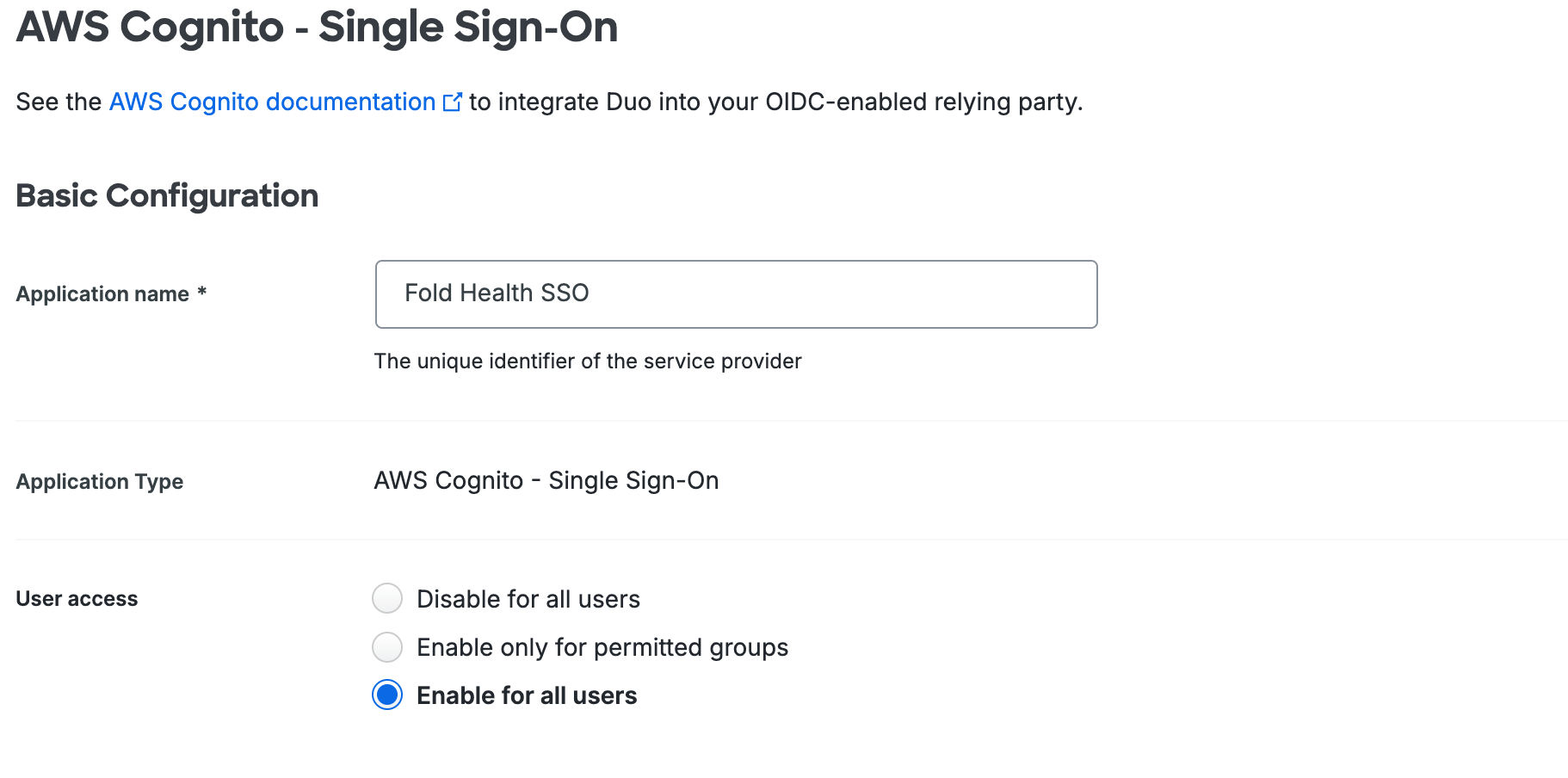
- Fill in the required fields:
- Application name: Fold Health SSO
- User Access: Enable for all users
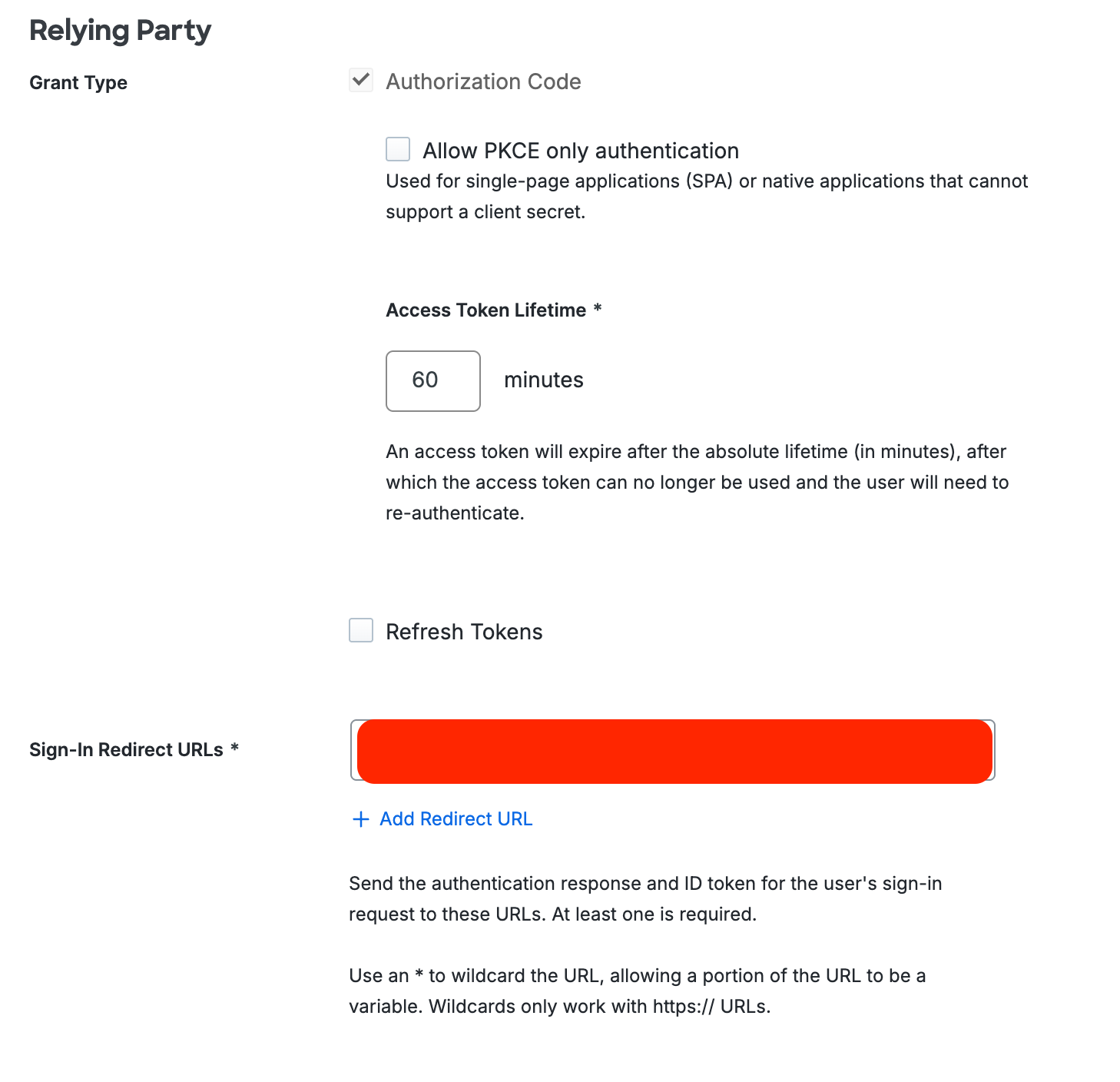
- In the Relying Party section > Sign-in redirect URLs: Fold will provide a URL to include here.
- Click Save. It will take few seconds for the application to be created in Duo, then you should be redirected to the Overview page for the newly added application.
Share Metadata with Fold Health. In a text editor, note down the values under Metadata.
Share a test user account with Fold for testing.
Was this article helpful?
That’s Great!
Thank you for your feedback
Sorry! We couldn't be helpful
Thank you for your feedback
Feedback sent
We appreciate your effort and will try to fix the article