TABLE OF CONTENTS
- Fold Soft Phones Capability Matrix
- Acquiring a Virtual Number or Porting Your Existing Number in Fold
- Phone Number Configurations/Setup
- Incoming Calls
- Linking Callers with their Fold account
- Outgoing calls
- User Experience for Mobile Apps
- Desk Phone Setup Guide
- Transferring Calls on Desk Phones
- Click on the Transfer button
- FAQ: Recommended Equipment

With Fold, you have the flexibility to utilize desk phones, browser based calling or calling through your mobile device, all through soft telephony (internet based calling).
You can choose to acquire a new phone number directly from the Fold dashboard or port your existing number to the Fold system. Fold streamlines the process to allow you to maintain your current number without any hassle.
Fold allows you to create a unique phone tree or IVR (Interactive Voice Response) for both in office hours and outside of office hours.
Fold Soft Phones Capability Matrix
The following capability matrix outlines the features and functionalities of different phone options: Desk Phone (Polycom VVX250), Soft Phone (web app), Soft Phone (iOS), and Soft Phone (Android).
Feature Set | Desk Phone (Polycom VVX250) | Soft Phone (web app) | Soft Phone (iOS) | Soft Phone Android) |
Incoming Call | Yes | Yes | Yes | Yes |
Accept | Yes | Yes | Yes | Yes |
Decline | Yes | Yes | Yes | Yes |
Phone tree Supported | Yes | Yes | Yes | Yes |
Blind transfer | Yes | No | No | No |
Warm Transfer | Yes | Yes | Yes | Yes |
Mute | Yes | Yes | Yes | Yes |
Hold | Yes | Yes | Yes | Yes |
Dialpad | Yes | No | No | No |
Speaker | Yes | Yes | Yes | Yes |
Acquiring a Virtual Number or Porting Your Existing Number in Fold
In Fold, you have the flexibility to either purchase a new number from the Fold dashboard or port your existing number. This number serves as the primary means of communication between you, as a healthcare provider, and your patients. Here are the steps to acquire a virtual number or port your existing number:
How do I acquire a new virtual number?
Access the Call settings in Fold dashboard under the Settings menu.
Look for the option to purchase a virtual number and click on it.
Enter your area code and follow the on-screen instructions to select a phone number from the available options.
There is no cost to purchase a new phone number.How do I port an existing number into Fold?
Porting an existing number requires working with the Fold team to contact your existing phone provider. We will work with you through this process. Inform your Implementation Manager or Customer Success Manager if you'd like to port any existing phone numbers for use within Fold. The time required for porting may take a few weeks, and the exact timing varies depending on your current service provider.
When porting phone numbers, please note that outbound SMS will not be fully functional for 3-5 days following the port date. Because of this, for customers who port numbers, we do not recommend including SMS in any automations that will be launched during the week of go-live. Porting steps are as follows:
- Send a phone service termination email to your current carrier and copy in your implementation manager. The email should inform the provider your preferred date on which Fold will acquire your phone number(s) and a request to forward their porting requirements.
- Whitelist the Twilio IP range
- On the porting date (established by the losing phone carrier), Fold will configure your phone numbers and set up time with your staff to test inbound and outbound calls.
Phone Number Configurations/Setup
How do I assign a phone number?
After porting or purchasing a phone number in Fold Health, you can assign that number to a specific location or user within your organization. The number assignment automatically drives the calling flows, taking into account the respective assignee's business hours and directing calls to the assigned user.
To assign a number to a location or user, follow these steps:
Login to the Fold web dashboard.
Access the side menu.
Navigate to the "Settings" section.
Edit phone number.
How do I change what shows up on call display when I call external numbers?
Please contact your Implementation Manager or Customer Success Manager if you would like to change what shows up on the caller ID display when calling external numbers. This request to Twilio can take a few weeks to process.
The call display name can only be a maximum of 15 characters, including spaces.
How do I change my call recording settings?
On the back end of Fold, you have the option to turn on a flag that records and transcribes all phone calls with your Fold phones. This is configured at the tablespace level for your entire account and cannot be turned on/off for individual numbers. By default, this flag is turned off. Please inform your Fold Implementation Manager if you’d like this flag turned on. If you turn on the call recording feature, Fold recommends turning on a message that notifies the call recipient that a call is being recorded. This can be toggled on for each phone number in Settings > Calls > Phone Number Tab > Click on each phone number > Toggle on the button at the top of the settings (“Toggle to Play or Skip Call Recording Announcement”)
Incoming Calls
Below are actions that you can take on Incoming Calls:
Accept: When you choose to accept an incoming call, you can simply click the "Accept" button on the Soft Phone interface. The call will then be connected, and you can start your conversation with the caller.
Decline: If you are unable to take the call or wish to decline it for any reason, you can click the "Reject" button on the Soft Phone interface. This will disconnect the call, and the caller will receive an appropriate response indicating that you are unavailable or unable to take the call.
Hold: With the Hold feature, you can temporarily pause a call while you attend to other matters. This allows you to keep the caller on the line without active communication. When you're ready to resume the call, you can simply release the hold and continue the conversation.
End: The End feature allows you to terminate a call when you have finished the conversation. By selecting the End button or option, you can gracefully end the call, ensuring that both parties are disconnected and freeing up the line for future calls.
Mute: The Mute feature allows you to temporarily mute your microphone during a call. This is particularly handy when you need to listen to the caller without transmitting any background noise or side conversations. By activating the Mute function, you can maintain a professional and distraction-free environment.
Linking Callers with their Fold account
The system checks if the incoming call number matches any existing contacts in the database. If a match is found, system proceeds with the established contact information for further action. If no match is found, the system creates a lead to capture the details of the incoming call.
Outgoing calls
Below are actions that you can take on Outgoing Calls:
Call: The Call feature in the Fold platform enables users to initiate a phone call to a desired number. It provides a convenient and direct method of communication. Users can simply input the phone number and initiate the call with a single click.
Mute: The Mute feature allows you to temporarily mute your microphone during a call. This is particularly handy when you need to listen to the caller without transmitting any background noise or side conversations. By activating the Mute function, you can maintain a professional and distraction-free environment.
End: The End feature allows you to terminate a call when you have finished the conversation. By selecting the End button or option, you can gracefully end the call, ensuring that both parties are disconnected and freeing up the line for future calls.
User Experience for Mobile Apps
iPhone : Supported IOS version: > = 14
- When initiating an outgoing call or making the first call after logging in, the user may encounter a microphone permission popup. This permission must be accepted; otherwise, the other person or patient will not be able to hear the user's voice.
- If the user terminates the app while a call is in progress, the call will be disconnected on the user's end. However, the person on the other end of the call will remain connected, but they will not be able to hear any voice. Therefore, it is recommended to avoid force-closing the app during an ongoing call.
Android : Supported Android OS Version > = 11
- Upon logging in, users will be prompted to grant two permissions required for making outgoing and receiving incoming calls:
a) Allow Fold Grow to make and manage phone calls.
b) Allow Fold Grow to record audio.
- Users will also need to grant notification permission. This can be done by accessing the app information in settings. The notification permission prompt may also appear when receiving a message in the chat or an incoming call to the Fold Grow app.
- During a call, users will see a calling window with various features such as speaker on/off and mute/unmute.
- Users will have the option to switch to picture-in-picture (PIP) mode by tapping the back button located in the top left corner of the calling window. PIP mode allows users to perform other tasks within the Fold Grow app or any other app. By default, PIP mode is enabled for the Fold Grow app, but users can disable it in the settings if desired.
- While a call is in progress, users will receive a notification indicating the call is ongoing. Tapping on this notification allows users to return to the calling window. This feature is provided to facilitate easy access to the calling window in case the user closes the PIP mode using the close button.
- If the user terminates the app while a call is in progress, the call will be disconnected on the user's end. However, the person on the other end of the call will remain connected, but they will not be able to hear any voice. Therefore, it is advised to avoid force-closing the app during an ongoing call in the Fold Grow app.
FAQ: Fold Phones Resiliency
At Fold, our calling function leverages Twilio Programmable Voice and SIP calls. These technologies ensure a robust and reliable communication infrastructure using VoIP/SIP protocol with TLS (Transport Layer Security) for encrypted communication. Even for internal extension calls, we do not rely on the physical switch. Instead, we utilize Call Transfer via SIP REFER, with Fold custom logic and maintaining soft mappings of extensions and phones. In the event of any issues with connecting desk phones, we have the capability to redirect calls to soft phones or an external phone number by updating the connected phone tree to respective phone numbers or by requesting support from Fold.
Desk Phone Setup Guide
Please find below a step-by-step guide to assemble your desk phone and connect it to the internet.
How to configure fold phone number on desk phone:
Plug phone into power and insert the small USB WiFi adapter into the side of the phone.

Press the Menu (Home) button on the device.
Select WiFi > 2. Advanced.
Select Scan to find your WiFi network (the phone will scan for all local WiFi networks).
Select your designated WiFi network.
Enter the Password for your WiFi Network by pushing the number pad buttons on the phone. You may need to push the same number button several times to select the right letter/number/character in the password.

Connect to WiFi.
Obtain the IP address (IPv4 Addr) of the phone using these steps:
Press the Home button > 6. Settings > 4. Status > 1. Platform > 1. Phone -> IPv4 Addr (example: 10.0.0.217).
Open a web browser on a computer and enter the IP address (examples: 10.0.0.217 or https://10.0.0.217).
You may have to accept the security certificate warning and agree to proceed despite being untrusted.
10. You will see this screen below: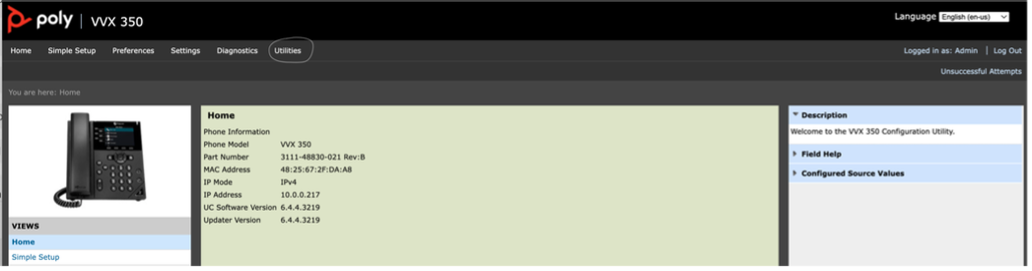
You will be prompted to enter credentials (factory default).
Login as: Admin
Password: By default, the Poly phones password is 456. Check your packaging to confirm.
Click Submit.
You will see this screen:
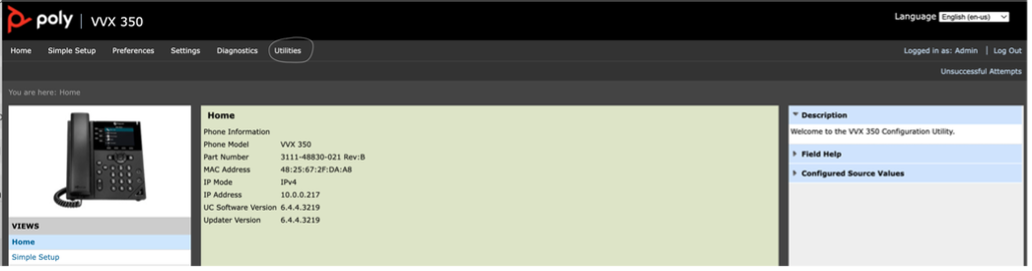
Go to Utilities > Phone Backup & Restore > Restore Phone.
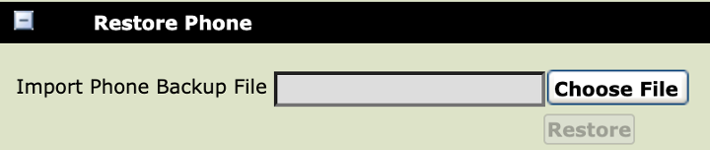
Click Choose File and upload the attached config file (with extension pbu), then Click Restore.
Note: Each desk phone will have separate pbu file.
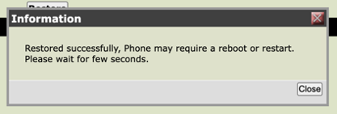
The Phone will initiate a reboot.
After restarting again enter the IP address in web browser (Step 8).
Open console by entering the username and password you entered in step 12.
Go to Settings > Lines.
Select Line 1.
Click the + Authentication to open the window seen below.
Enter password XXxxxXxxXX (shared in a separate file or email) and click Save (at the bottom of the screen).
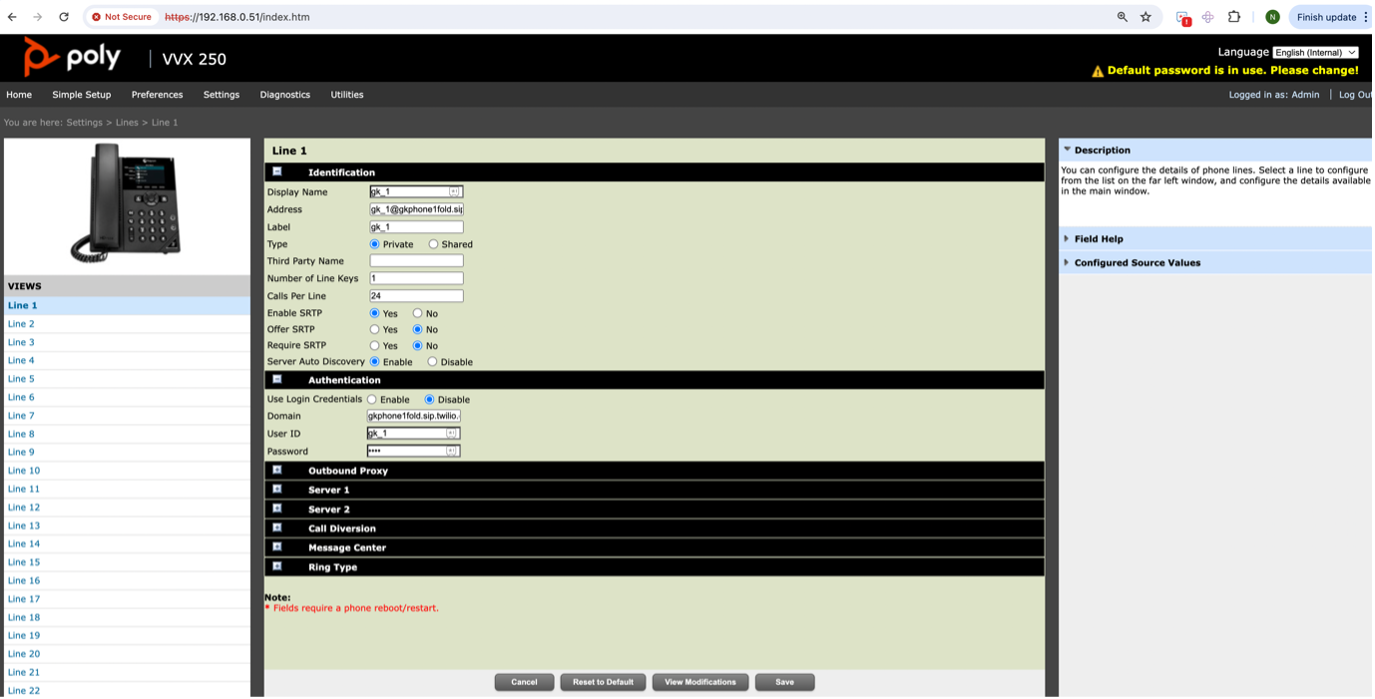
Confirm that you want to save the configuration changes by clicking Yes.
Repeat steps 18-24 for Line 2.
Both lines should show Green Checkmark on Phone's home screen
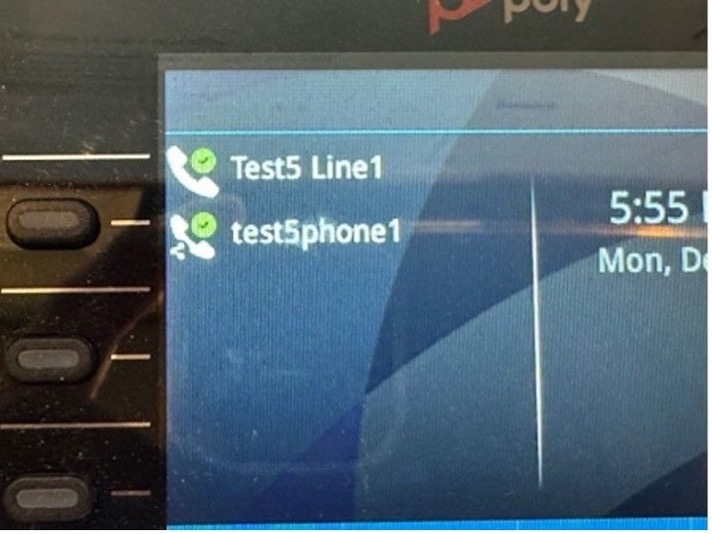
Note: Phone will restart 2-3 times in the above process.
Transferring Calls on Desk Phones
- Click on the Transfer button
- For internal transfers, dial the extension; for external transfers, dial the 10-digit number.
- Click Send
- Click on the Transfer button again.
FAQ: Recommended Equipment
For optimal audio quality and noise cancellation with Fold Health soft phones, we recommend using Jabra Evolve series headsets.
Reference : Confluence
Was this article helpful?
That’s Great!
Thank you for your feedback
Sorry! We couldn't be helpful
Thank you for your feedback
Feedback sent
We appreciate your effort and will try to fix the article