Fold Health’s Phones allow you to put calls on hold, transfer calls, mute calls and hold conference calls.
How to do a Warm & Blind Call Transfer
A warm transfer allows staff members to speak with the fellow staff member before transferring
How to do a warm transfer on my desk phone?
To transfer a call on your Polycom VVX 250 phone, follow these steps:
While on the call, press the "Transfer" button on your phone.
Dial the extension where you want to transfer the call.
Wait for the person to answer and announce the call, or press the "Transfer" button again to complete the transfer immediately.
How to do a blind call transfer on my desk phone?
A blind call transfer is exactly what the name implies, transferring a call without announcing it to the fellow employee.
If you want to transfer the call without announcing it, you can follow these steps:
While on the call, press the "Transfer" button on your phone.
Dial the phone number or extension where you want to transfer the call.
Press the "Blind" key. (Click on more)
The call will be transferred immediately without announcing it to the recipient.
How to do a warm transfer on my soft phone?
To transfer a call on your soft phone (Fold Web), follow these steps:
While on the call, press the "Transfer" button on your screen.
Type the name of the person, or the phone number of the person to whom you would like to transfer the call.
Wait for the person to answer and announce the call, you may now hang up the call
How do I forward a call?
You can forward a call by creating simple phone tree with Dial node and assign phone tree to the number
Create a phone tree
Add the “Dial” node
Input the number you want the call forwarded to in the “Dial” node
Test your phone tree!
Conference Calling
With the Conference feature, you can bring together multiple callers into a single call, allowing for collaborative discussions, team meetings, or group consultations. You have the ability to initiate a conference call, invite participants, and manage the call throughout its duration.
Here's how the Conference feature works:
Initiate a Conference: As the host, you can initiate a conference call by selecting the Conference option on the soft phone interface.
Invite Participants: You can invite other callers to join the conference by dialling their numbers or selecting contacts from your address book. You can add participants one by one or in bulk.
Manage Conference: Once the participants have joined the conference, you can control the call by muting/unmuting participants, managing participant privileges, or ending the conference if needed.
Collaborate and Communicate: During the conference call, all participants can engage in a group conversation, share information, ask questions, and collaborate effectively.
Troubleshooting Phone Configuration for Transfers
To allow your phones to transfer calls, you’ll need to make a slight change to each phone’s SIP settings. This involves logging into the phone’s configuration. Here are the steps:
Find your phone’s IP address: Click Home > Settings (option 6) > Status (option 4) > Network (option 2) > TCP/IP Parameters (option 1). The IP address is the string of numbers next to IPv4 Addr
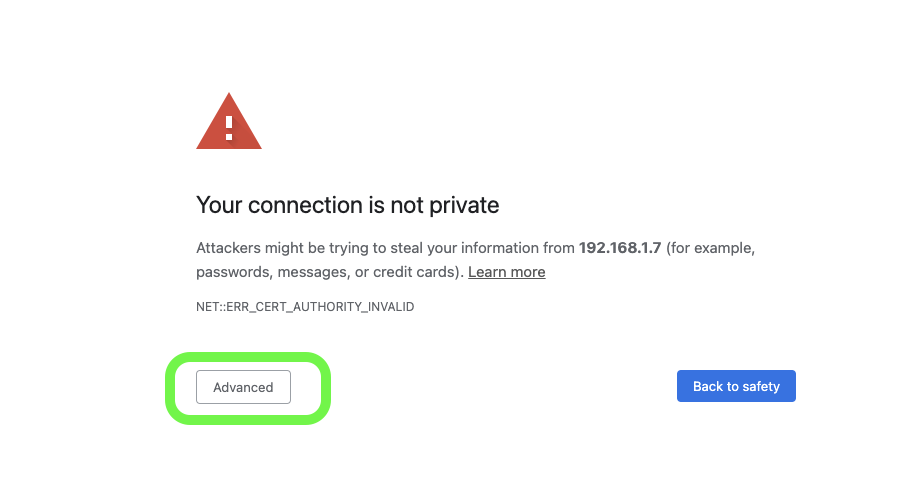
Log into your phone’s settings: Type your phone’s IP Address into an incognito browser window with https:// in front of the string of numbers. It should look similar to this: https://192.168.1.7 You may get an error message saying “Your connection is not private” with an Advanced button. Click it, then click the link that says “Proceed to” with your phone’s IP address next to it.
You’ll then need to enter your phone’s password. It should be one of the following options:
123
1234
456
123456
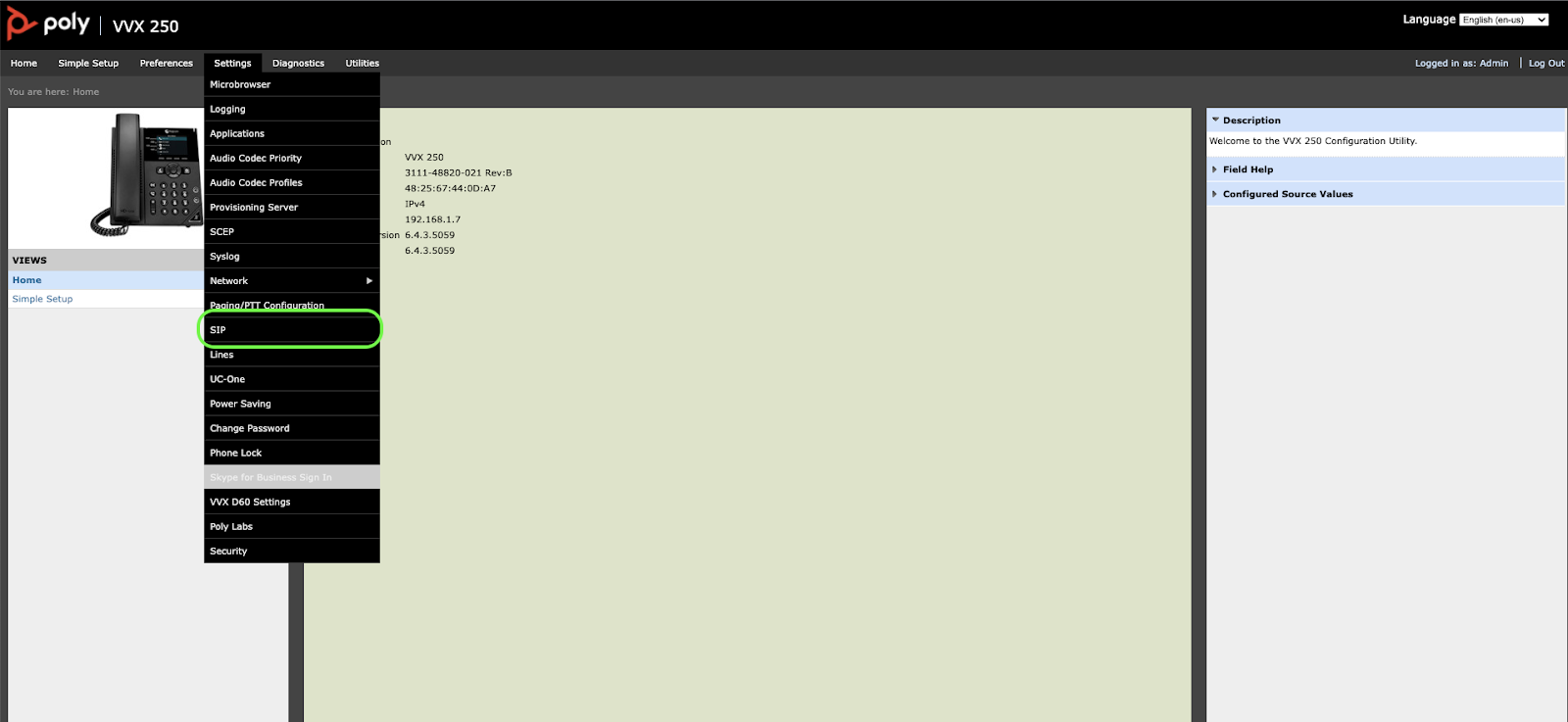
Update the SIP settings: Once you’ve logged in, click on the Settings option from the bar at the top, then click SIP from the dropdown menu.
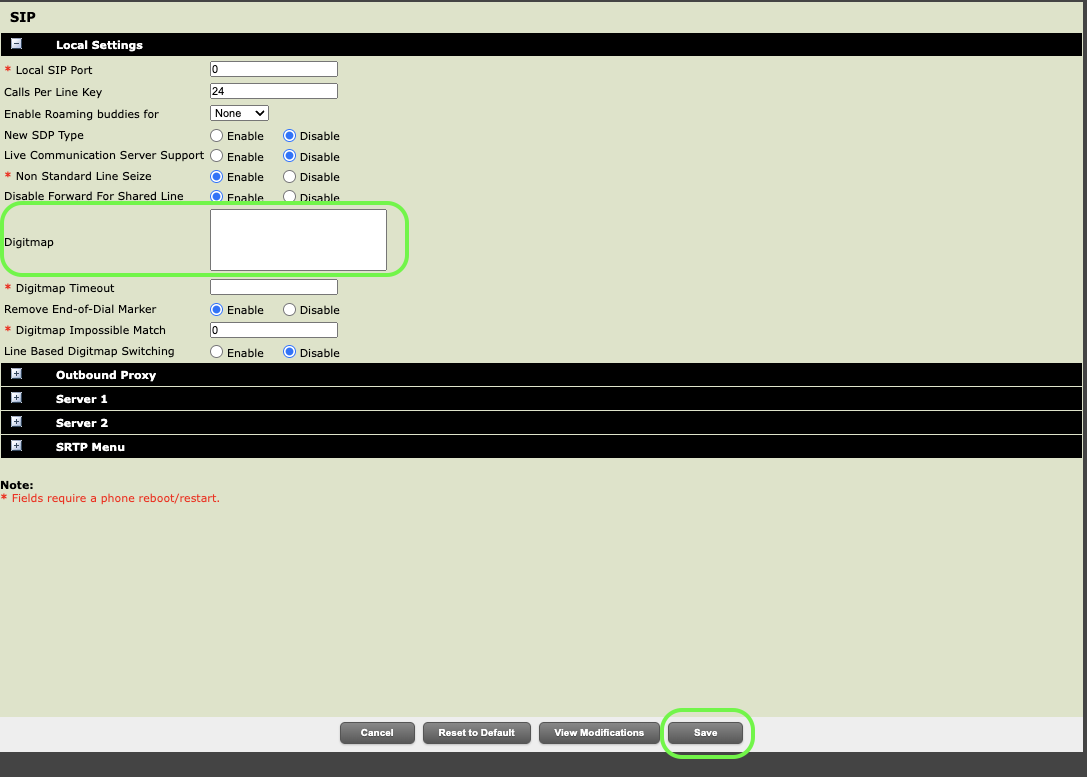
Next, find the Digimap field (highlighted in the screenshot below). Remove any characters from this box so that it is blank, just like in the screenshot. Finally, click Save at the bottom of the screen.
Finally, test transferring a call from this phone to another phone, then repeat with any phones that can’t transfer calls.
Reference : Confluence
Was this article helpful?
That’s Great!
Thank you for your feedback
Sorry! We couldn't be helpful
Thank you for your feedback
Feedback sent
We appreciate your effort and will try to fix the article