What is a phone tree?
A phone tree is set up to tell the Fold system how to handle inbound phone calls. It provides callers with multiple options when they call the configured practice number. Phone trees act as virtual receptionists, guiding callers to the appropriate department or contact based on their specific needs.
Fold supports 3 types of phone trees:
- Office hours phone trees
- Out of office hours phone trees
- Holiday phone trees
How do I create a phone tree?
1. Navigate to the Settings tab in the Fold web dashboard.
2. Click on the Calls option within the Settings menu, then select the Phone Trees tab.
3. Click on the New button to create a new phone tree.
4. Select the type of phone tree you wish to create (e.g., office hours, out of office phone tree, or holiday hours phone tree)
5. Add a name to your phone tree.
Use a naming convention that will allow you to distinguish which phone trees are for business hours, office hours, or holidays6. Select the trigger condition. Note that the trigger selection is permanent.
You must pick the correct phone tree trigger from the start when creating a new phone tree; this cannot be changed later.7. Configure the phone tree by adding menu options, routing paths, and action nodes that align with your business needs. See below for more information about nodes.
Best Practice: Add language to your Office Hours phone tree explaining both your lunch hours and out of office hours.8. Click Save in the top right-hand corner of the screen.
Which actions are available in a phone tree?
Creating a phone tree in Fold uses the dragging and dropping of "nodes." Phone tree nodes are actions that can be done when a call is initiated. The nodes that are available for incoming calls are Say, Dial, Play Audio, Menu, Membership Status, and Record.
- Say: The ‘Say' node uses text-to-speech functionality to say custom text that is input. For example, typing the words “Welcome to our clinic” would result in a female or male voice (your choice) to say the words “Welcome to our clinic” to the caller. Audio File URLs cannot be pasted in the ‘Say’ Node.
- Dial: The ‘Dial’ node forwards the incoming call to a specific number configured in the phone tree. For example, if a patient calls Clinic Number A, and the ‘Dial’ node is set to Number B, the call will be forwarded to Number B. If you are using the dial node to dial an external number, select the “Mobile” option in the drop down. The timeout parameter determines how long the phone will ring in seconds before moving on to the next action. In the US, a standard ring lasts 2 seconds and the pause between rings is 4 seconds. Therefore a wait of 20 seconds is 4 rings and 3 pauses.
- If two or more individuals are listed in the Dial Node, the phone will ring to both individuals and stop ringing once picked up by one individual.
- If two or more individuals are listed in the Dial Node and one of the individuals is busy, the phone will continue to ring for the individuals that are not busy.
- "Dial node" can only have a maximum of 10 users. To add more than 10 users, add a second dial node after the first. If none of the 10 users in the first dial node answer, then the call would ring to those users in the second dial node.
- For Twilio users, dial nodes support the conditions of Busy/No-Answer on the forwarded call. In the case of non-Twilio numbers, supporting Busy/No-Answer conditions depends on the service provider.
- Play Audio: The 'Play Audio' node allows users to upload and play an audio file when the node is triggered during a call. The supported file formats are MPEG-3 (or MP3), WAV, WAVE, X-WAV, AIFF, X-AIFC, X-AIFF, X-GSM, GSM, ULAW.
Many Fold users opt to use AI software, such as Speechify, to create audio files that use a few words recorded by your staff to generate messages that can be easily updated or changed later.- Menu: The ‘Menu' node allows callers to input numeric choices via keypad. A properly set up menu node explicitly states the numeric options available. For example, “Press 1 to hear the clinic hours of operation” and “Press 2 to leave a voicemail”. The clinic can either input text in the Message field and Fold’s text-to-speech engine will read the text in either a male or female voice or the clinic and upload an audio file. The Message field recognizes audio links in MPEG-3 (or MP3), WAV, WAVE, X-WAV, AIFF, X-AIFC, X-AIFF, X-GSM, GSM, ULAW formats. Input a URL or a “Text-to-Speech” message:
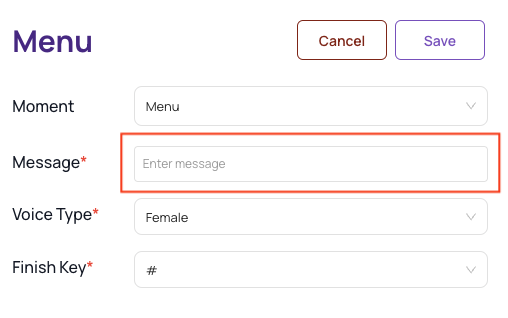
To ensure proper functionality of Menu and Play Audio nodes, we recommend uploading any audio files to Settings → Content → Media and pasting the URL into the Play Audio node instead of hosting the audio files on your own web server.- Membership: This node utilizes the membership status in the billing system (typically Hint). If the patient is calling from a number associated with an ‘Active' membership, a different workflow or set of options can be presented vs a caller who is calling from a number that is not associated with an 'Active’ member. An example of how a clinic would use the Membership node, would be to give Active Members ring-through ability after hours for urgent requests, where non active members would be asked to leave a voicemail.
- Record: The 'Record' node allows callers to leave a voicemail. The record node requires a trigger to initiate and cannot be configured/executed directly. The “timeout in seconds” field indicates the length of sound inactivity on the caller side before automatically ending the voicemail. The default Timeout setting is 10 seconds.
Example phone tree
In the below example, a caller receives a welcome message followed by a menu node. The menu node allows the called to leave a voicemail (by pressing 1) or dials through (by pressing 2). Messages for a Busy Signal and No-Answer signal are left.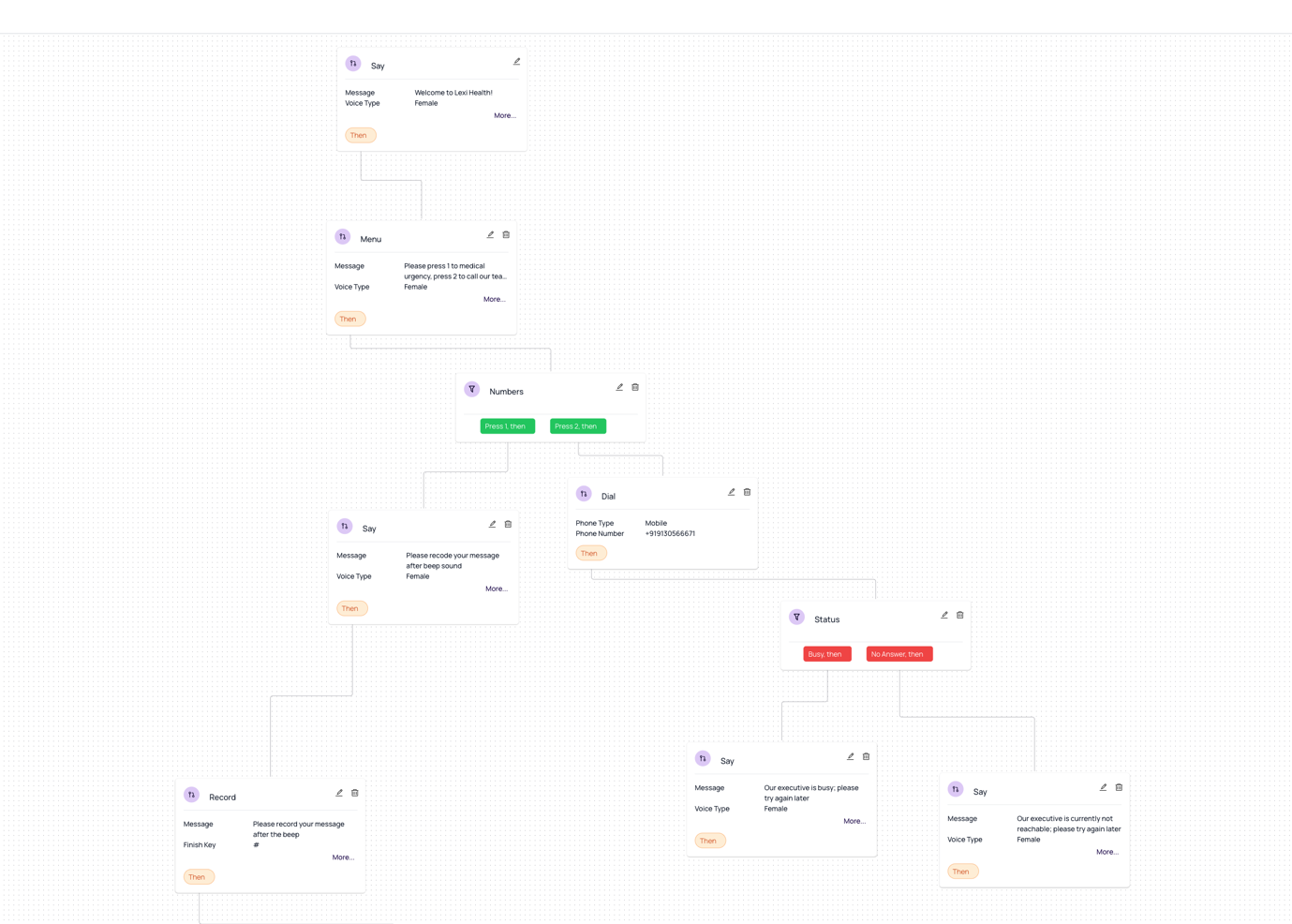
How do I assign a phone tree to a phone number?
- Navigate to Settings, then Calls, and select the Phone Number tab.
Click on the phone number you wish to configure.
Select the desired phone tree from the drop-down menu and click Set Phone Tree.
If a phone tree is missing, you will be prompted to create one.
Click Done to save your phone settings.
Fold recommends assigning an Office Hours, Out of Office, and Holiday phone tree for each phone line in your system.How does the system know when to play an office hours phone tree vs. out of office phone tree?
A phone tree follows the schedules are set in your Fold Settings tab:
- If a phone number is assigned to a staff member, then the phone tree will fire based on the staff member's schedule; the office hours phone tree you select will play during the staff member's business hours, and the out-of-office phone tree you select will play outside of the staff member's business hours.
- Similarly, if a phone number is assigned to a location, then the phone tree will fire based on the location's office hours; the office hours phone tree you select will play during that location's business hours, and the out-of-office phone tree you select will play outside of the location's business hours.
Frequently Asked Questions
What is Group Ringing and Rotational Assignment?
When setting up your phone tree with Fold Health, you have the option to choose between simultaneous ringing and sequential ringing for each extension's Call Group.
Group ringing: All enabled numbers in the Call Group will ring at the same time. The first person to answer will connect with the caller, while the other ringing calls will be dropped.
Sequential ringing: The enabled numbers in the Call Group will ring one after another, starting with the number that has gone the longest without answering a Fold Health call. It will skip any numbers that are currently engaged in an active call. This method, also known as Rotational Assignment, ensures fair distribution of calls among team members.
What happens if there’s no phone tree when a phone number is dialed?
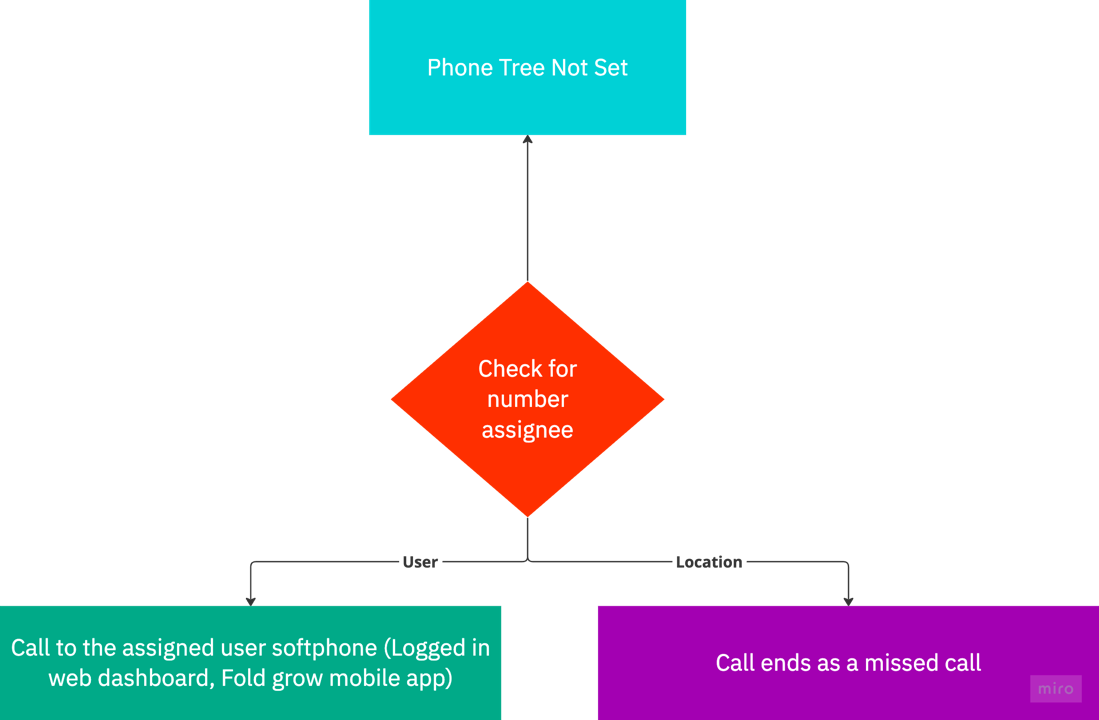
Incoming Call Handling: When an incoming call is received, if a phone tree is not configured for the workflow, the system checks the number assignee. If the number is assigned to a user, the system initiates a call to the assigned user's softphone, which can be accessed through the logged-in web dashboard, or the Fold grow mobile app. If the number is assigned to a location, the call ends as a missed call.
Can I configure a separate phone tree for holidays and office closures?
Yes. You can create and record as many phone trees for as many events as you wish. For the time being Fold will need to manually configure each holiday phone tree with a specific date and time - so once the phone tree is created please contact us at success@fold.health with the date, time and location you wish your holiday phone tree to be live and we will set it up for you. We expect to allow customers the ability to set their own holiday phone tree dates, hours and locations in Q3 of 2023.
Reference : Confluence
Was this article helpful?
That’s Great!
Thank you for your feedback
Sorry! We couldn't be helpful
Thank you for your feedback
Feedback sent
We appreciate your effort and will try to fix the article