TABLE OF CONTENTS
- Booking Appointments
- How do I book an appointment?
- Can I book a group appointment in Fold?
- Can certain staff members be prevented from booking appointments?
- Is it possible to book an appointment at a specific time outside the traditional 15 min/20 min/30 min slots, or outside of the set provider or clinic hours?
- What happens if there’s a conflict between a clinic schedule and a provider schedule?
- Can a staff member double book an appointment?
- Can recurring Appointments be booked?
- Can recurring blocks be created in Fold?
- Can multiple providers be added to an appointment?
- What are ‘Calendar Rules’ used for and how are they configured?
- Patient Self-Scheduling
- Calendar Troubleshooting
Booking Appointments
How do I book an appointment?
There are several ways for a user to book an appointment in Fold:
- Most common: Navigate to the Calendar Tab, select the provider you are scheduling with and click on any available time slot.
- Second option: Navigate to the Calendar Tab and click the “Schedule” button on the top right, select “Appointment” from the drop down menu
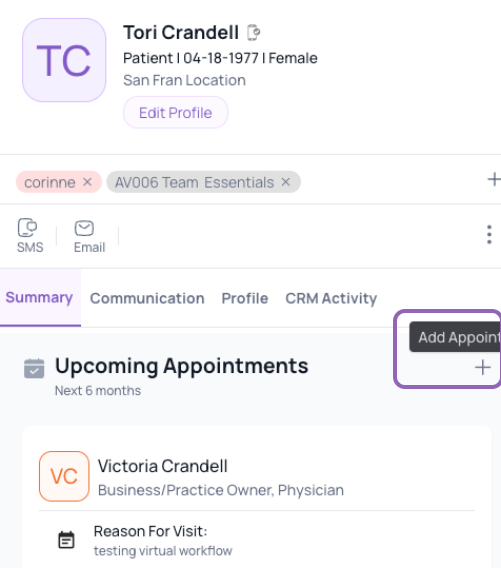
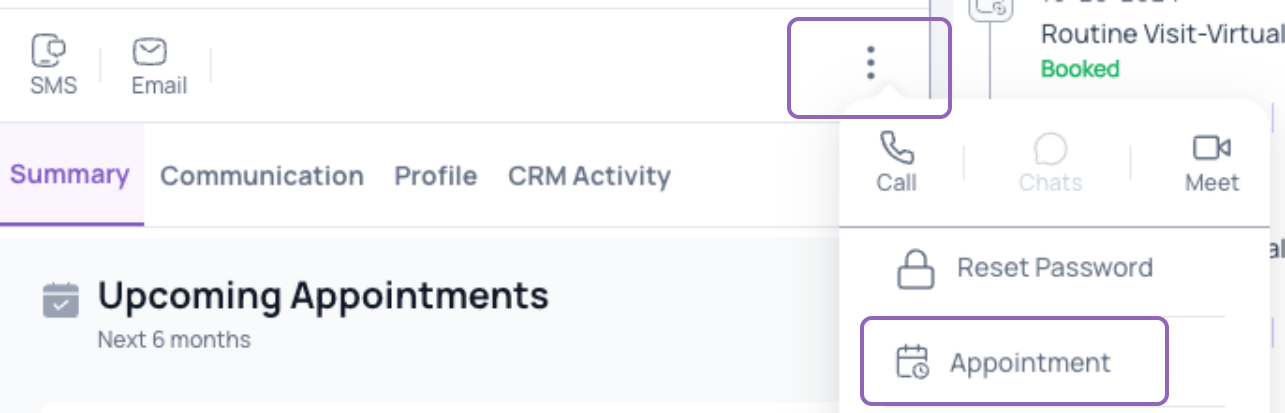
- From a patient profile, scroll to the “Upcoming appointments” header and select the “+” button. Alternatively, click the 3 dot ellipsis next to SMS, Email and click “Appointment”.
Can I book a group appointment in Fold?
Yes, you can book one-time and recurring group appointments in Fold. To book a group appointment, navigate to your calendar, click on the Schedule drop-down and select Group Appointment.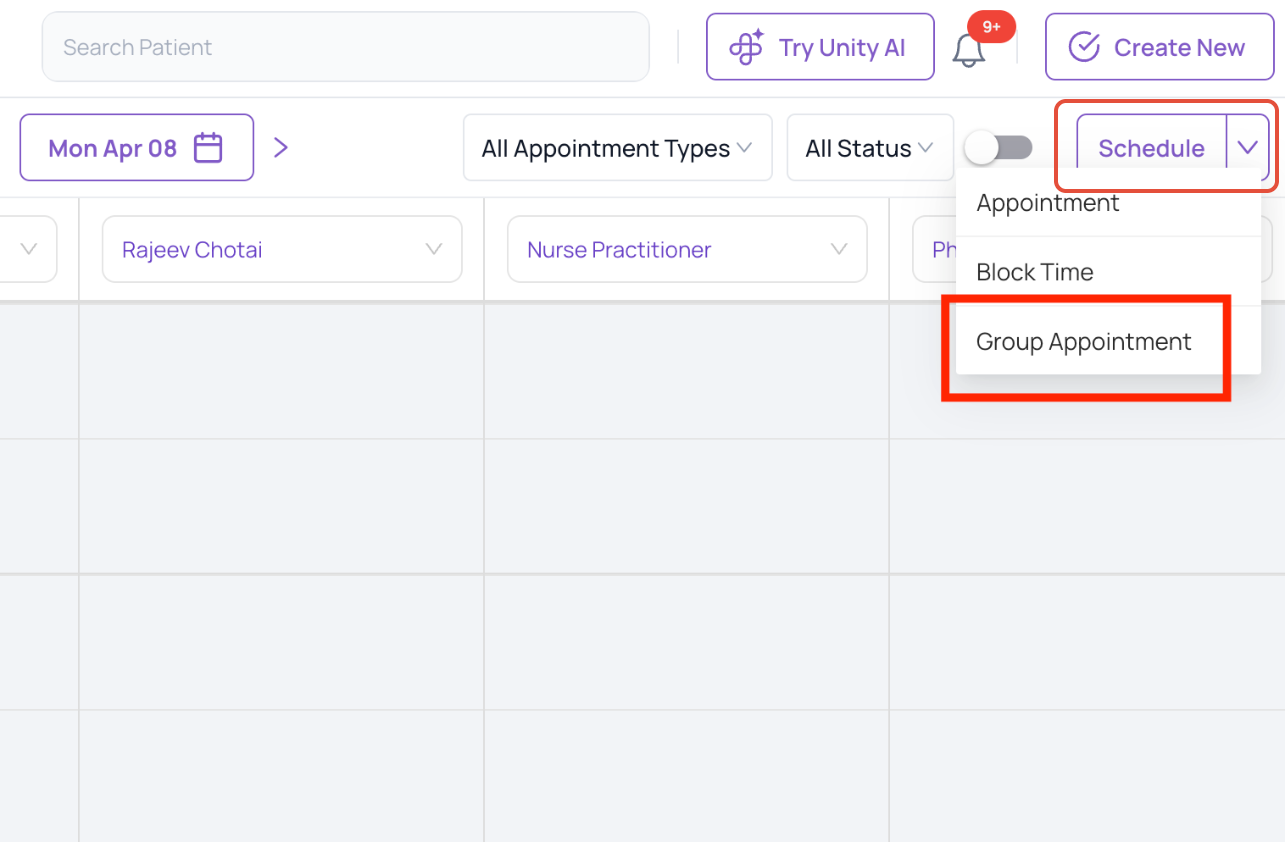
Can certain staff members be prevented from booking appointments?
Scheduling has granular permissions that can be given or revoked for individual staff members.
Navigate to the Settings → Calendar → Manage Calendar to manage which staff members can add and edit particular calendars.
Is it possible to book an appointment at a specific time outside the traditional 15 min/20 min/30 min slots, or outside of the set provider or clinic hours?
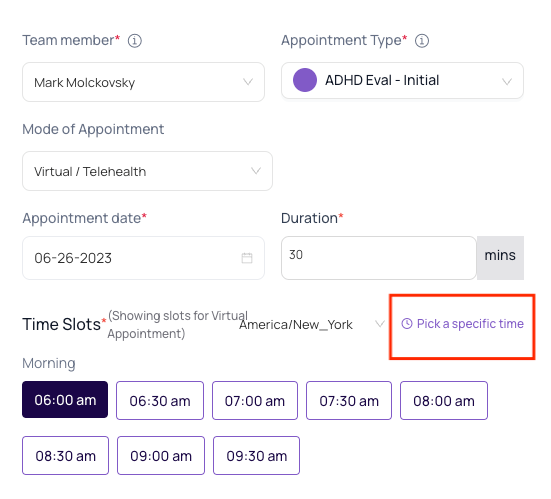
Fold allows you to book an appointment at any time. If your Appointment Types are all 20 min in length, you will see appointment slots on the hour, at 20 min and 40 min after the hour. However, if you would like to book an 20 min appointment at 1:10pm, you can do so by selecting the option to “Pick a Specific Time” on the scheduling appointments screen.
What happens if there’s a conflict between a clinic schedule and a provider schedule?
Appointments can only be booked if the provider is available and the clinic is available. When there is a conflict between a clinic schedule and a provider schedule, as in there is no availability or the appointment is outside of business hours, an appointment can still be booked; however, the staff member has to use the Pick a specific time functionality (see above).
Can a staff member double book an appointment?
To double book an appointment, navigate to the Calendar tab and select the time slot you wish to book. Appointment slots for booked appointments will not show up as available, however, the option to Pick a specific time allows you to double and triple book appointments (see above).
Can recurring Appointments be booked?
Yes, recurring appointments can be booked by toggling on the Set Recurring Appointment button when scheduling a new appointment.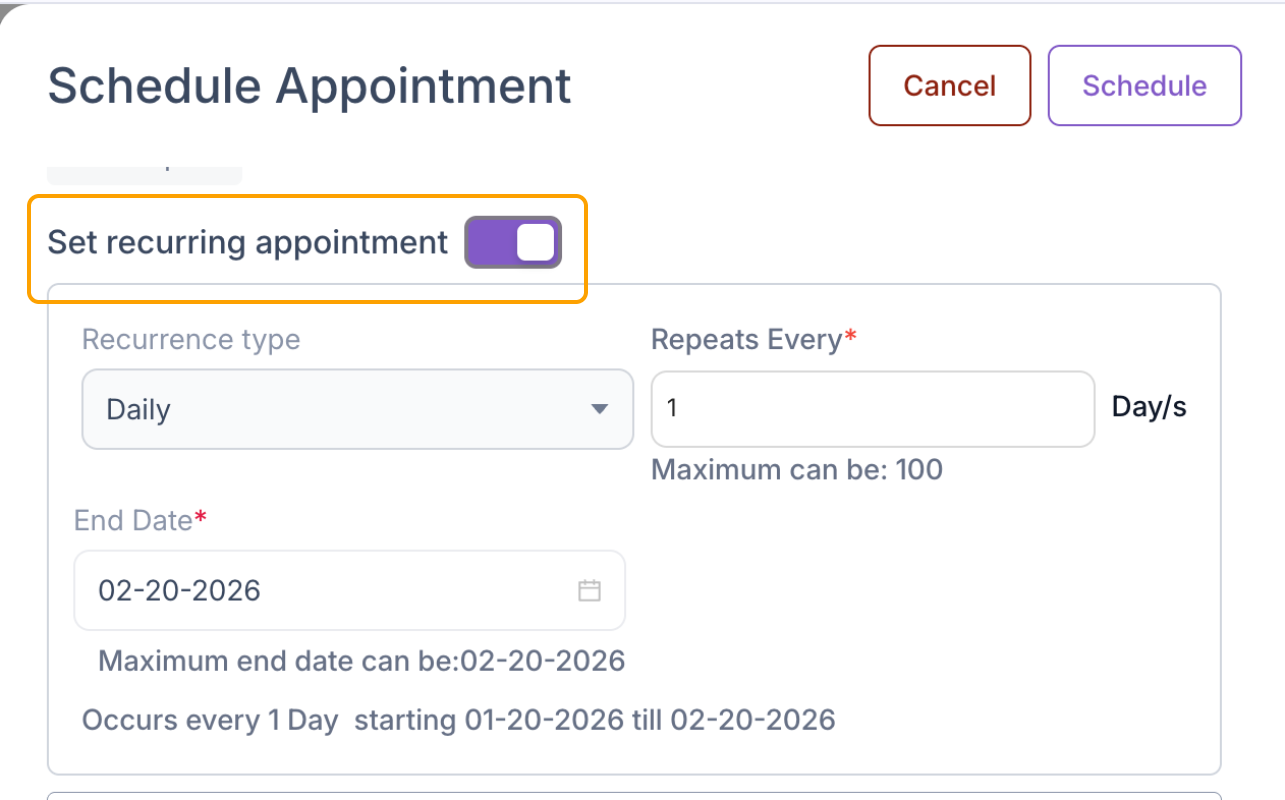
Can recurring blocks be created in Fold?
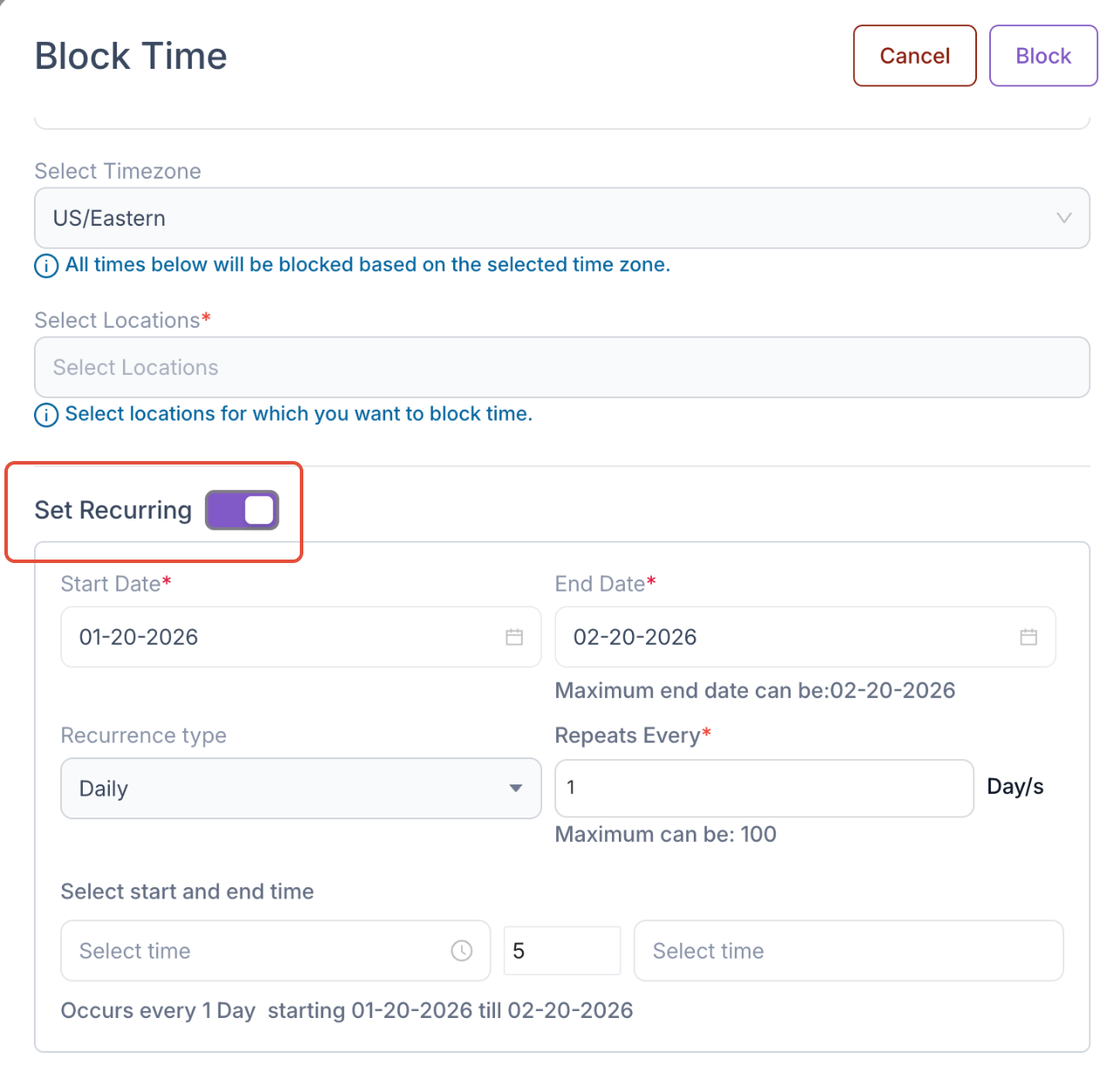
Yes, recurring blocks can be created in Fold. Navigate to your calendar, click on the Schedule drop-down and select Block Time. Within the Block Time window, toggle on Set Recurring.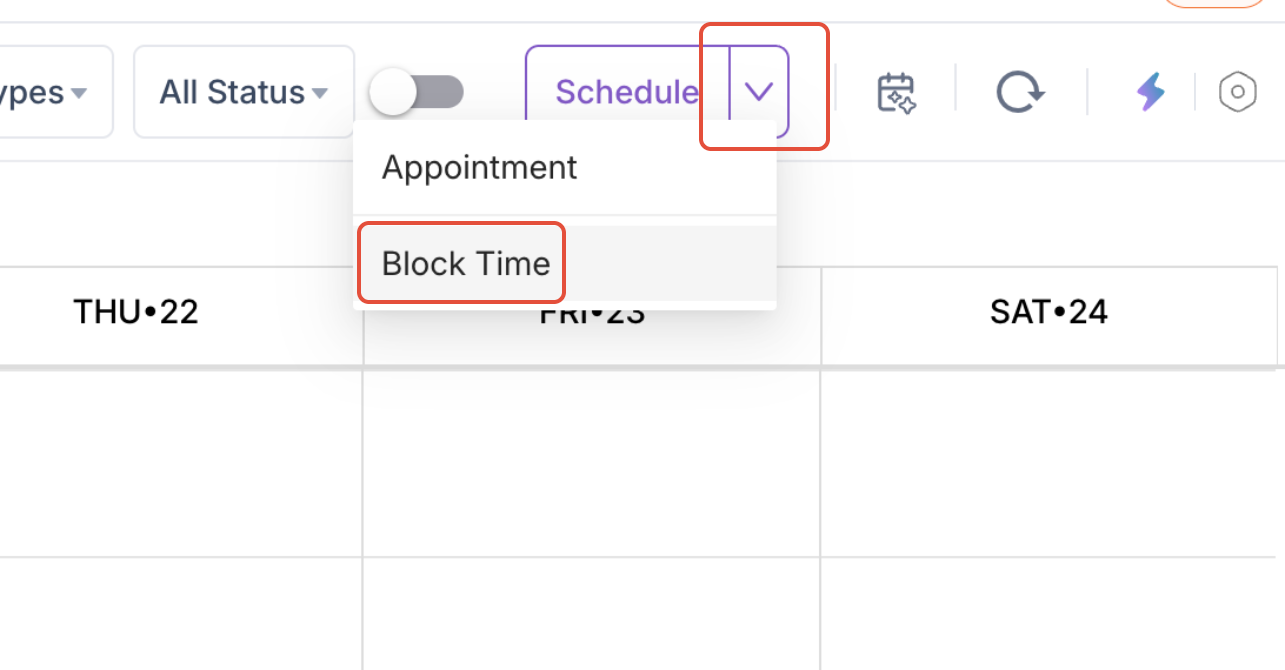
Can multiple providers be added to an appointment?
Yes, multiple providers can be added to an appointment, as long as both providers are listed in the Fold Appointment type settings.
What are ‘Calendar Rules’ used for and how are they configured?
With Calendar Rules, you can create filters to prioritize which patients can be contacted to fill holes in a schedule. The filters available for Calendar rules are the same filters that are used in Population Groups. An example of a Calendar Rule is “Active Members with Type 2 Diabetes, who are not on a statin, who have not been seen in the past 6 months.”
A Calendar Rule can be created by clicking on the widget below or accessed by going to Settings → Calendar → Suggestions.
Patient Self-Scheduling
Is patient self-scheduling possible in Fold?
Yes, in Fold you can allow patients to self schedule specific appointments types from the Fold Care mobile app, patient web app, or by sharing a self-scheduling link. To enable patient self-scheduling, navigate to Settings → Calendar → Appointment Types and select “Member Self Schedule = Yes” and edit the specific appointment type settings.
Can patient self-scheduling be limited for a certain time period in the future?
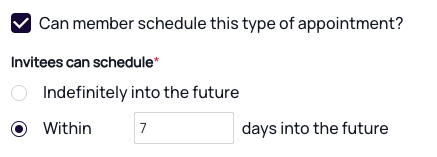
Yes, appointment types can be selected to be booked indefinitely into the future or a finite time period into the future. You can also limit the window in which patients can cancel or reschedule an appointment. Appointments can only be self-scheduled up to 90 days in the future.
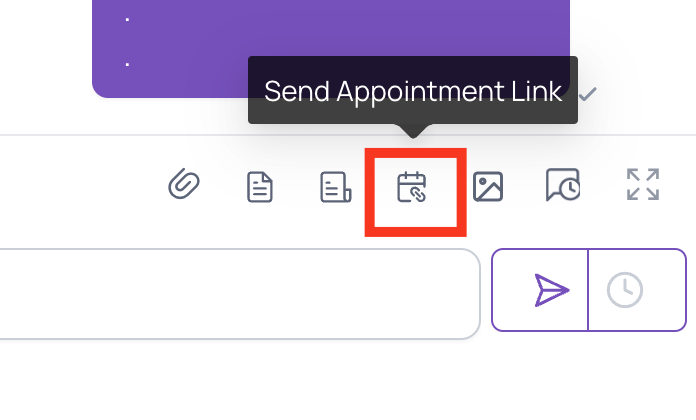
Can staff send patients appointment booking links via SMS, Email and Chat messages?
Yes, a staff member can send patients an appointment booking via email, SMS or chat message as long as the appointment type is member-facing. Appointment booking links sent via email or SMS will open in a new browser window. Appointment booking links sent via chat will open in the mobile or web app.
Can patients view, cancel and reschedule appointments from Fold Care?
Yes, all appointments booked by a staff member or by a patient can be viewed, cancelled or rescheduled by patients from the Fold Care App. You can limit the window prior to an appointment in which a patient can cancel and reschedule their appointment. Please submit a ticket if you would like to disable the ability for patients to cancel or reschedule appointments from the Fold Care patient app.
Calendar Troubleshooting
Appointments created in Fold aren’t showing up in the EHR
This may occur if:
The patient is actually a Prospect/Lead. Since Prospects/Leads are Fold-specific entities, the appointment will not sync to the EHR.
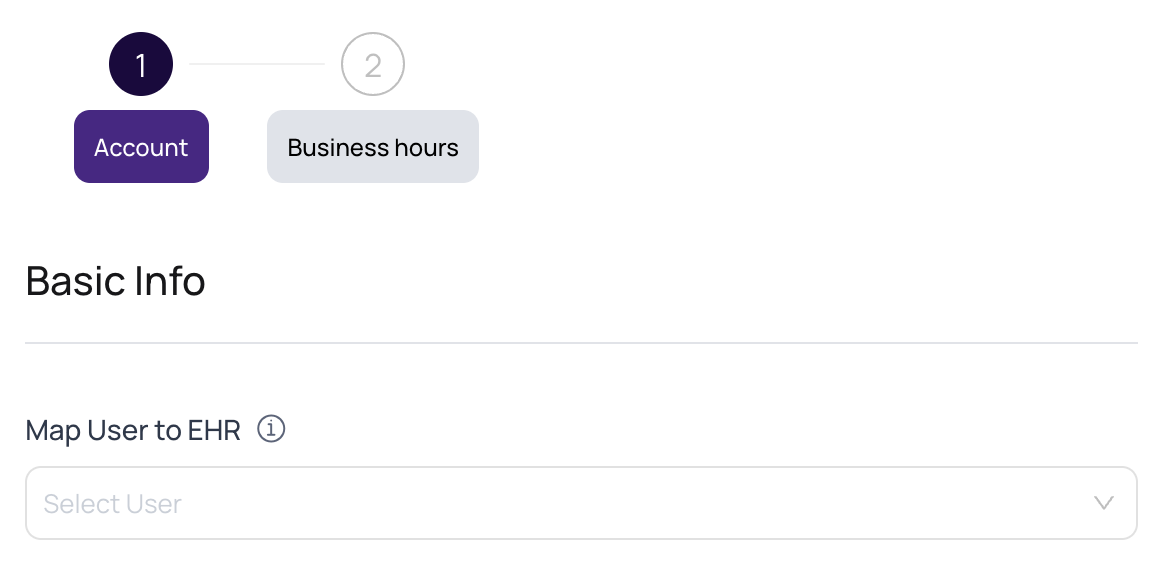
The staff member in Fold is not mapped to the EHR. To resolve this, navigate to Settings → Accounts → Staff member → Edit and select the staff member from the “Map User to EHR” dropdown.
Appointments created in the EHR are not showing patient names in Fold
The Appointment Types in the EHR may not be tied to a specific location. The best way to resolve this issue is to make sure all Appointment Types in the EHR are tied to a location. Selecting ‘All Locations’ in Fold also be a quick fix to show all information in the appointment.
Was this article helpful?
That’s Great!
Thank you for your feedback
Sorry! We couldn't be helpful
Thank you for your feedback
Feedback sent
We appreciate your effort and will try to fix the article