TABLE OF CONTENTS
Fold API
Fold is developing its own API so third parties can integrate with our software. The Fold Health API can be found here: Fold Health Developers API
Creating Email Templates and Content
Settings → Content is where you will create your email templates, forms, SMS templates, push notifications templates, Media (see all of your uploaded images including AI generated images), Articles (where you will upload educational content).
To learn more on how to create Templates and Education content check out our creating content and templates article.
Account Settings
Adding or Removing Staff Members (non Providers)
You can create a user in Fold via Settings → Account → “+ Invite User”. The user will get an email to sign up.
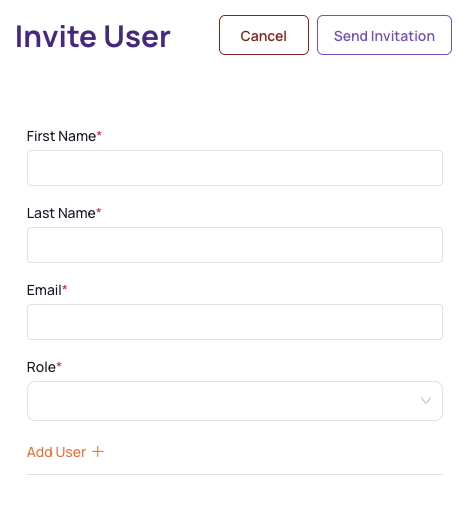
If you are using Elation as your EMR, Providers should be created in Elation first and allowed to sync with Fold.
Syncing Providers (or any desired staff member) to the EHR
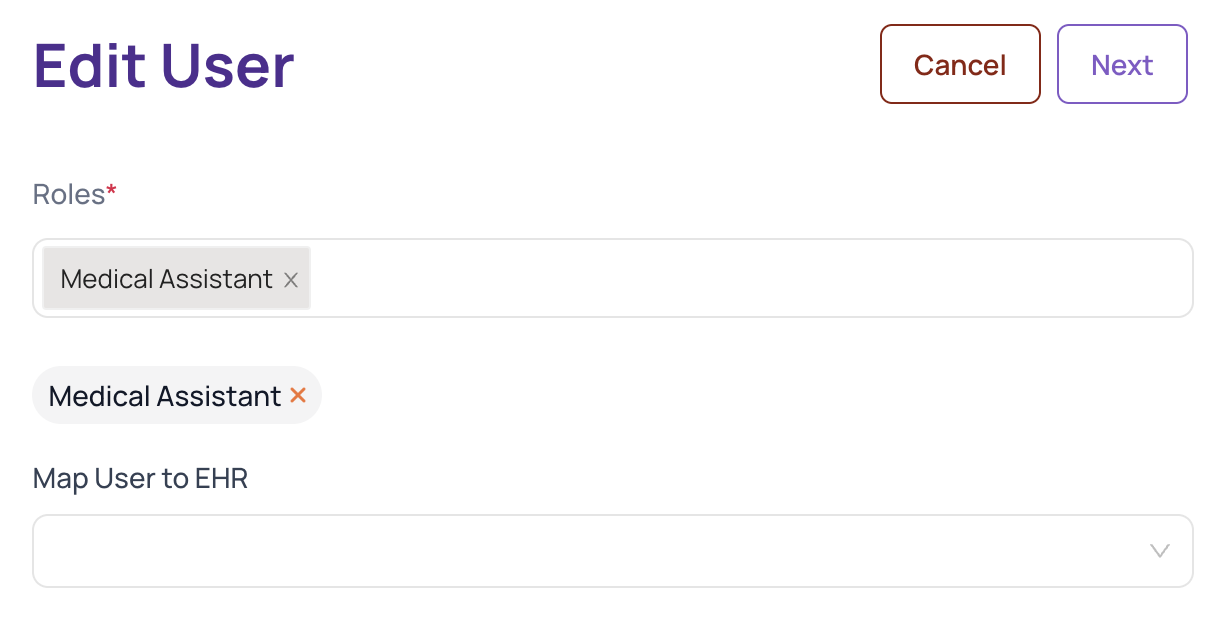
If you are using Elation as your EMR all providers should be created in Elation and allowed to sync with Fold. Once the Provider shows up in Elation, find the Provider in Settings → Account → Team → (Provider Name) and select “Map User to EHR”.
Adding a Clinic Location
You can create a new clinic location in Fold via Settings → Account → “Location +”.
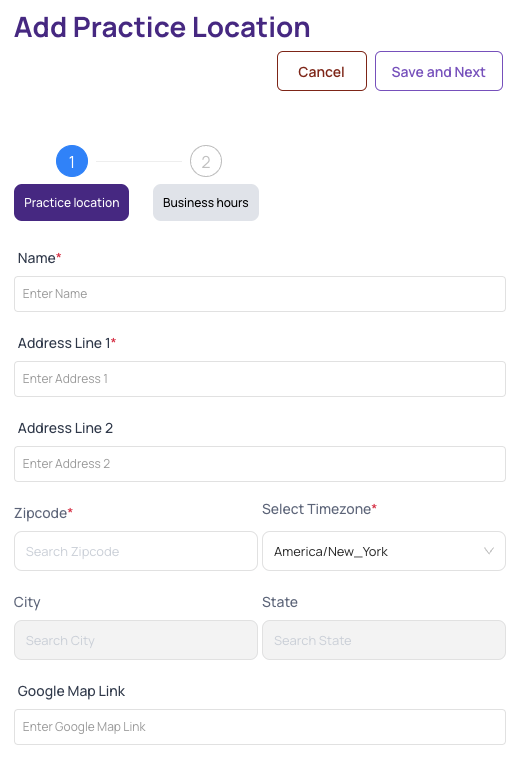
Note: If you are using Elation as your EMR, locations should be created in Elation first and allowed to sync with Fold.
Adding or Removing Fold Privileges
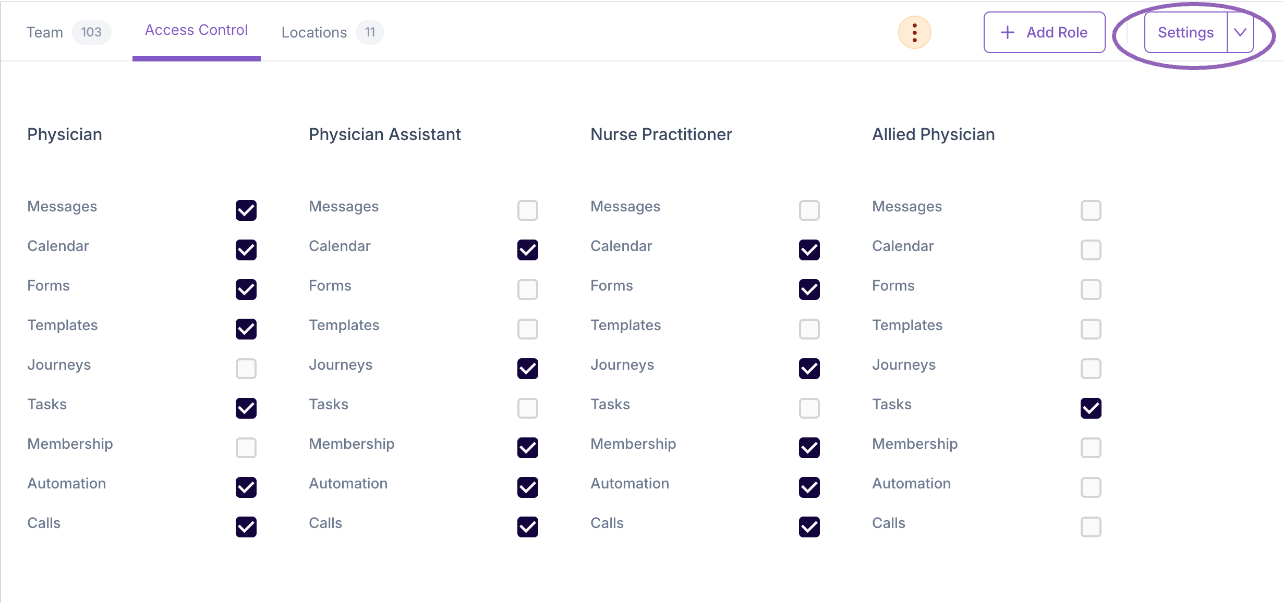
Settings > Account > Access Control.
Decide which permissions you’d like to grant for each User Role within Fold. Ensure you set permissions on both the Dashboard and Settings drop-down in the top right-hand corner.
If you would like different staff members to have different permissions within Fold (for example, you do not want to allow a junior staff member or new hire to be able to run automations or make scheduling changes on the calendar) you can edit which permissions staff members have access to by navigating to Settings → Access Controls.
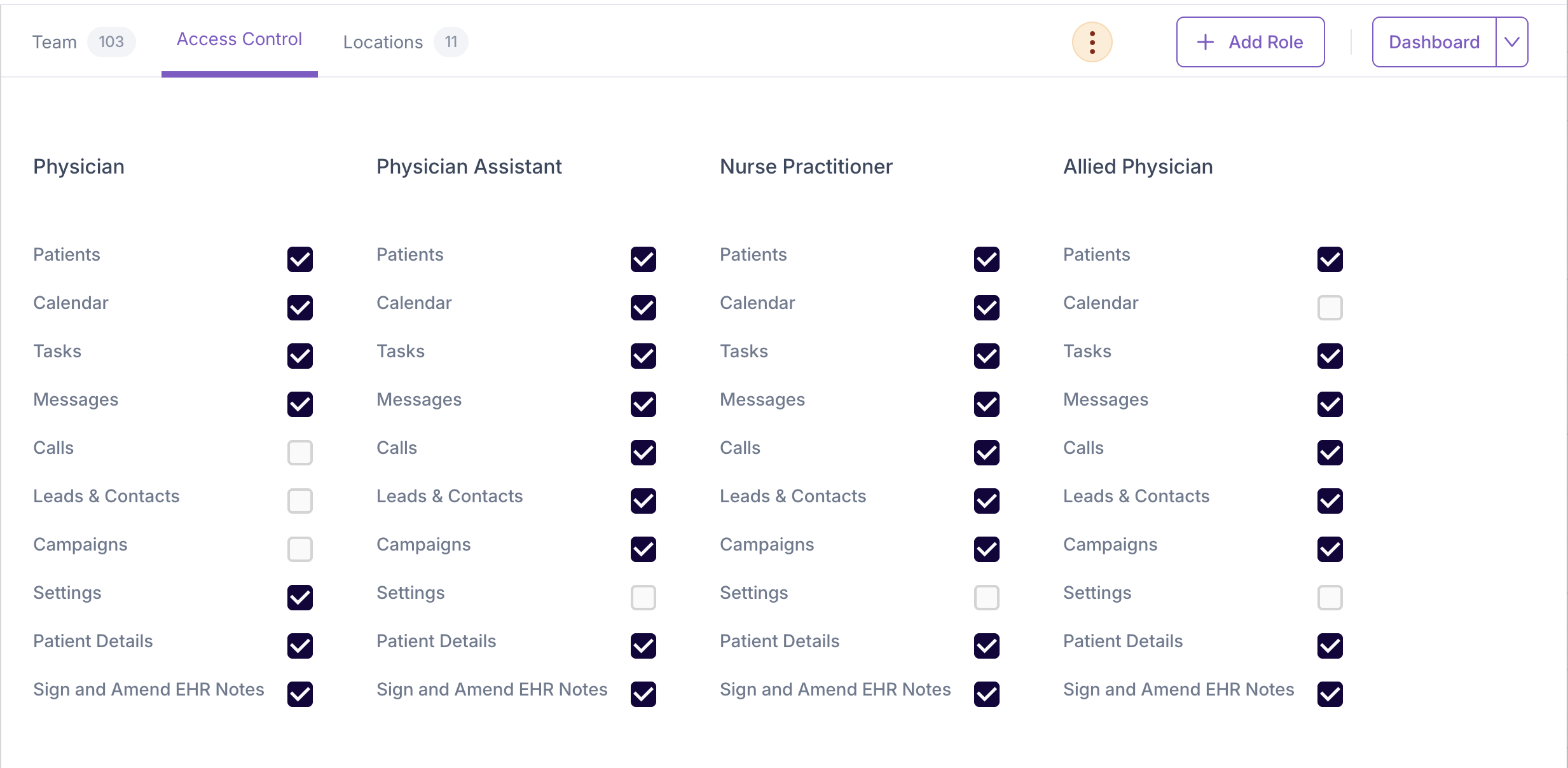
For more granular control of settings, click on the “Settings” dropdown in the top right hand corner of the column to see more granular control of settings.
How to reset a Staff Member’s Password
A staff member can reset their own password on the Fold Grow App login screen or another user can do it via the profile icon after navigating to Account → Team and finding the staff members name.
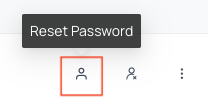
Clicking the icon above will reset a staff members password.
Wearables
The Fold Health wearables feature empowers both providers and patients to access and analyze wearable data within Fold, facilitating better-informed clinical decisions and promoting patient engagement in their healthcare journey. Let your Implementation Manager know if you’d like to enable the Wearables functionality within your Fold tablespace. Once enabled, toggle on the data points you wish to see in the patient chart after a patient has synced their wearable device(s) with the Fold Care patient app.
Best Practice: Pair wearables with population groups and automations to make the most of the Fold functionality.
Reference: Confluence
Was this article helpful?
That’s Great!
Thank you for your feedback
Sorry! We couldn't be helpful
Thank you for your feedback
Feedback sent
We appreciate your effort and will try to fix the article