TABLE OF CONTENTS
- Chat vs. SMS Functionality
- Messages FAQ
- What happens if multiple individuals share a phone number?
- How can you see which individuals share a phone number?
- How can you switch a phone number to be associated with a different profile?
- What do the checkmarks mean within chat messages?
- How can you see who has viewed a chat message?
- What are Internal Chats?
- Troubleshooting Messages
Chat messages, SMS (text messages), phone calls, and email messages can be exchanged with patients and other contacts via Fold's omni-channel communication hub. Communications are stored in the All inbox of the Messages tab, in addition to the individual profiles of each patient or contact.
Chat vs. SMS Functionality
Most practice-to-patient communication occurs via chat messages or SMS messages.
Chat messages and SMS offer different functionality:
A chat message is a secure message that is sent or received on the Fold Care patient app or web app.
An SMS is a message that is sent or received from an SMS number via Fold.
| Functionality | Chat Messages | SMS |
|---|---|---|
| Staff and patients can edit or delete their own messages once sent | Yes | No |
| Staff can add or remove staff members to message threads | Yes | No |
| Staff can add or remove Family Members / Involved Caregivers to chat threads | Yes | No |
| Staff can create Tasks from messages | Yes | Yes |
| Staff and Patients can see who has read a message by clicking on ‘Info’ | Yes | No |
| Staff and Patients can an send Attachments such as Photos or Documents | Yes | No |
| Staff can send a Form, Article or Appointment Booking Link to a Patient | Yes | Yes |
| Staff can send an Internal Chat from inside the message | Yes | Yes |
| Staff can use Template Responses in Replies | Yes | Yes |
| Staff can Archive, @mention and Assign messages | Yes | Yes |
| Staff can schedule a message to be sent in the future | Yes | Yes |
| Staff can Convert a message to a Note in the EMR | Elation Users Only | No |
| Staff can assign a communication type | Yes | Yes |
Assigning Messages
An assigned message will show up in the “Assigned to me” section of your inbox, as long as the message isn’t archived. To assign a message, click on the Assign button at the top of a message thread. Archiving a message after assigning it will cause the message to disappear from the Assigned staff member's inbox.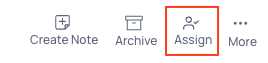
Unassigning Messages
Yes, messages can be unassigned by clicking on the green Assigned button at the top of the message thread.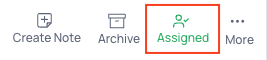
@ Mentions
Tagging someone with the @ symbol puts a note in their @ mentions section that they have been included in a message. This also results in a browser notification (if enabled) and a notification via the bell location at the top of the browser in Fold.
Creating Tasks from Messages
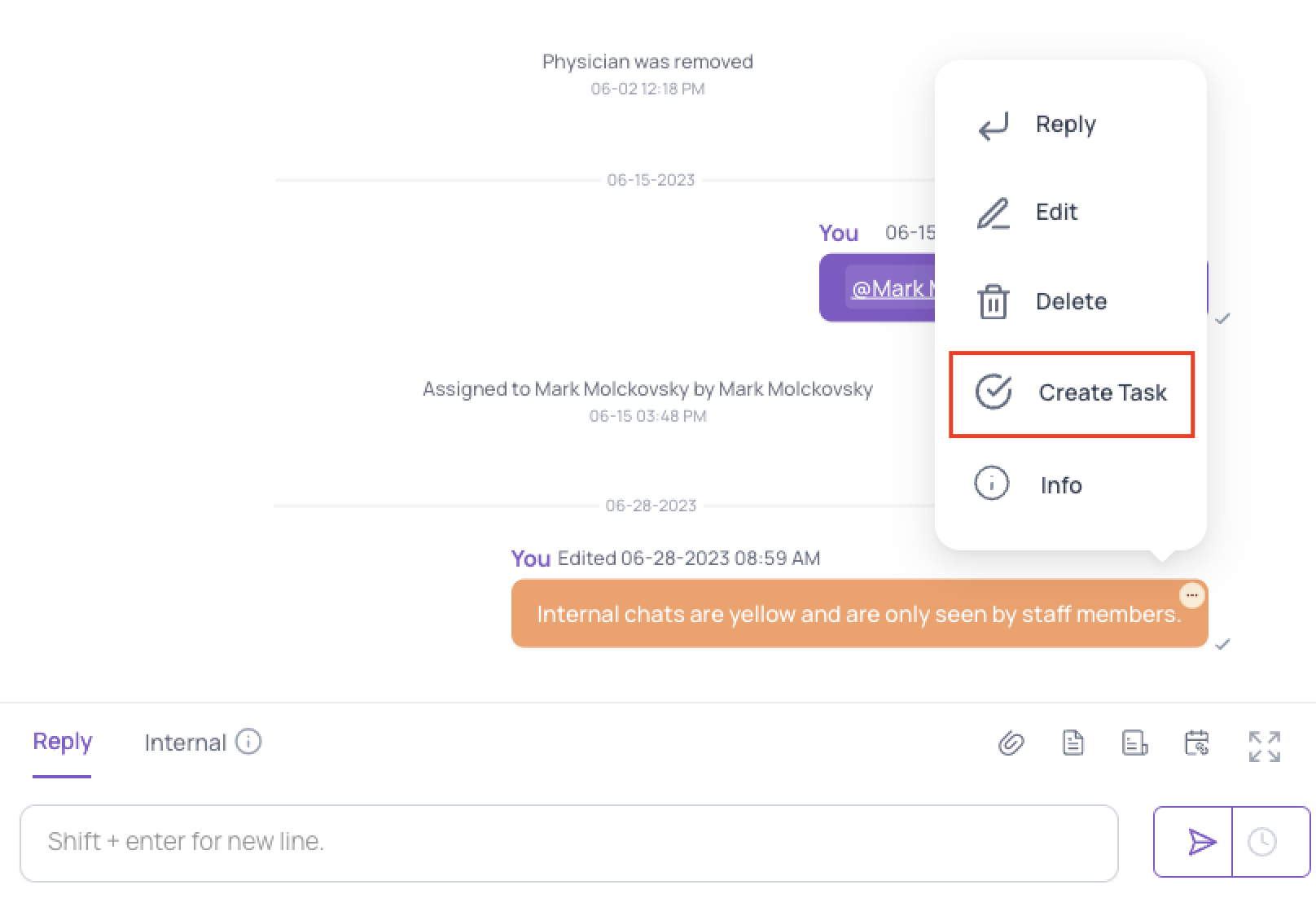
Click on the ellipsis next to a message and click Create Task.
Sending Content via Message
- Click on the paperclip icon to send an attachment. Attachments can only be sent via Chat Messages and not via SMS messages.
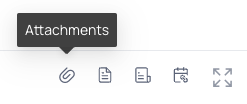
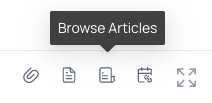
- Click on the article icon to send educational content.
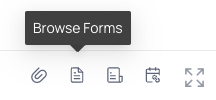
- Click on the document icon to send a Form.
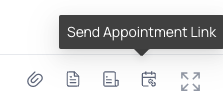
- Click on the calendar icon to send an appointment booking link for a patient to self-schedule.
Marking Messages as Unread
- Open the conversation containing the message you want to mark as unread.
Locate the specific message and right-click on it (or use the designated action button).
Select the "Mark as Unread" option from the menu.
The message will now be visually indicated as unread, making it easier to identify and revisit later.
Messages will only show as read to the patient if all staff members in the chat have read the message.
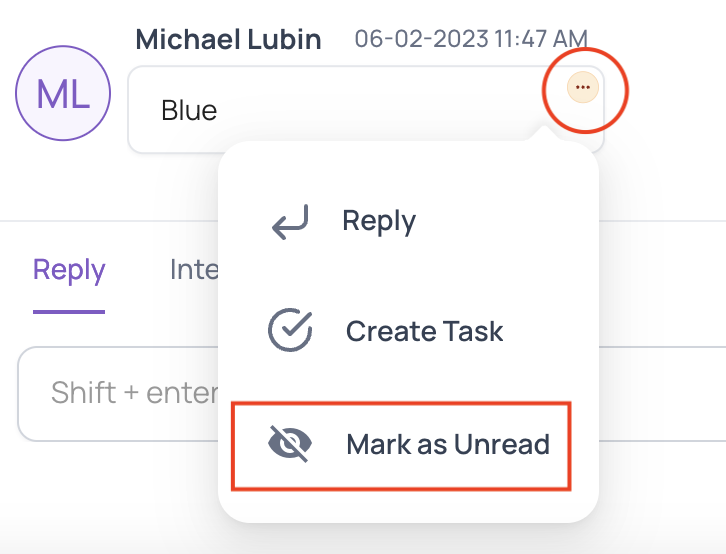
Marking a message as unread will make the message appear as unread to a patient, even if other staff members have read the message. It will only show as “Read” to the patient when all staff members have read the message.Scheduling Messages
The clock next to the send button allows a staff members to schedule a message to be sent in the future.
Creating an EHR Note from a Chat Message
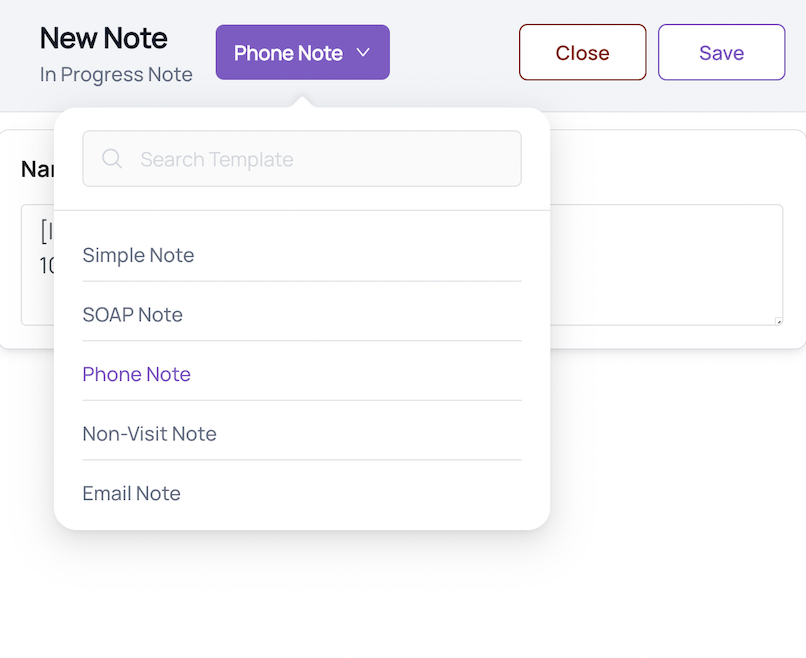
Elation users have an option to create a Note directly from Fold, which syncs directly to the Elation EHR.
- Only Providers with the permissions to create and save clinical notes can write notes from Fold to the EMR.
- The note types that can sync to Elation are Simple Notes, SOAP Notes, Phone Notes, Non-Visit Notes and Email Notes.
Steps:
- Select “Create Note” directly from the messages screen.
- Select which messages should be included in the note.
- Click “Save Note.”

Adding a Communication Type to a Message
Communication types allow you to label asynchronous communication and add CPT Codes to said communication. To add a message label, find the message you wish to label, click on the ellipsis and assign the communication type.
Messages FAQ
What happens if multiple individuals share a phone number?
If multiple individuals are associated with a phone number, Fold will only display the SMS message thread with the first profile that was created with the phone number. This is true of Prospect and Patient profiles. If a patient calls in before becoming a patient/member, there’s a chance that their SMS thread will show up under a Prospect Profile.
How can you see which individuals share a phone number?
In the SMS thread, underneath the patient name, you will see all individuals associated with a single phone number.
How can you switch a phone number to be associated with a different profile?
The “Update Contact Display” feature from within the Messages tab allows you to change which profile an SMS number is associated with.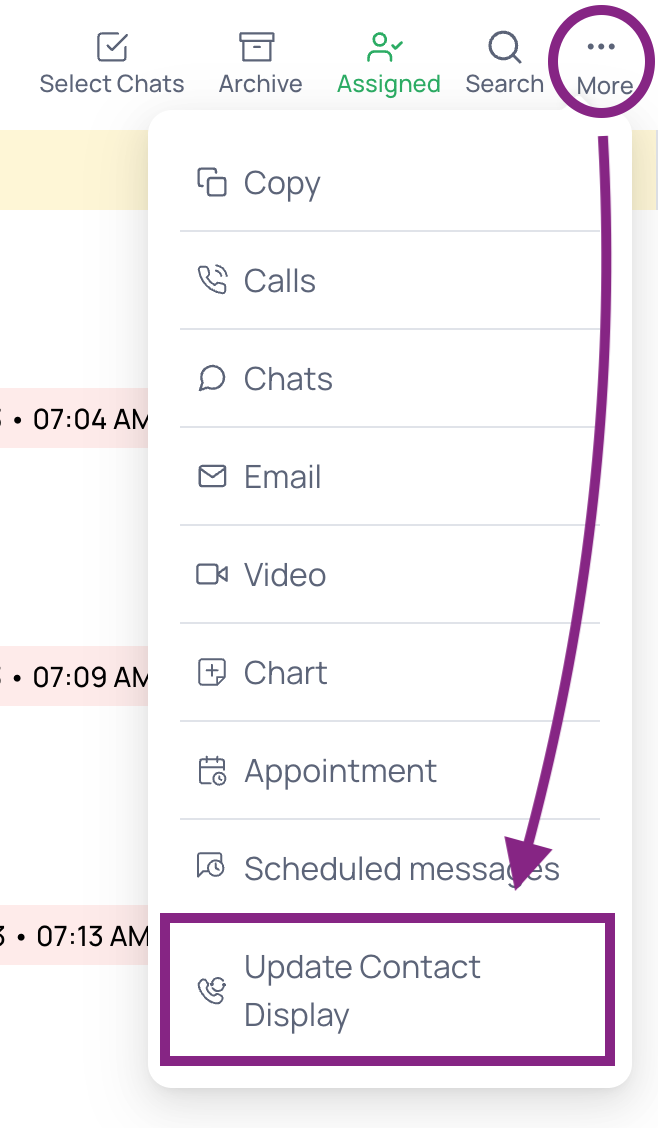
What do the checkmarks mean within chat messages?
A single checkmark means that a chat message was sent. Two double green checkmarks mean that all of the relevant parties have seen a chat message. For example, if there are multiple non-staff members in a chat thread, double green checkmarks will show up when all non-staff members have read the chat message. 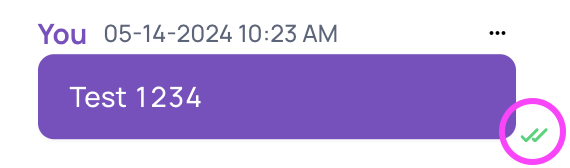
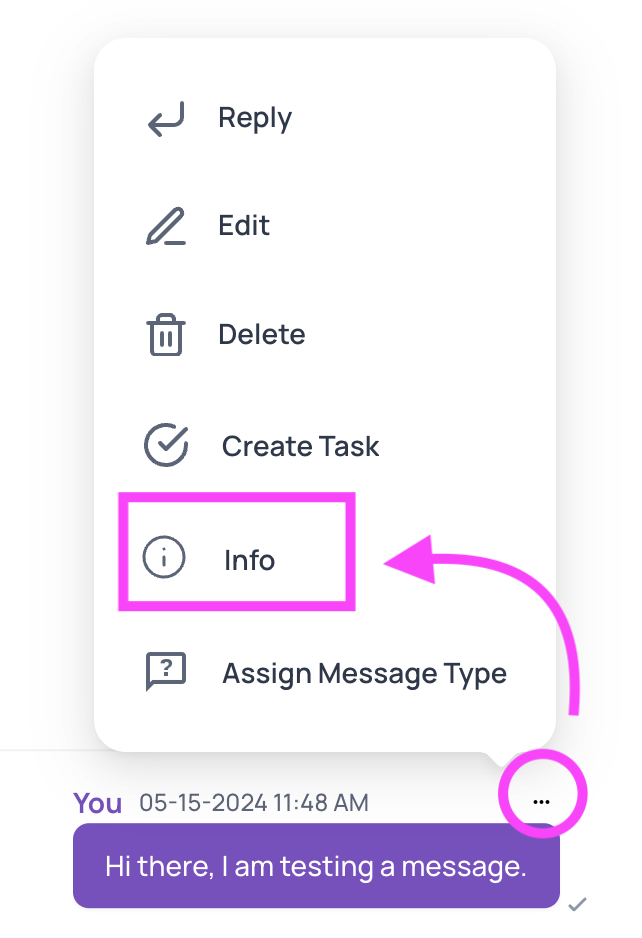
How can you see who has viewed a chat message?
Clicking on the ellipsis next to a chat message will open a pop-up. Click on the Info button in the pop up to see a list of all staff and non-staff members who have seen the message. Double green checkmarks mean that the individual has seen the message.
What are Internal Chats?
Internal chats are chats between staff members that are not viewable by patients or caregivers. Internal chats show up as orange. See below for an example.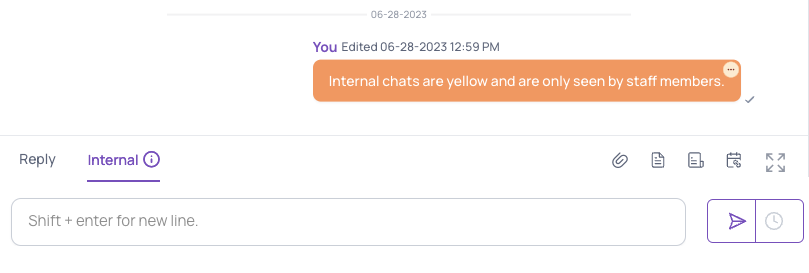
The internal chats tab on the Message tab is a list of internal-only chats and can be great for coordinating internal teams.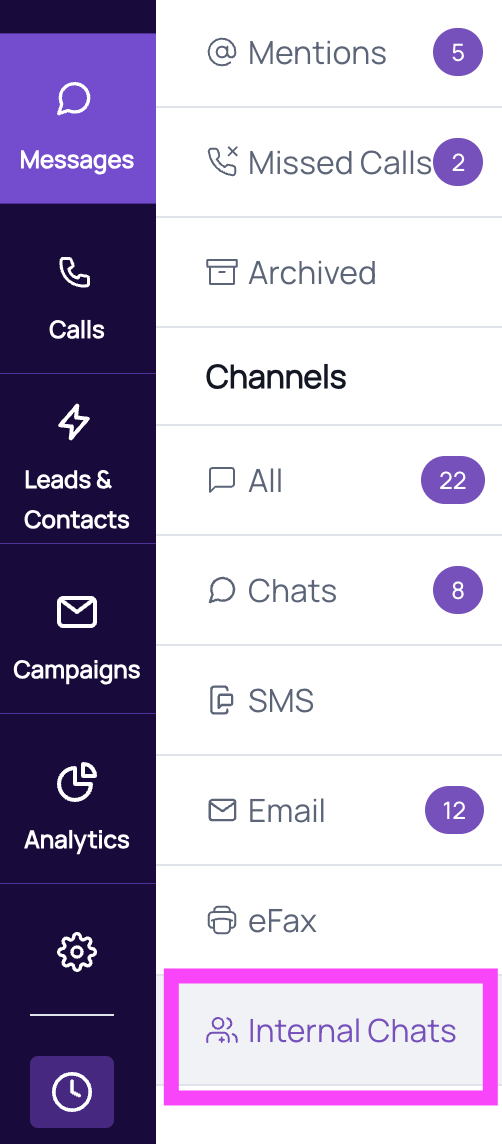
Troubleshooting Messages
Why aren't my SMS messages sending?
There are a few different reasons your SMS messages may not be going through:
No default SMS number chosen. If the SMS was scheduled to send via a Fold Journey or Automation, if there is no default SMS number selected, then no SMS will be sent.
A word in the SMS message is restricted. Some SMS carriers block the sending of SMS messages that contain the name of a controlled substance(s). This affects a minority of people in the USA. We recommend avoiding the use of controlled substance names in SMS messages to patients and instead calling the user with updates, using chat messages, or using a generic word such as ‘medication’ instead of the specific medication name if SMS communication is unavoidable.
The patient doesn’t have a valid phone number on file.
The exact same SMS was sent within the past 60 minutes via an automation. Fold does not allow users to send identical SMS messages (or emails) to be sent more than once per hour.
Why can't I @ mention someone in a message thread?
- If it is a chat message, the staff member may not be part of the message thread and must be added for the @ mention functionality to work.
- If it is an SMS, the staff member may not be part of the SMS inbox and must be added for the @ mention functionality to work. Visit this page for more information about managing inbox permissions.
Why can't I see certain messages?
Make sure the staff member has the proper permissions to view messages for that inbox. Visit this page for more information about managing inbox permissions.
If the message is a chat message, the staff member might not be part of the message thread. If that is the case, you will want to invite the staff member to the message thread.
Why did a message thread I was working on disappear from my inbox?
Someone may have archived the message that you were working on.
If a specific chat message disappears, it’s possible that the sender deleted the message.
Was this article helpful?
That’s Great!
Thank you for your feedback
Sorry! We couldn't be helpful
Thank you for your feedback
Feedback sent
We appreciate your effort and will try to fix the article