TABLE OF CONTENTS
- What is a lead?
- How are leads created?
- Frequently Asked Questions
- Are leads and other contact types synced to the EMR or billing software?
- What format of the .csv file should the bulk import take?
- What actions can be taken on a lead or contact?
- What actions cannot be taken on a lead or contact?
- Can a lead or custom contact be deleted?
- What happens when a phone number is shared between a Lead, Contact, or a Patient?
- A patient has a member profile and a lead profile, can I merge the profiles?
- What is a Lead Group and how is it used?
- How do I add a custom field to my leads & contacts?
What is a lead?
A Lead is a contact type that that is distinct from a member or patient. Leads are the default non-member contact type that ships with your tablespace. In Fold, you can create your own custom contact type.
Leads/Contacts can be converted to members.
Leads/Contacts can be imported in bulk or manually imported.
Leads/Contacts cannot be invited or added to the Fold Care App or added as caregivers to patients.
Leads/Contacts can be used in Campaigns and Automations.
Best Practice: Add commonly used third-party providers to the leads & contacts module of the tablespace. Local pharmacies, hospitals, urgent care facilities, etc.
How are leads created?
Leads can be created in several ways:
- Manually create a new lead from Leads → Add New.
- Bulk import from a .csv file from Leads → Import.
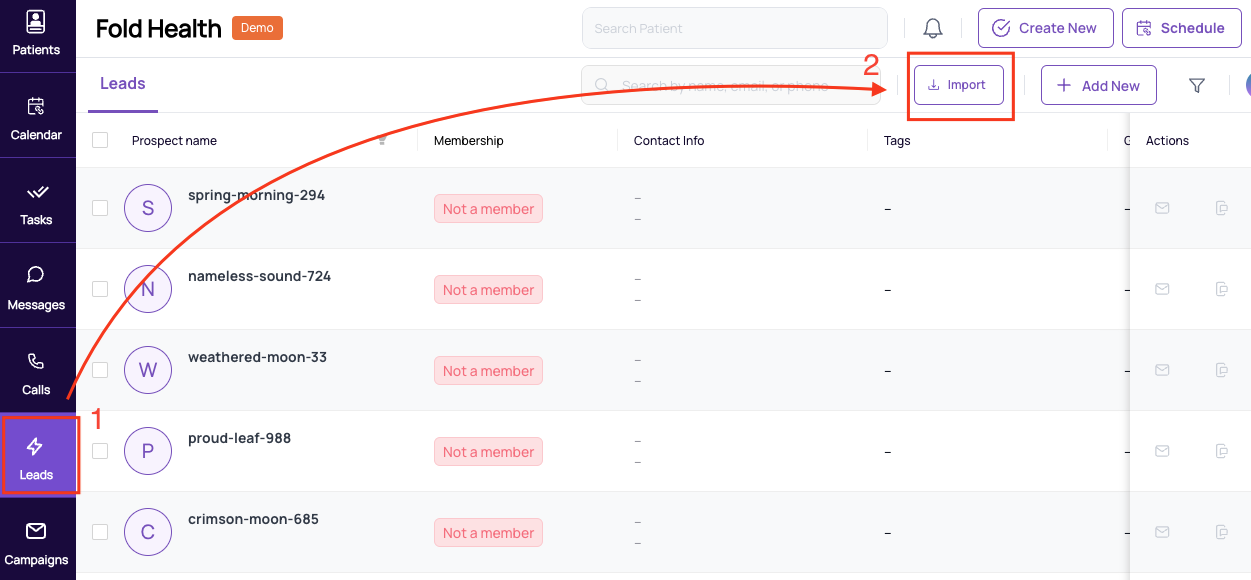
- Automatically - when someone contacts the clinic via phone, email or SMS. If a phone call is made to the clinic, the Fold system checks if the incoming call number matches any existing patients or contacts in the database. If no match is found, the system creates a lead to capture the details of the incoming call.
Frequently Asked Questions
Are leads and other contact types synced to the EMR or billing software?
At present, Leads and other custom contact types are Fold-only entities, and as such, Leads are not synced to your EMR or billing system.
What format of the .csv file should the bulk import take?
The default format for import is shown below. If a custom contact field is created, then the Import should also include a Custom Contact Field. 
What actions can be taken on a lead or contact?
A lead or contact...
can be added as a family member to an existing patient or an existing lead
can be sent forms
can be sent SMS messages (if they have an SMS number on file)
can be sent emails (if they have an email on file)
tags can be added to leads
contact notes can be added to leads
can be sent appointment links as well
can be included in campaigns
can be included in automations
can be converted to members (depending on the settings in the custom contact type)
What actions cannot be taken on a lead or contact?
A lead or contact...
cannot be added to static or dynamic population groups
cannot be assigned a Journey
does not show up in your EMR
Can a lead or custom contact be deleted?
The functionality to delete a lead or contact is on the roadmap and will be for specific users with certain roles.
What happens when a phone number is shared between a Lead, Contact, or a Patient?
Oftentimes individuals share mobile numbers in households and not everyone in the household is a member of the clinic. If a Lead, Contact and a Patient share the same phone number, the SMS group messages will be associated with whomever contacted the clinic first. If you would like to move the SMS thread from a Lead, CCT or a Patient you will need to “Update Contact Display” by navigating to the Messages tab, searching for the patient thread, clicking on the ellipsis and “Updating Contact Display”.
A patient has a member profile and a lead profile, can I merge the profiles?
If you would like to merge the Lead profile with a member profile you can convert the lead to a member and merge the two member profiles in the EMR. If you would like us to delete the “old” profile in Fold please send an email with the profile URL to success@fold.health.
What is a Lead Group and how is it used?
A Lead group is similar to a dynamic Population Group in the sense that the group members are based on dynamic filters that updated and an automation can be executed on a Lead group. Lead groups and Population groups differ because Population Groups are for patients/members only and Lead groups can be used for any user-created Contact Types in Fold. Additionally, Lead Groups and Population Groups have different filters listed below.
Lead Groups Filters | Population Groups Filters |
|---|---|
|
|
How do I add a custom field to my leads & contacts?
See our Custom Contact Fields page for more information about how to create a new custom field.
Was this article helpful?
That’s Great!
Thank you for your feedback
Sorry! We couldn't be helpful
Thank you for your feedback
Feedback sent
We appreciate your effort and will try to fix the article