TABLE OF CONTENTS
- How are patients created in Fold?
- What happens when I create a new patient in Fold or my EMR?
- Is there a full list of information that is synced to from Fold to my EMR?
- What happens when I create a new patient in my billing software (ie. HINT)?
- How do I create a Note Template in Fold?
- What’s the difference between a Member and a Lead?
- What is an Active vs Inactive Member in Fold?
- How does one change a patient from Inactive to Active in Fold & vice versa?
- What is an Attributed Members vs. Non Attributed Member?
- How do I add Family Members or Caregivers?
- I cannot find a patient that I know exists in Fold, what happened?
- What is a sticky note vs. a contact note?
- How do I delete a Patient or a Lead?
- Can Fold use a patient's chosen name instead of their legal name by default?
How are patients created in Fold?
Patients are created either manually in Fold, or when a patient is created in an integrated partner such as HINT, Elation or Athena.
What happens when I create a new patient in Fold or my EMR?
- New patients created in Fold will automatically sync the data with your EMR within a few minutes.
- New patients created in your EMR will also sync with Fold in just a few minutes.
For HINT users: New patients created in your EMR (Elation) or Fold will automatically show up in HINT without a membership plan or billing information. If you would like to make any member created in Elation or Fold an active member, a membership plan and billing information needs to be added in Hint.
Is there a full list of information that is synced to from Fold to my EMR?
A full list data that syncs from the EMR to Fold is linked to below. Please be advised that the below list is only updated periodically and not meant to be a comprehensive up to date list.
What happens when I create a new patient in my billing software (ie. HINT)?
When a new patient is created in HINT, the patient will appear in your EMR and in Fold. Membership status and employer data will appear in Fold as tags within a few minutes.
How do I create a Note Template in Fold?
Note templates are created in Settings → Content → Forms → “+ New”.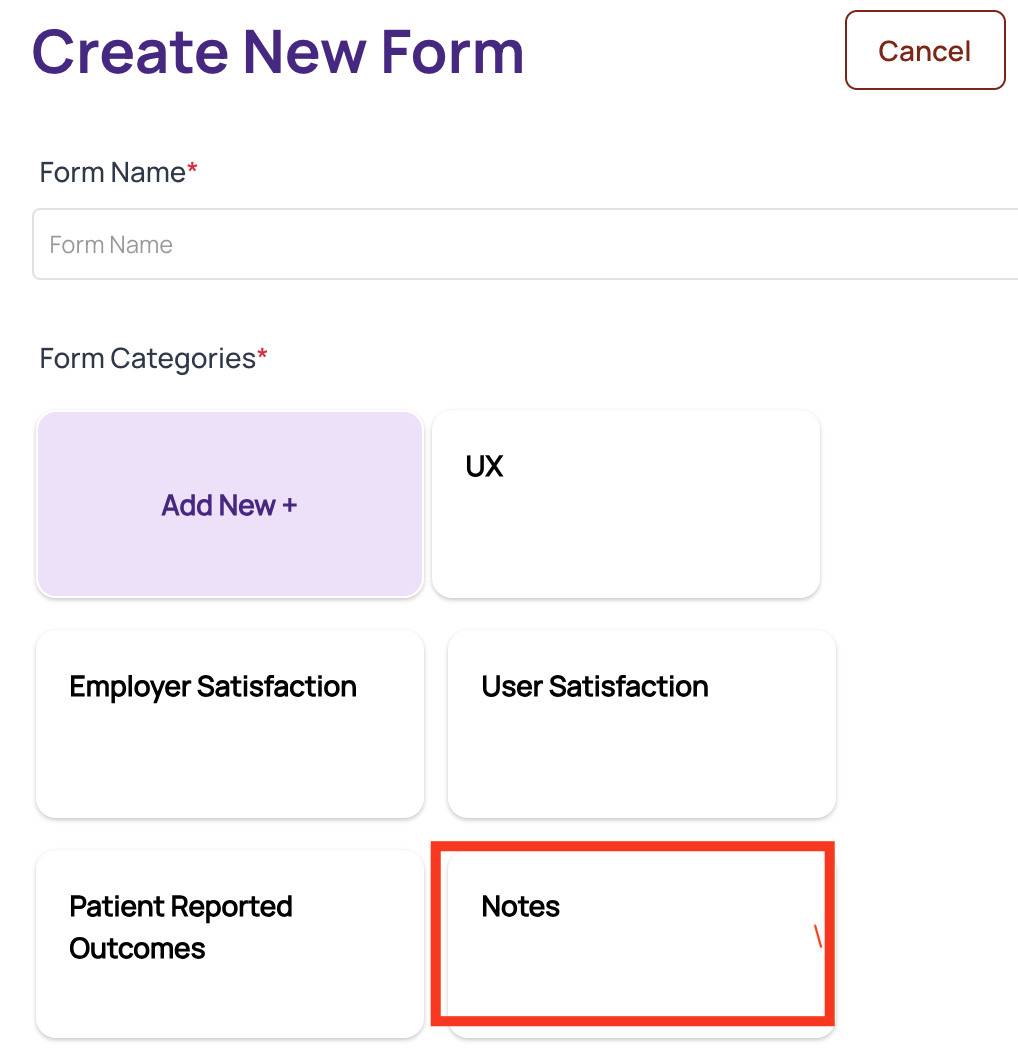
Any ‘Health Component’ used in Notes will sync to the EMR.
What’s the difference between a Member and a Lead?
- A member (also referred to as a patient) is someone who has established a clinical relationship with the clinic. There are active and inactive members. See more below.
- A lead (sometimes referred to as a prospect) is anyone who has interacted with one of the clinic inboxes such as an SMS inbox, email inbox or web widget inbox. Leads are generated automatically by Fold and can be converted into Members (aka patients) with the click of a button.
Leads are FOLD-only entities and are not synced to your EMR or billing system.
What is an Active vs Inactive Member in Fold?
The term “Active” member in Fold refers to anyone that is Active in Hint or Stripe and anyone that has been made independently active in Fold - such as a self pay patients or staff who receive complimentary memberships. An active member in Hint refers to anyone that is paying a membership fee. A billable member is also synonymous with a Hint active member. The billing management system (ie. Stripe, Hint etc) should be used as the source of truth for billable members. A new patient created in the EMR will automatically be active in Fold but will not automatically be active in Hint.
For convenience,
- Fold Active = Hint Active + Extra Patients you grant access to the Fold Care App.
For more information on Active and Inactive members, please refer to the Glossary.
Changing the Active/Inactive membership status in your billing software (Hint) will result in the subsequent change to Fold in a matter of minutes. Changing the Active/Inactive status in Fold does not change any status in the billing software.
How does one change a patient from Inactive to Active in Fold & vice versa?
- To Activate a lead follow the steps outlined in the screenshot below:
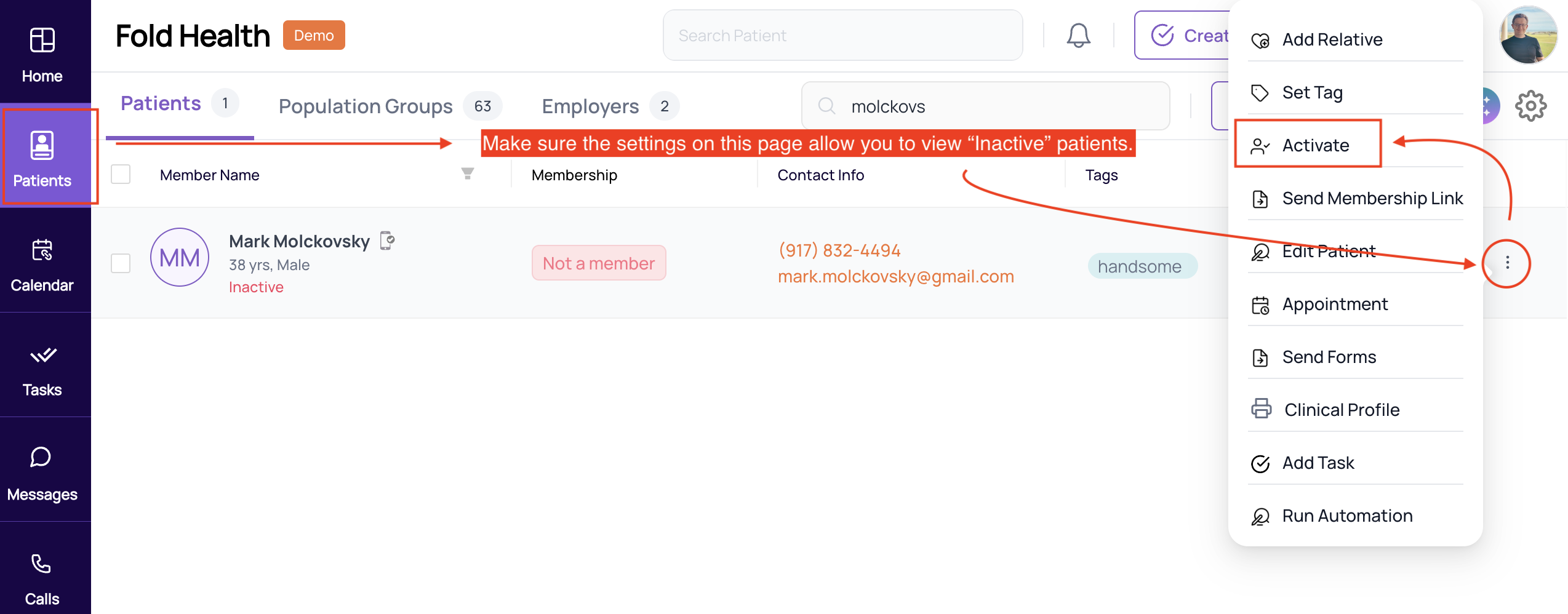 Setting a Patient as Active in Fold
- To deactivate a patient please follow the following steps:
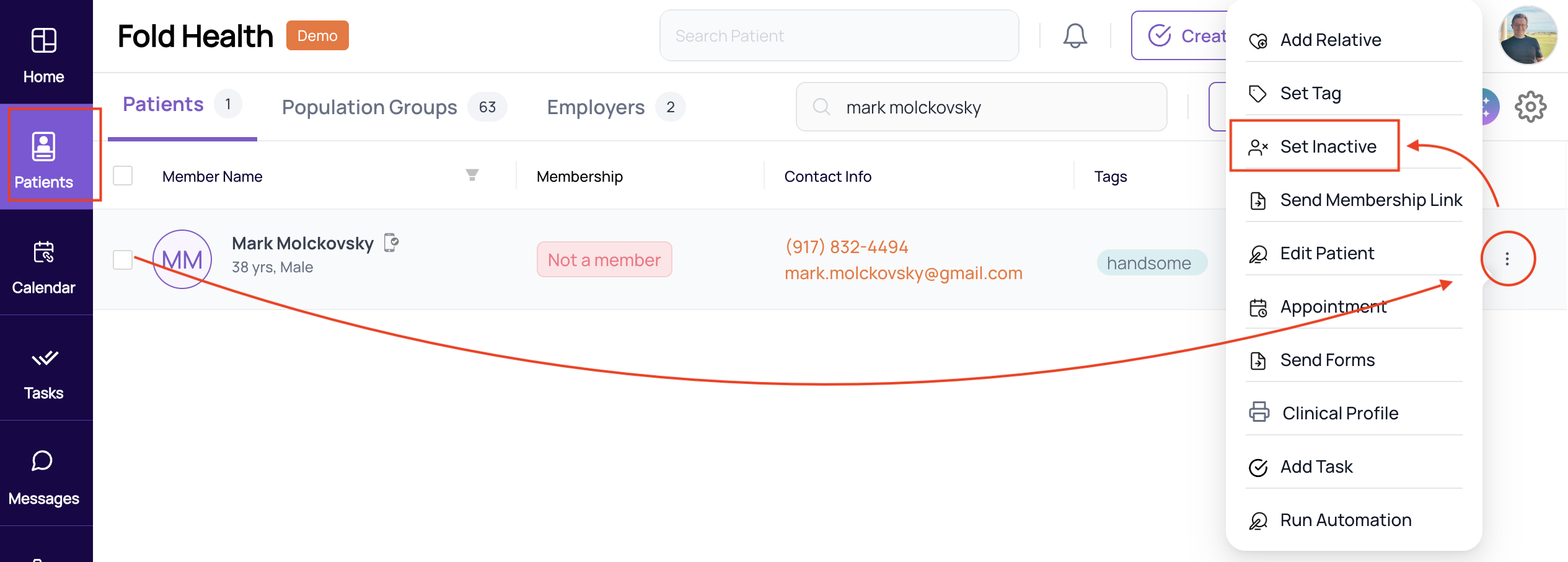 Setting a Patient as Inactive in Fold
What is an Attributed Members vs. Non Attributed Member?
A subset of our clients in the Value Based care space will not see a reference to Active and Inactive members but rather the terms Attributed Member and Non-Attributed Members. This terminology is effectively interchangeable from Active Member and Inactive Member as mentioned above.
How do I add Family Members or Caregivers?
Fold allows clinics to add involved caregivers or family members into the group chats. In order for an involved caregiver or family member to be added to a group chat, there must be a connection in the “Family Member” section of patient’s profile. Family Members can be added in the detailed profile page or the sidecar profile that appears after clicking on a patient’s name in the Provider Web Portal.
I cannot find a patient that I know exists in Fold, what happened?
When searching for a patient make sure no patient filters are set. In the screenshot below, one patient filter is set.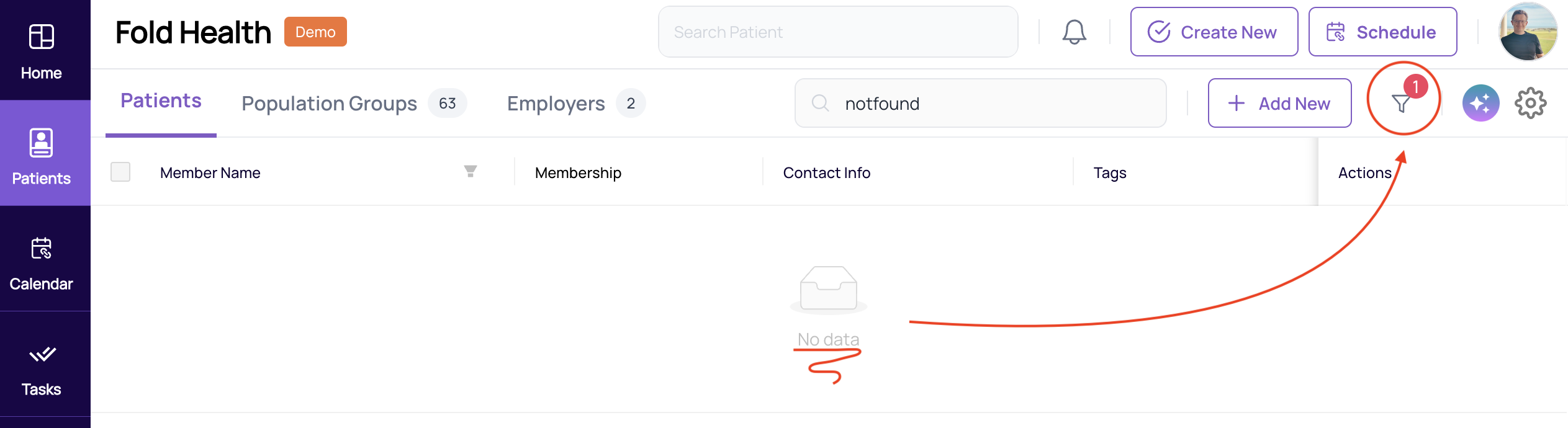 Here, a single patient filter is applied.
Patient filters include filtering by Active / Inactive status, filtering by employer or filtering by Tags.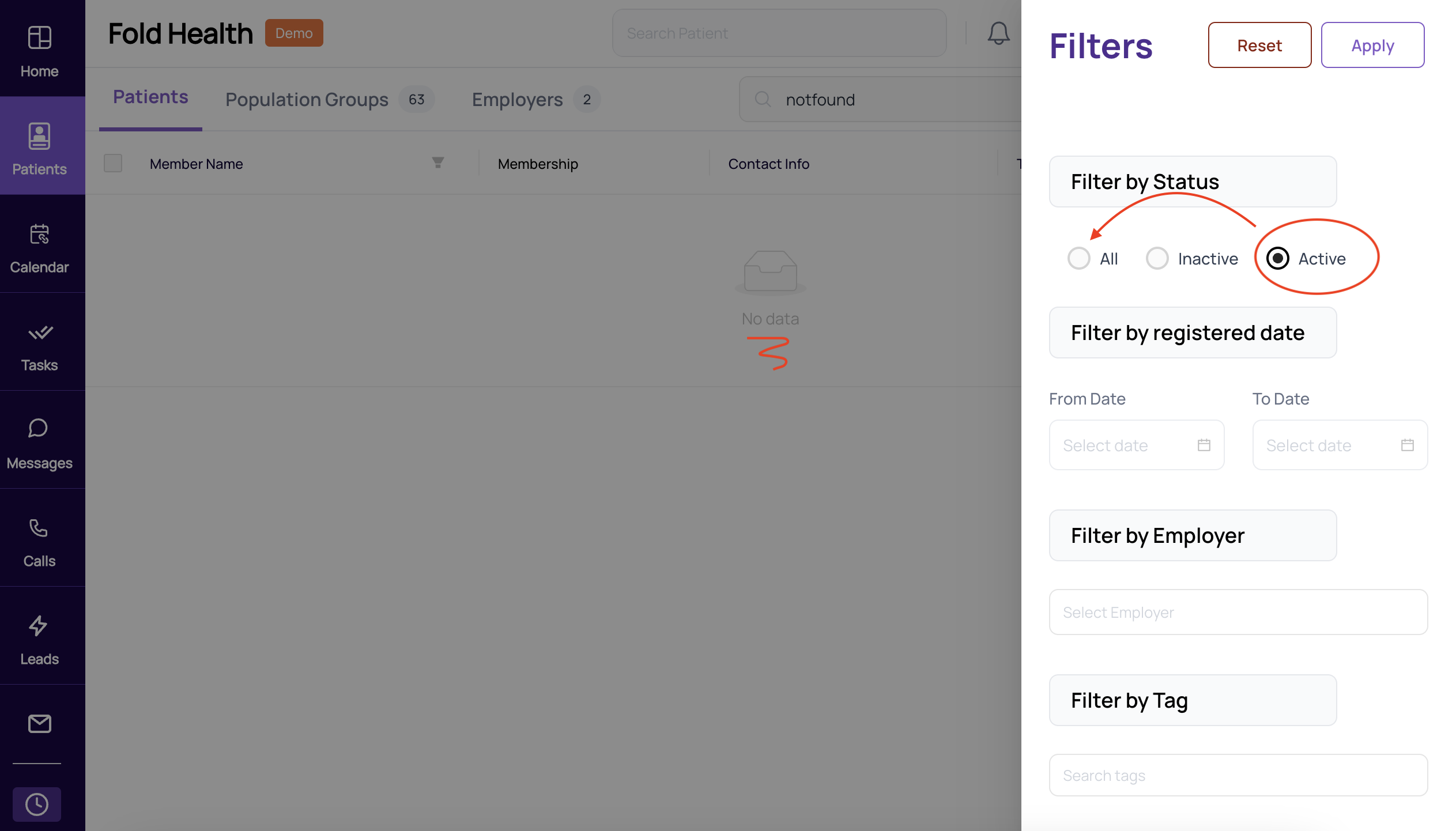 To see all Active and Inactive patients, set the filter to “All”
What is a sticky note vs. a contact note?
On the patient profile, there are two types of quick notes you can create, sticky notes and contact notes. For clients using Elation & Athena as their EMRs, Sticky notes sync with your EMR and stay within Fold. Contact notes are not synced to the EMR and only exist within Fold.
How do I delete a Patient or a Lead?
At present, patients can be made inactive which removes their ability to login to the Patient Web App and the Patient Mobile App. Leads do not have the ability to login to the patient app by default. A Patient cannot be converted into a Lead at the present time.
Can Fold use a patient's chosen name instead of their legal name by default?
We have the capability to use a patient’s Chosen Name in place of their first and last name. This is a flag-based functionality — when enabled, the system will use the patient’s Chosen Name (as displayed in the Basic Info section of the patient profile) for all outgoing communications. Once this flag is enabled, the system will use the Chosen Name (if available) for all patients. If the Chosen Name is not provided, the system will default to using the patient’s first and last name. Please let your Implementation or Customer Success Manager know if you'd like this flag enabled.
Reference: Confluence
Was this article helpful?
That’s Great!
Thank you for your feedback
Sorry! We couldn't be helpful
Thank you for your feedback
Feedback sent
We appreciate your effort and will try to fix the article