- What are Journeys and what can they do?
- What are some examples of Journeys that can be created?
- How does a staff member assign a Journey?
- How does a staff member complete a Journey?
- Where are Journeys Created or Edited?
- Can a Journey be edited after the Journey is assigned?
- Where can I see who is on a particular Journey?
- List of Nodes in a Journey
- Can a Patient Opt Out of a Journey?
- What type of Analytics are present for a Journey?
- If a Journey is updated, are all previously assigned Journeys updated as well?
What are Journeys and what can they do?
Journeys are designed to be extensions of a providers care outside the doctor’s visit. Journeys leverage technology such as email, SMS and the Fold Care App to deliver better care. Journeys are typically assigned on a per patient basis by a clinical staff member.
What are some examples of Journeys that can be created?
A 7-day educational session on Metformin with a teach back quiz on Day #8.
A blood pressure acquisition Journey where the patient is prompted to enter their blood pressure daily and a task is created at the end of 14 days for a provider to review the blood pressures.
A 7-day diabetes education course with a teach back quiz on day #8.
A food - symptom diary, TID prompts for entering foods eaten and associated symptoms.
Journaling for CBT, daily prompting to enter 1-2 sentences on how a patient reacted to any stressors in the day.
Med compliance - ask an individual on day 3,5,9, 12 after a medication is prescribed if they are taking it.
How does a staff member assign a Journey?
Journeys can only be assigned from a patient profile.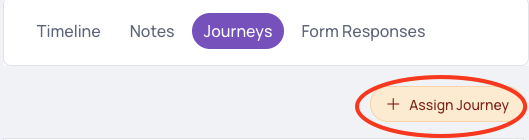
How does a staff member complete a Journey?
Once a Journey is assigned Journeys can be paused, stopped or marked as Complete from the patient profile. Completed Journeys can be marked as Achieved or Not Achieved. If a Journey is paused and resumed after a certain time period, the Journey will resume after a certain time period and will not resume from the point it was paused.
The below video describes how a Journey can be marked as Achieved or Not Achieved.
Where are Journeys Created or Edited?
Journeys are created from Settings → Journeys → New and can be edited from the settings page, prior to assigning a Journey on a patient profile or after assigning.
Can a Journey be edited after the Journey is assigned?
Yes, active Journeys can be edited after it is assigned to a patient. Navigate to the patient profile to the Journey’s tab and click on the ‘Edit Journey’ dropdown.
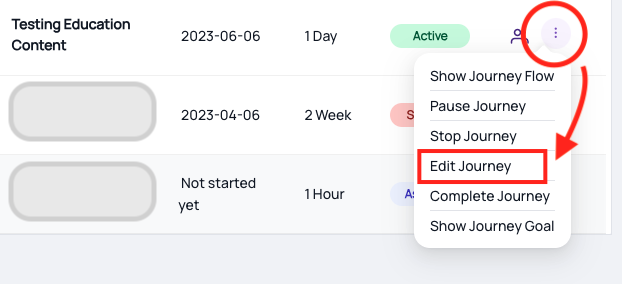
Goals cannot be edited after a Journey is assigned. Activities and Instructions can be edited. If an instruction is already completed, it will re-appear after it is edited.
Where can I see who is on a particular Journey?
For Journeys that are assigned to employer sponsored patients there exists a Care Journeys widget in the 'Analytics' Section where you can see which Journeys are assigned by employees by employer. And depending on your user role at your practice you may also see a Journeys widget on the ‘Home’ screen which will show who has been assigned each Journey regardless of employer membership status.
List of Nodes in a Journey
Journeys, like automation, are based on Nodes. The list of Nodes available as building blocks in Journeys are listed below.
Send Nodes:
Appointment Booking Link
Content (sends email educational content)
Forms
App Invitation
Push Notification
Notify supporting members over email (send an email to any involved caregivers)
Email
SMS to member
Operational Nodes:
When member is matching selected conditions
Member Preferred Mode of Communication
Delay
AND
OR
Order Nodes (prep orders, these nodes do not actually sign orders)
Lab Test
Medication
Immunization
Add Nodes
Instruction
Activity
Nutrition
Task (task for a staff member)
Task for Member
Schedule:
Visit (puts a visit on the schedule)
Measure:
Vital
Condition Nodes follow vitals signs which allow you to perform conditions based on input vital signs.
Adherence Nodes can perform logic based on adherence to vital sign input.
Can a Patient opt Out of a Journey?
Yes, patients can opt out of a Journey from the Fold Care App. Patients can be restarted on the same Journey after they have opted out.
If a patient replies STOP to any SMS from the Fold Platform, including SMS messages from a Journey, no additional SMS messages will send to the patient (this is a phone carrier policy). The patient will need to reply ‘START’ to unblock SMS messages. Within Fold, staff will see a message in the SMS threads of the above.
What type of Analytics are present for a Journey?
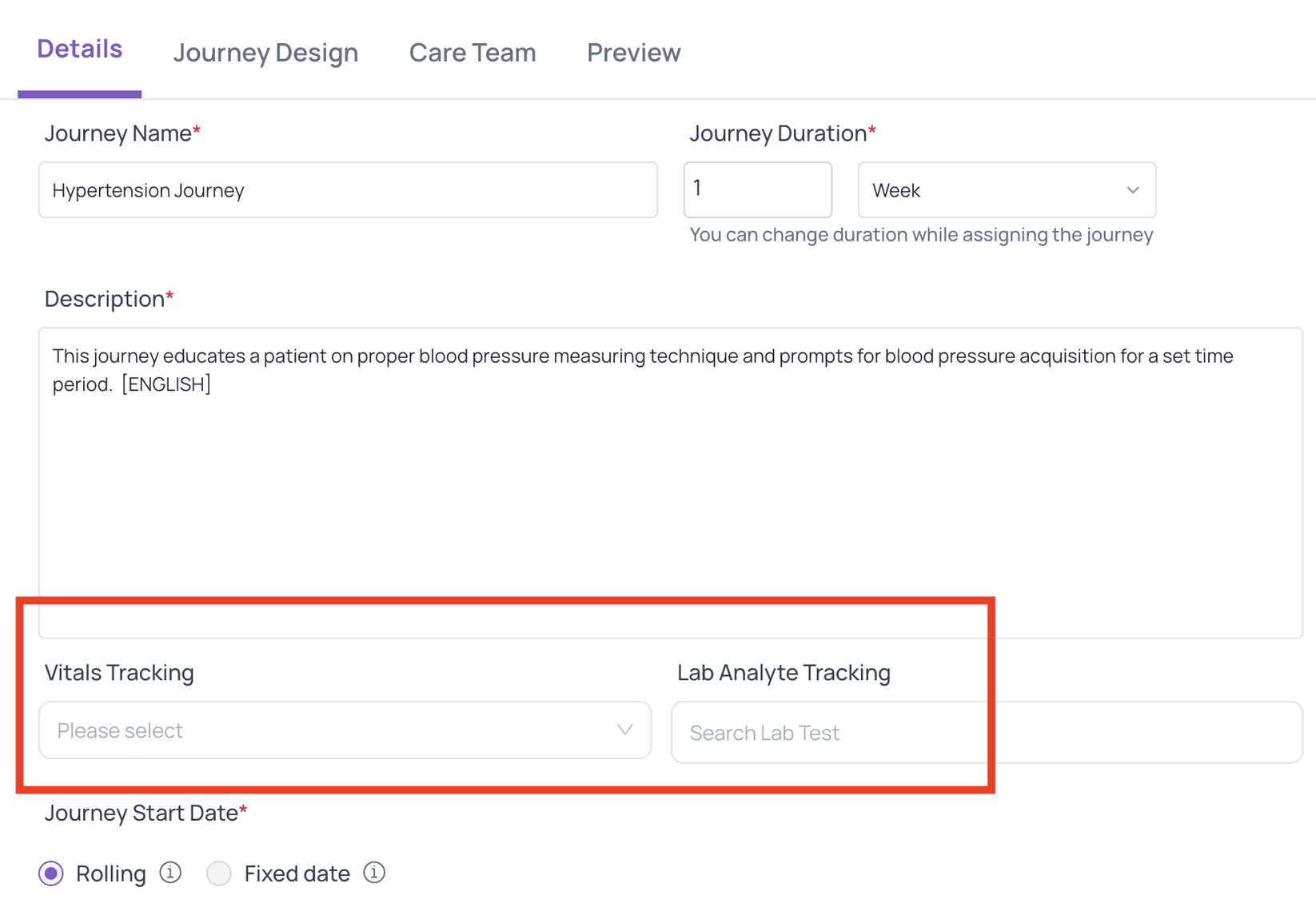
If you would like to see how Journeys affect a vital sign like blood pressure or a lab value like an HBA1C make sure you select the vital sign or the lab value when creating or assigning the Journey.
If a Journey is updated, are all previously assigned Journeys updated as well?
Once a journey is assigned any updates to the Journey will only reflect on new journeys assigned moving forward and do not retroactively change already assigned journeys.
If you would like the patient to get the updated journey, you would need to manually edit the assigned Journey from the patient profile or complete the Journey and reassign a new Journey.
You might wish to read about Automations as well.
Was this article helpful?
That’s Great!
Thank you for your feedback
Sorry! We couldn't be helpful
Thank you for your feedback
Feedback sent
We appreciate your effort and will try to fix the article