About Email Integration
For one-on-one patient communication, Fold can integrate with Gmail and Microsoft Outlook.
This feature brings your emails into Fold automatically, eliminating the back and forth between your email client and Fold. When you integrate your patient-facing email address, Fold will automatically link the sender/recipient of an email message with their Fold patient chart.
You can reply to patients via email directly within Fold. When you send an email from the Fold email inbox, a unique reply-to address is automatically generated ("_replyto@domain"). This address will be automatically CC'd on all emails.
Note: Emails sent from Fold’s default email inbox (no-reply@yourdomain.com) will not show up in your email inbox or patient communications tab. Emails sent from Fold journeys, automations and campaigns typically come from no-reply@yourdomain.com. It is not possible to send automated emails from your Gmail- or Outlook-integrated email address.
How to Integrate Your Email
Microsoft Outlook
Microsoft Outlook integration is a flag based feature. Please contact success@fold.health to enable this feature. Once the flag has been enabled, to integrate an Outlook email address with Fold, go to Settings → Messages → + New and follow the on-screen prompts: Select an inbox name, add staff to your inbox, and add your email address SMTP settings.
Gmail
For Gmail Integration: After selecting + New please follow the steps below:
Provide a name for this inbox
Add agents to this inbox as desired
Use the following information to complete the reminder of the required fields:
SMTP Address: smtp.gmail.com
Port Number: 587
Username: Your full Gmail address (for example, example@gmail.com)
Password: Generate a new Gmail app password using the following steps; don't use your regular password:
Search for "app password" in the top search bar and click it.
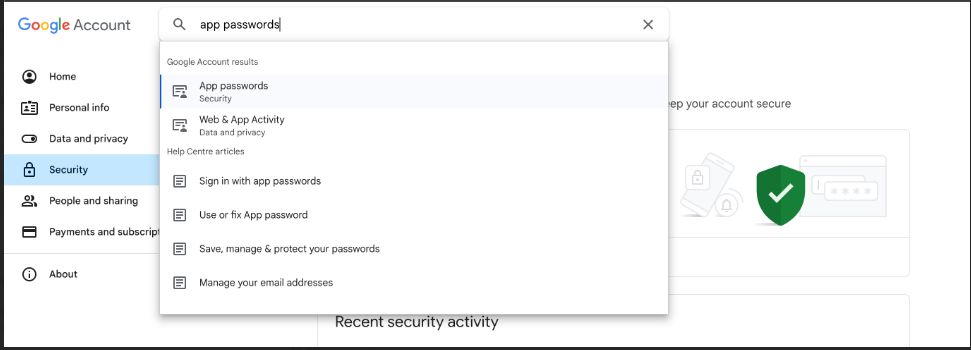
After clicking the option, Google may try to authenticate the user either through password or some other method. Post-authentication, you should see something similar to the screenshot below in your screen:
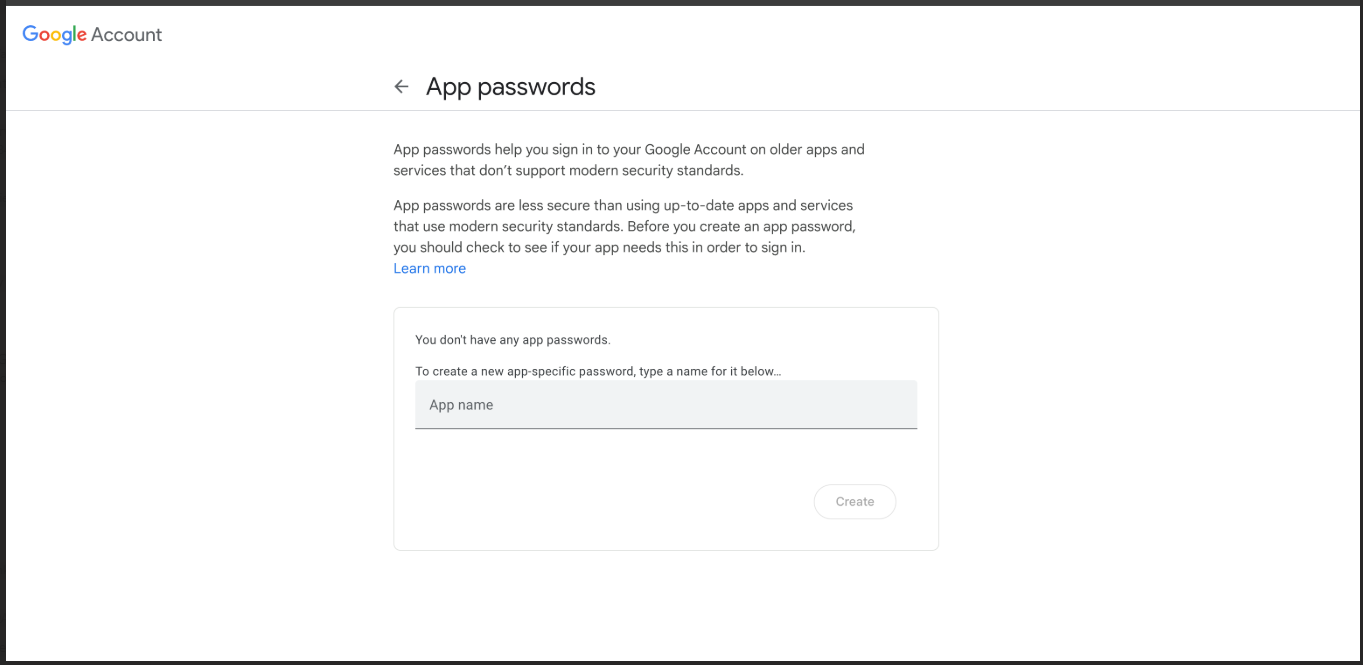
Please add the name and generate the app password. It might look like this once the password is generated:
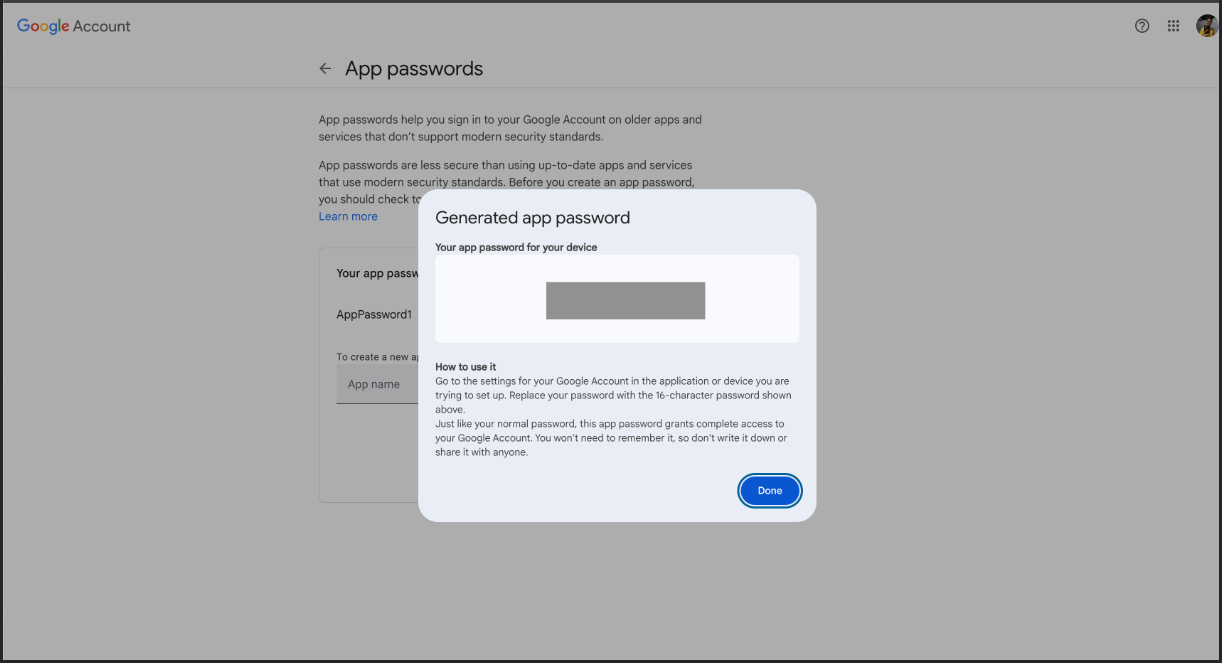
Copy this password and use it to set up the Gmail inbox.
Important Communication Guidelines
By following these guidelines, you can ensure effective and secure communication with your patients through the Fold Email Inbox.
Always Use Reply-To: All communication with patients must use the Reply-To address included in the initial email sent from Fold. Failure to do so will result in the email not being received by the clinic.
Unidirectional Email Flow: Emails can only be initiated by the clinic through the Fold email inbox. Patients can only respond using the Reply-To address. This ensures a clear and organized communication thread. Additionally, if a patient initiates contact with the practice via email prior to the practice initiating the conversation, those emails will not be synchronized in the Fold inbox.
Was this article helpful?
That’s Great!
Thank you for your feedback
Sorry! We couldn't be helpful
Thank you for your feedback
Feedback sent
We appreciate your effort and will try to fix the article