TABLE OF CONTENTS
- What are Tasks?
- Types of Tasks
- Using the Fold Tasks Dashboard
- Tasks FAQ
- Can tasks be edited, deleted or reassigned after they are created?
- Can staff members see tasks assigned to other staff members?
- What happens if a task isn’t completed in a certain amount of time?
- Can a completed task be marked incomplete?
- Can users add comments to a task and tag users in their tasks?
- Can a priority be added to tasks?
- Can an automation be created for tasks?
- What is a task pool?
What are Tasks?
- Fold tasks are a way to track what's on your personal to-do list, your team's to-do list, and also a means of engaging your patients in their care.
- Tasks can be built into automations for increased efficiency.
- Subtasks allow tasks to be broken down into smaller, more manageable pieces.
- Permissions for viewing and managing tasks are set by Fold super users. For example, an MA may manage tasks for the physician they support but not for other colleagues. You can also create personal to-do lists by tasking yourself.
Types of Tasks
- Internal Tasks: These are tasks assigned to staff members within your organization. For instance, a physician may task a medical assistant to call a patient about a medication refill question. Internal tasks are not visible to patients. You can associate an internal task to a specific patient profile in Fold.
- External Tasks (Patient Tasks): These tasks involve asking a patient to perform an action, such as bringing a medication list to a post-hospital visit or purchasing a blood pressure cuff. The Fold system automatically creates an external task when a form or survey is sent to a patient to complete. Patient tasks appear on the main screen of the patient's Fold care app, allowing them to mark tasks as complete. This visibility helps providers track task completion rates within the patient chart. Tasks that have a high priority will show an icon next to the due date.
Using the Fold Tasks Dashboard
Access the Fold tasks dashboard by clicking on the Tasks icon on the left-hand side of your screen. This view shows all tasks assigned to you and those you have permission to manage for others. To create a new task, click on the Add Task button in the top right-hand corner.
Creating a New Task
- Click on the Add Task button.
- Set a title and description with details.
- Assign the task to yourself, another user, or a patient.
- Select the due date and priority.
- Associate the task with a specific patient's profile.
- Click Save to populate the task in the dashboard.
Tasks can also be created from inside a message, from a patient profile, or automatically via Fold automation.
Viewing Tasks
Switch between list view and board (Kanban) view by clicking on the Other View icon. Both views offer the same filtering options.

Managing Tasks
- Edit task details by clicking on the task title and updating fields or adding comments.
- View an audit trail by clicking on the History button at the bottom of a task.
- Mark tasks as complete by:
- Option 1: Clicking on the empty circle
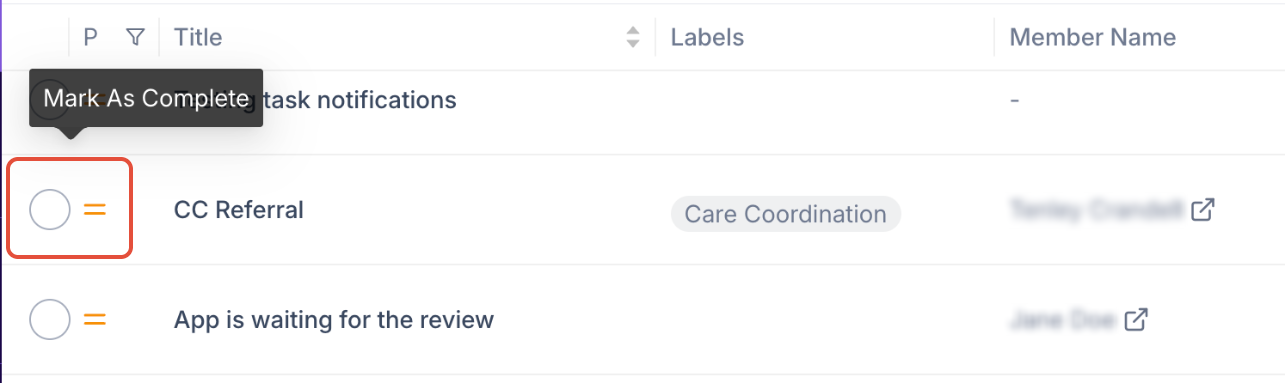
- Option 2: Using the ellipsis under Actions to delete, complete, or mark as missed
- Option 3: Clicking into a task and manually change the status to Completed
- Option 1: Clicking on the empty circle
Filtering and Organizing Tasks
Customize your task dashboard by filtering tasks based on:
- Status: Pending, Missed, or Completed
- Priority: High, Medium, or Low
- Due Date: Overdue, Due Today, or Future Tasks
- Specific Members (Patients)
- Assigned Task Pool
- Task Labels
Bulk Task Updates
- Click on the Bulk Task Update icon.
- Select tasks of interest.
- Edit relevant fields and preview changes.
- Click Apply Changes to finalize.
Task Analytics
Task Analytics provide administrators and staff members with insights into task management, workload distribution, and productivity across the practice. To view task analytics, click on the bar graph inside of the tasks dashboard.
Tasks FAQ
Can tasks be edited, deleted or reassigned after they are created?
Yes, incomplete tasks can be edited, deleted or reassigned by the user that created the task. Navigate to Tasks → ‘Created by me’ to modify a task that you have created.
Can staff members see tasks assigned to other staff members?
Yes, to manage which staff members can see, edit and act upon the tasks of other staff members, super users can navigate to Settings → Tasks → Manage Tasks.
What happens if a task isn’t completed in a certain amount of time?
If a task isn’t completed by the due date, the task changes to Missed status.
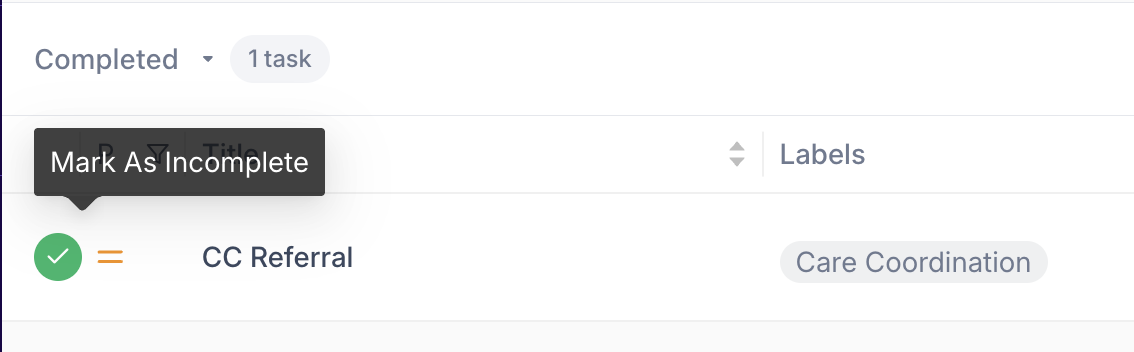
Can a completed task be marked incomplete?
Yes, navigate to the Completed filter and uncheck the checkbox to change a task from complete to incomplete status. You may also manually change the status within the task itself.
Can users add comments to a task and tag users in their tasks?
Yes, comments can be added to tasks, including incomplete tasks. Fold users can also be tagged in task comments.
Can a priority be added to tasks?
Yes, tasks can be marked as Low, Medium and High Priority.
Can an automation be created for tasks?
Yes, automations can be run on any staff member's tasks on a specific date; when a staff member's tasks are added or updated; or when a patient’s tasks are added or updated. You can also configure an automation to create new internal or external tasks.
What is a task pool?
A task pool is a group of users or staff members that tasks can be assigned to. Learn more here.
Was this article helpful?
That’s Great!
Thank you for your feedback
Sorry! We couldn't be helpful
Thank you for your feedback
Feedback sent
We appreciate your effort and will try to fix the article