Content Creation Suite
Settings → Content is where you will create your email templates, forms, SMS templates, push notifications templates, media, and articles (where you will upload educational content).
Creating and editing effective email, SMS and push notification templates is a crucial first step in building out Fold automations and campaignsMedia
Creating Media with Fold
Fold allows you to upload media to be used elsewhere within the platform. Media can include videos, images, and audio files for your phone trees (jpeg, png, mp4, mov, mp3 files). The maximum file size is 20 MB. Any audio files to be used for a phone tree must be in MP3 format. Convert MP4 audio files to MP3 with a converter found online.
Best Practice: Upload your organization’s logo to the Media section.Understanding Default Categories
Every time an email or SMS template is created, the template is associated with a category. A list of categories is noted below.
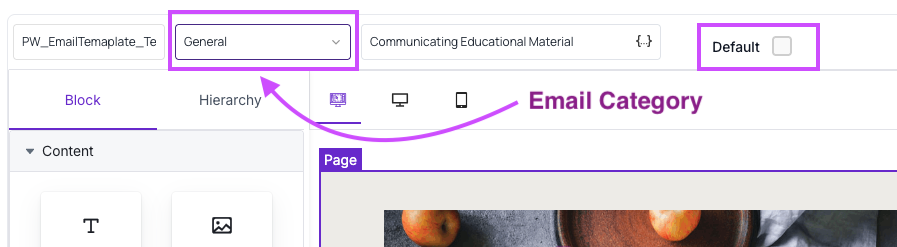
Each email template in Fold has a Default checkbox. When the default checkbox is selected, that email template becomes the default email for the selected category.
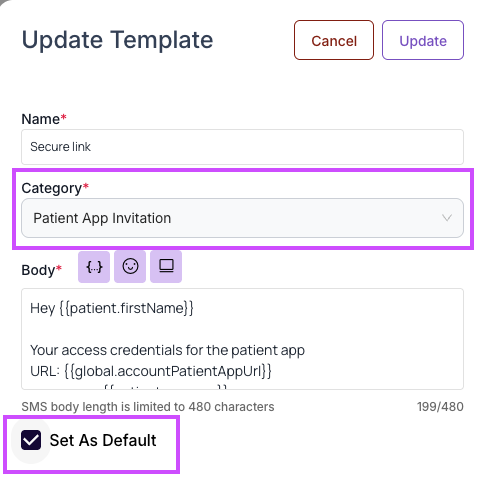
Likewise, each SMS template in Fold has a Default checkbox. When the Default checkbox is selected, that SMS template becomes the default SMS for the selected category.
Likewise, each push notification template in Fold has a Default checkbox. When the Default checkbox is selected, that push notification template becomes the default push notification for the selected category.
To enable the basic functionality of your Fold tablespace, you must configure at least one default template for each of the *starred* categories listed in the table below.
Below is a list of email, SMS and push notification categories and what the default templates do:
Category | Description |
|---|---|
| Appointment Cancelled | When you have an appointment cancellation automation set up, the default template in this category will be sent when an appointment is cancelled. |
| Appointment Pending | When you have an appointment pending automation set up, the default template in this category will be sent when an appointment is pending. |
| Appointment Confirmation | When you have an appointment confirmation automation set up, the default template in this category will be sent when an appointment is confirmed. |
| Appointment Reminder | When you have an appointment reminder automation set up, the default template in this category will be sent at the cadence you specify. |
*Conversation Engagement* | The default email template in this category will be sent when a provider sends a patient a chat message and the patient is not logged in to their patient app. Whether this email goes out or not is configured in Settings → Messages → Chat Settings. |
*General* (Email) | When a staff member clicks the "meet now" video icon on a patient profile, the default email in the General Category is sent. To create an SMS template for the same purpose, use the Instant Meet Invite SMS category |
*Instant Meet Invite* (SMS) | When clicking “Meet” on a patient profile, the default SMS in the Instant Meet Invite Category is sent. To create an email template for the same purpose, use the General email category |
*Mobile App Invitation* | The default email in this category is sent when a new staff member is invited to Fold (as long as their role isn’t set as Employer, in which case the Employer Invitation Category is sent) |
Multiple Patient Forms | The default email and SMS templates in this category are used when sending forms to a patient via an automation. |
*Patient App Invitation* | The default email and SMS templates in this category are sent when a patient is invited to login to Fold. |
Patient Educational Content | The default email template in this category is sent when the ‘Send Content’ node is used from a Journey. |
*Reset Patient Password with Secure Link* | The default email and SMS templates in this category are sent when a password reset is requested by a patient, or when a user resets a patient's password. |
*User Reset Password* | The default email template in this category is sent when a staff member resets another staff member’s Fold password. |
Understanding Merge Tags
Email, SMS, and push notification templates can use dynamic variables called merge tags that can be used to populate Appointment Times, Appointment Locations, Provider Names, Patient Names and Clinic Names. Merge tags help to make your content unique to each person receiving a communication from Fold. Learn more about incorporating merge tags into your content here.
Email Templates
What are email templates in Fold used for?
Within Fold, email templates can be used within campaigns or automations to easily send content to patients or contacts. Think about any automations you plan to configure and the email templates that should go along with those. For example, for an automation that sends a welcome email to a new patient, you will need to create an email template with your desired welcome packet content.
How do I create email headers and footers to be used in all my email templates?
The Fold Components section allows you to create and edit headers and footers for your email templates and forms. Email headers and footers are listed in Settings → Content → Components. Click on any component to edit it.
Best Practice: If you want to use a logo or image in your headers and footers, upload them to the Media section of Fold first. In your footer, you may want to include any social media links that your practice utilizes.How do I create a new email template?
There are two ways to create email templates within Fold. The most common is building your own email template within Fold using drag and drop functionality. Alternatively, if you have existing email templates from a different platform, you may import them via HTML or a Zip File.
Creating an email template using the drag and drop email creator
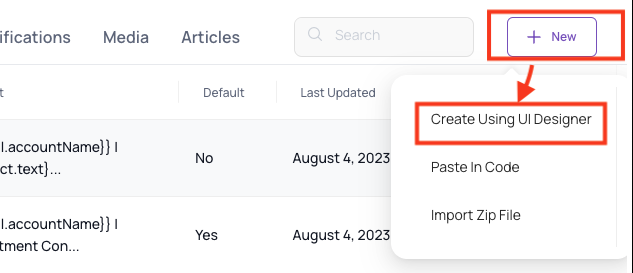
- Navigate to Settings → Content → Emails → Click “+ New” → “Create Using UI Designer” on the right side of the screen.
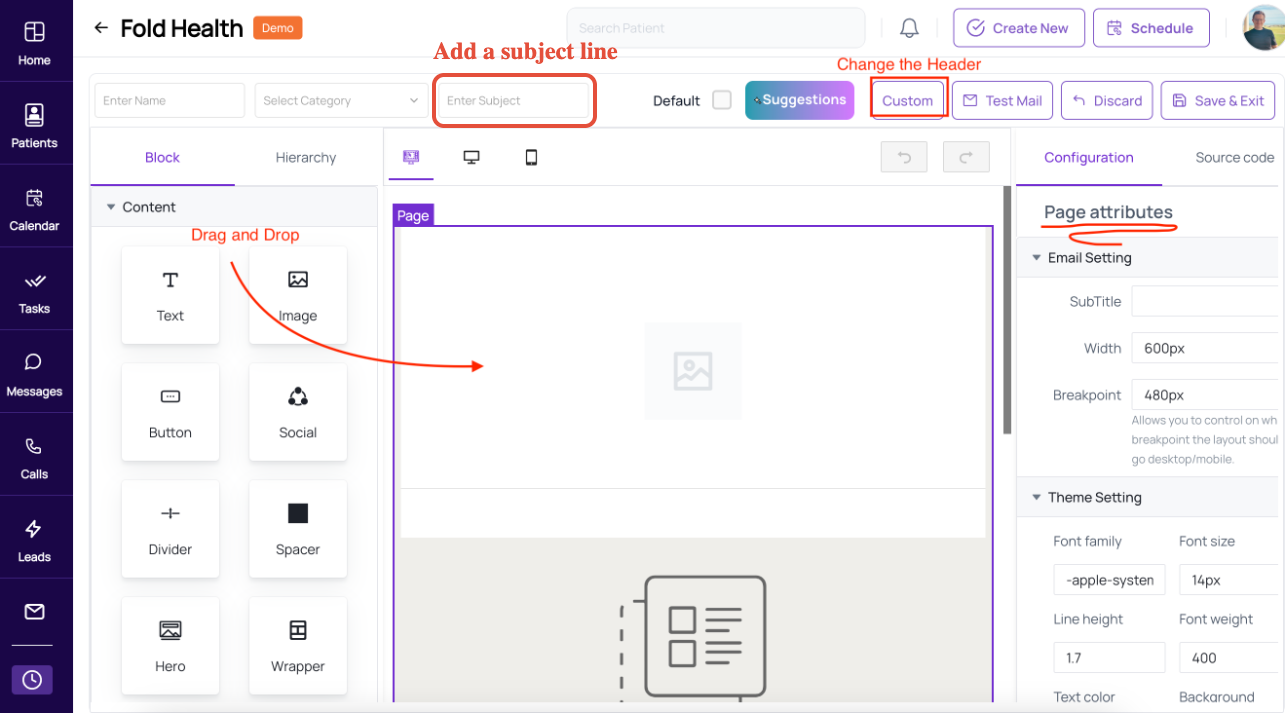
- Add a subject line. The subject line of your email can include merge tags.
- The default header and footer will be automatically populated using the default header and footer you have built out in Settings → Content → Components. If you would like to select a different header or footer for the email template, click on “Custom” near the top right of the screen.
- On the left side of the screen are content blocks that can be dragged and dropped into the email body. The right side of the screen allows for visual customization of the email. The body of your email can include merge tags and emojis.
Creating an email template via importing HTML
If you have email templates on another platform such as MailChimp that you would like to import, you can do so either by pasting the code into Fold or through Importing a Zip File.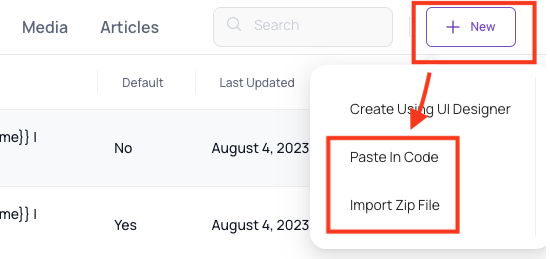
Using AI to generate educational content and images
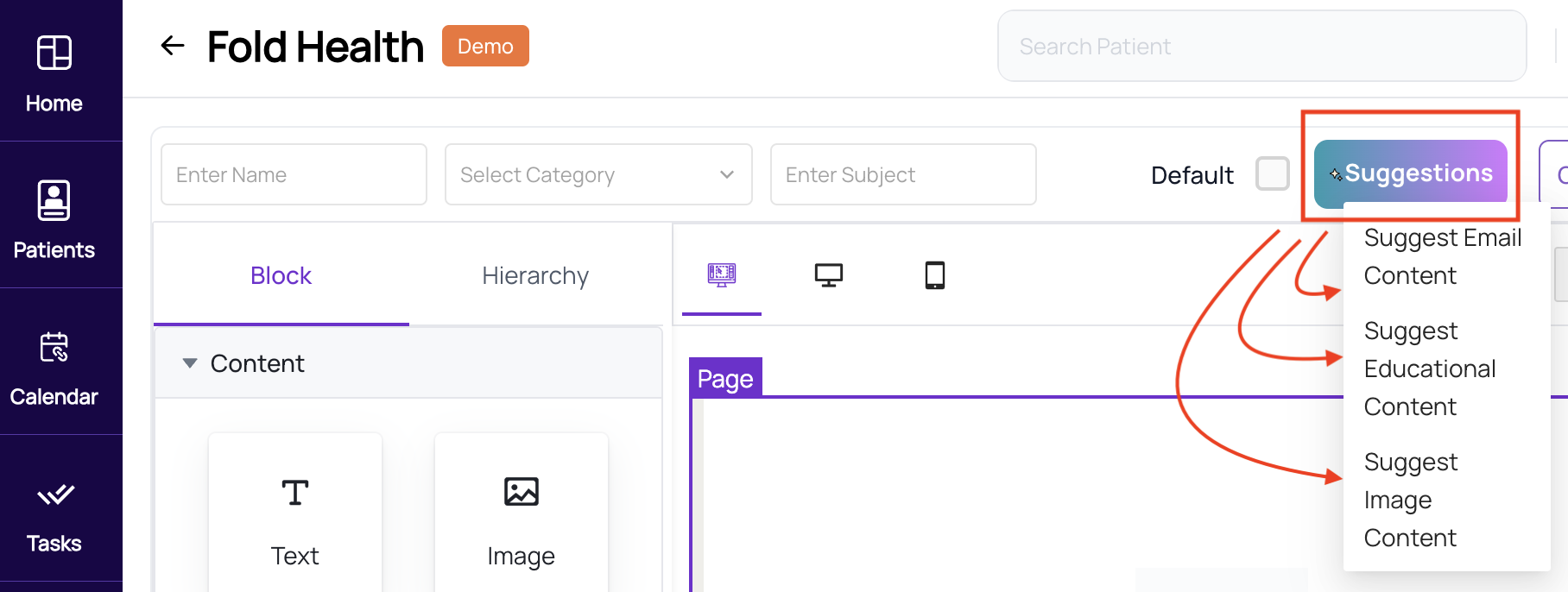
Fold allows you to generate educational content and images using AI that can be incorporated into emails. From the email editing screen click on “Suggestions” to get the option to create new AI generated text or image content.
An example of AI-generated text via Fold: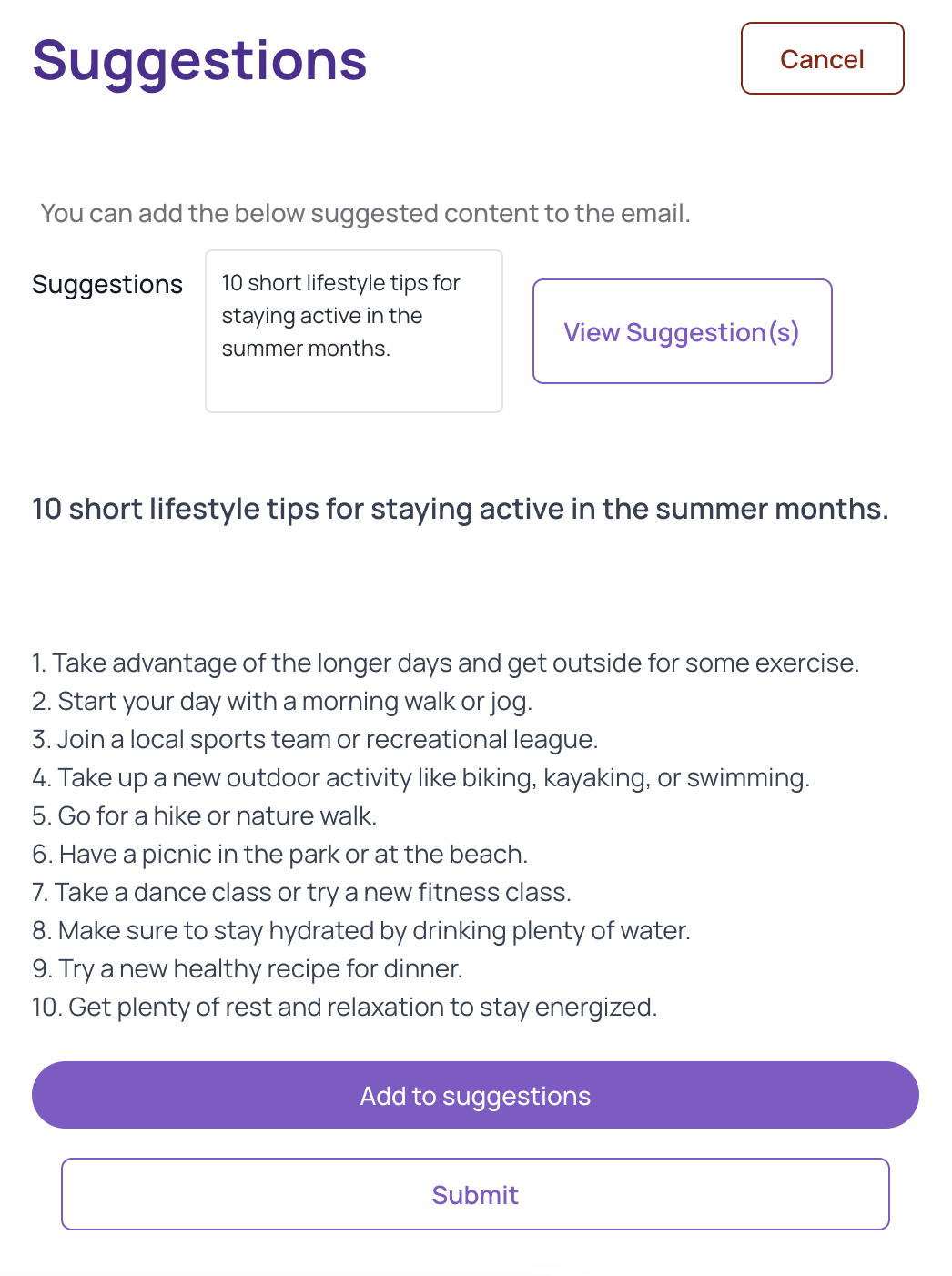
An example of an AI generated image via Fold:
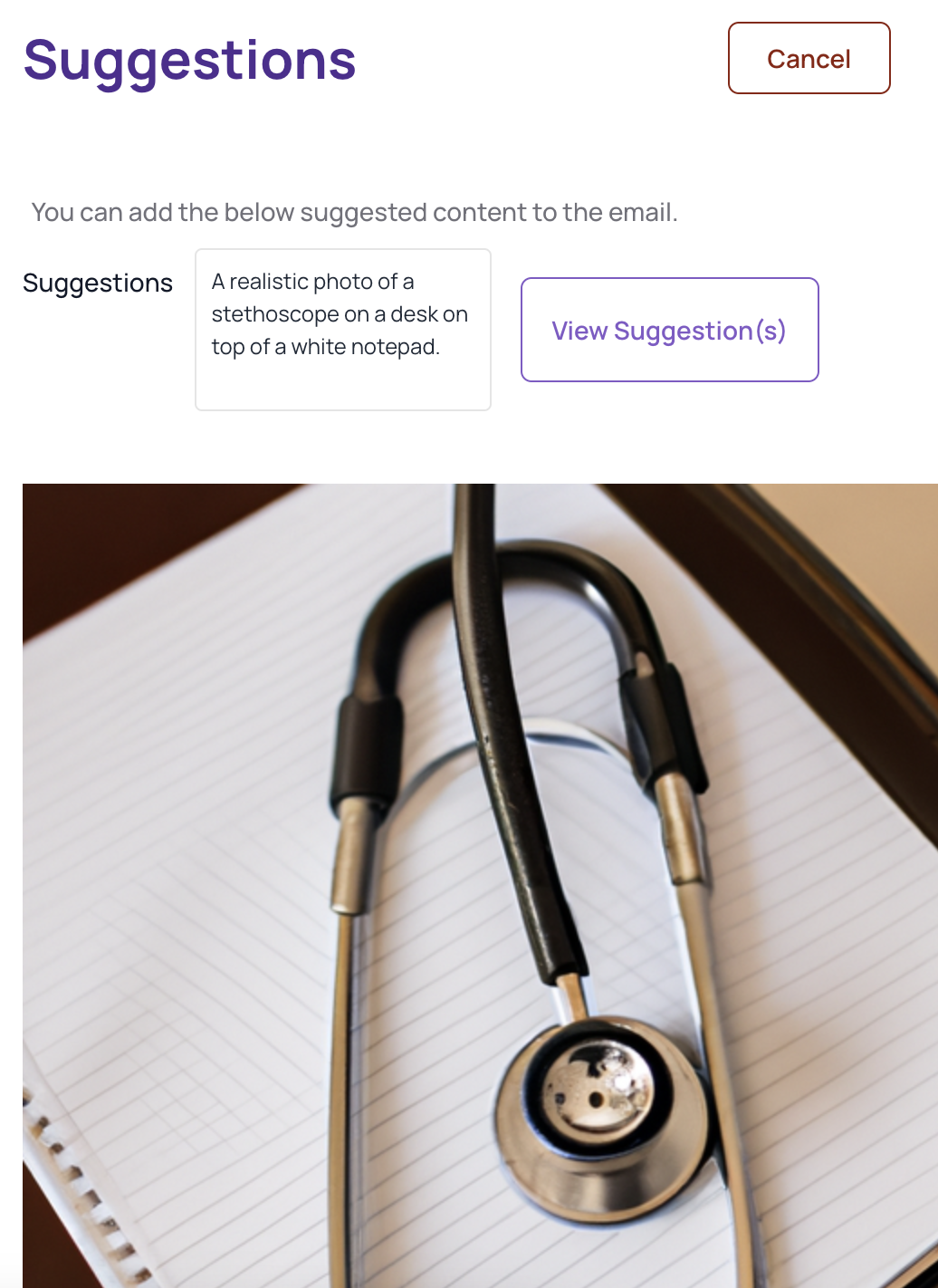
AI generated content is only as good as the prompts that are fed into the AI. Being as specific as possible in your AI prompts will yield the best results.SMS Templates
What are SMS templates in Fold used for?
Within Fold, SMS templates can be used within campaigns or automations to easily send content to patients or contacts. Think about any automations you plan to configure and the SMS templates that should go along with those. For example, for an automation that sends a happy birthday text to your patients, you will need to create an SMS template.
SMS templates are used in campaigns and automations only. SMS templates are not available to be used when sending an SMS to a patient manually for 1-on-1 communications. Manually sent SMS’s will use a template response (Settings > Messages > Template Responses). Please keep this in mind when considering which SMS templates you want to build.How do I create and edit an SMS template?
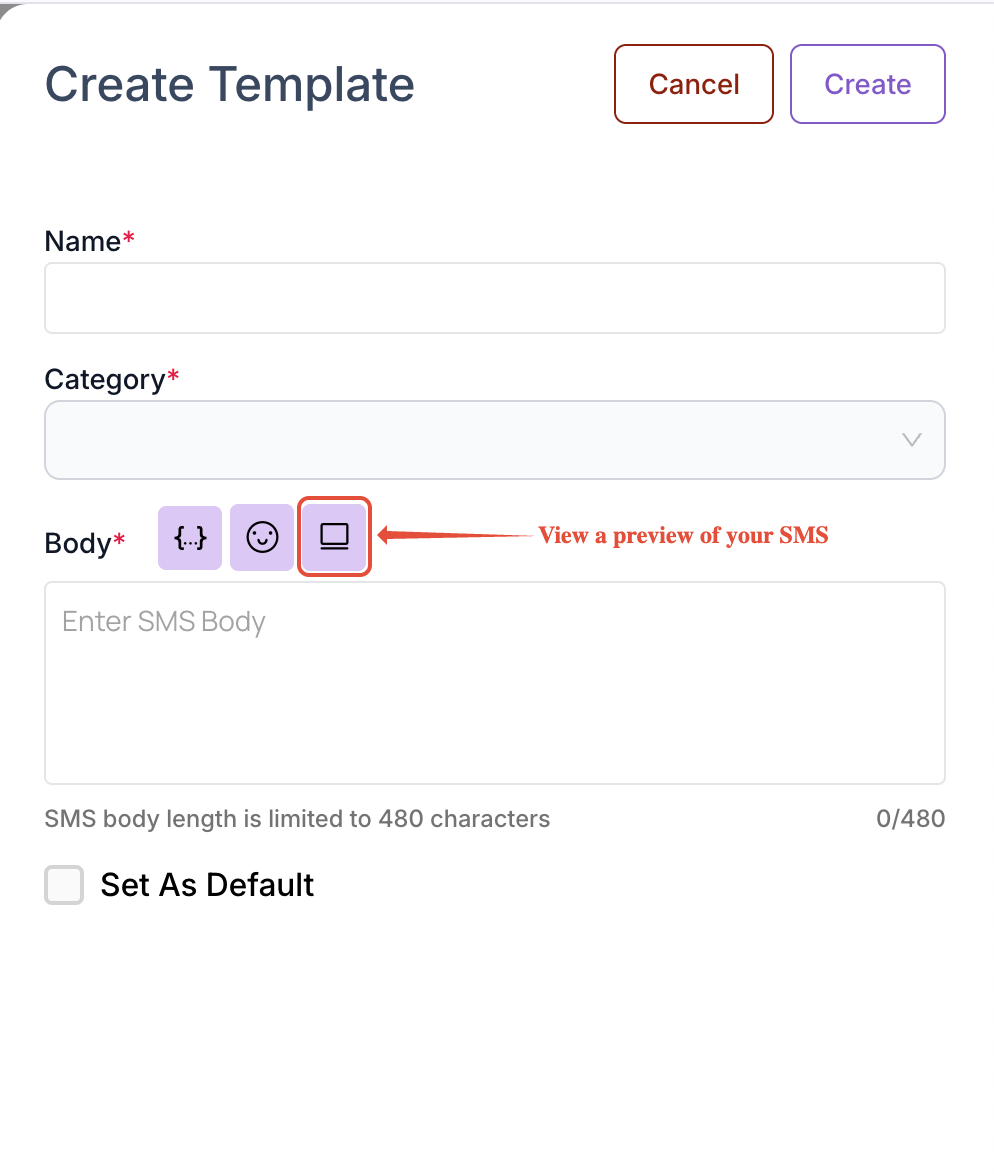
Navigate to Settings → Content → SMS Templates to create SMS templates. We recommend numbering your templates within Fold for easy reference.
The SMS body length is limited to 480 characters. The body of your SMS can include merge tags and emojis

Push Notification Templates
What are push notification templates in Fold used for?
Push notifications can be used in automations for mobile reminders or alerts, for those who use the Fold Care patient app or the Fold Grow provider app.
How do I create and edit a push notification template?
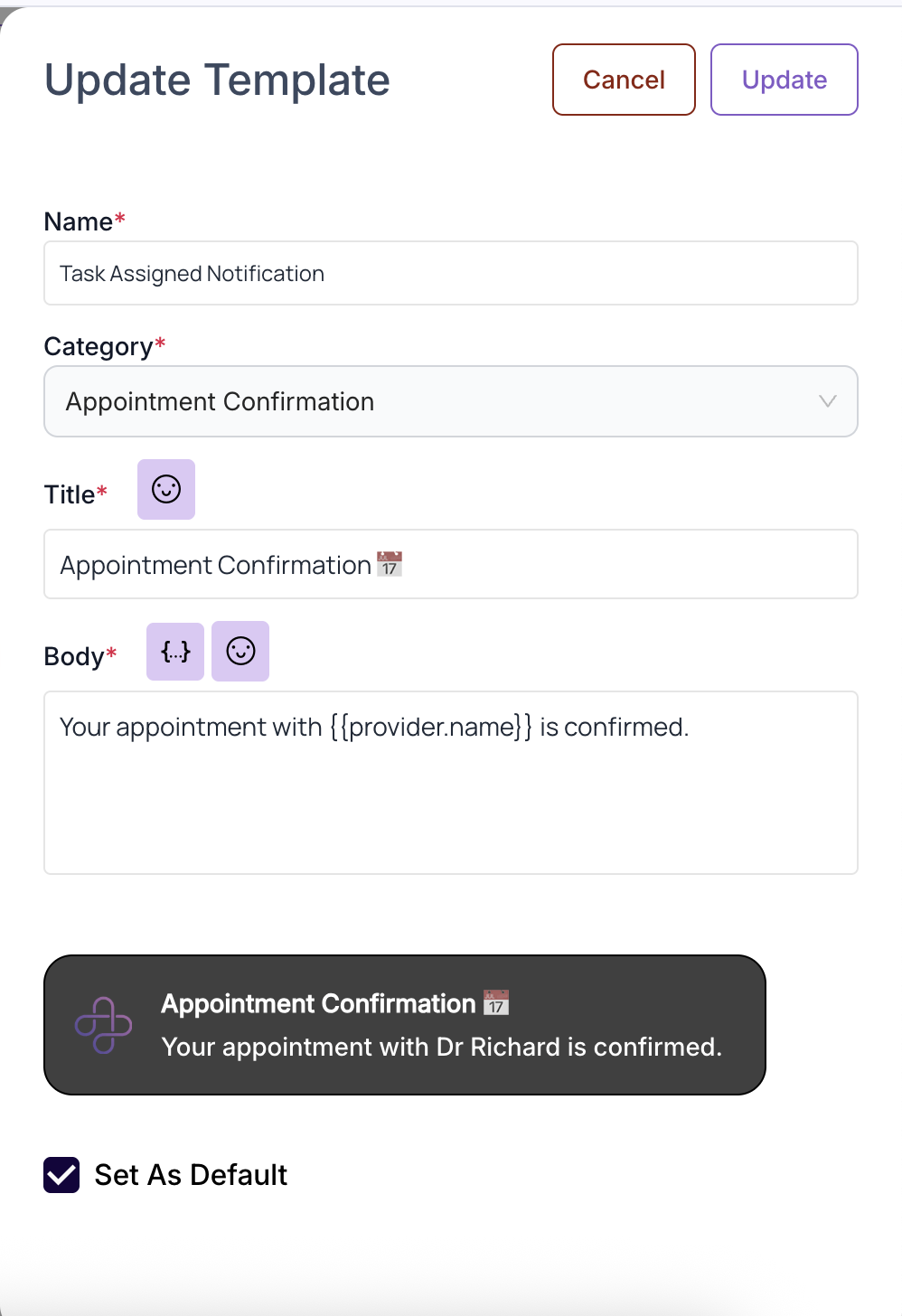
Navigate to Settings → Content → Push Notifications to create a push notification template. We recommend numbering your templates for easy reference. The push notification title can include emojis, and the body can include both merge tags and emojis.
Educational Content (Articles)
How do I create educational content within Fold?
Fold lets you create content to be sent as Articles. Articles can incorporate uploaded media, text or embedded links from videos on Youtube and Vimeo.
Referenced in: Confluence
Was this article helpful?
That’s Great!
Thank you for your feedback
Sorry! We couldn't be helpful
Thank you for your feedback
Feedback sent
We appreciate your effort and will try to fix the article