TABLE OF CONTENTS
- How to send an outbound eFax
- How to view an inbound e-Fax
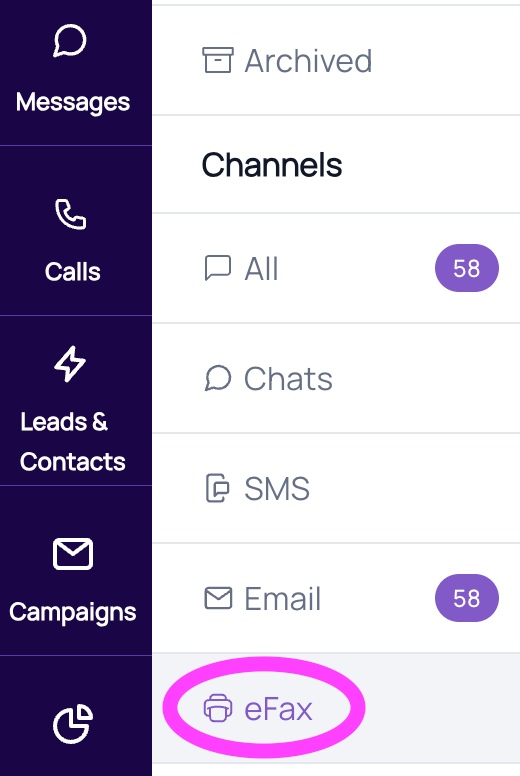
- You can view inbound e-faxes from the Messages tab > eFax. When you select a conversation from the list, the inbound fax will appear on the left-hand side of the screen.
How to send an outbound eFax
An eFax inbox lets you send outgoing faxes to leads or contacts via Fold.
- Ensure the recipient is a lead or contact: To send an eFax from Fold, a person or organization must be created in your Leads/Contacts section of Fold, with an associated fax number
- Compose a new eFax: Click the Plus Create New button located in the top right corner of the screen, from any page within Fold. From the drop-down menu, choose eFax.
- Specify the 'From' fax number: Within the Send eFax form, select the fax number from which you’d like to send the fax.
- Select contact: In the drop-down menu, select the contact you wish to send an eFax to. This drop-down list is populated from any Leads/Contacts in your platform who have a fax number.
- Select patient: Type in the patient who is associated with this fax
- Fill in the subject line: Fill in the subject field of the Send eFax form with the subject title within the e-fax subject line.
- Enter your fax message: Enter a message in the provided message area.
- Attach documents: Remember to include your eFax document as an attachment. You can add up to 10 attachments or 20 MB.
- Send the eFax: When your e-fax is ready, press the Send button. The “Send eFax” panel will close out, and you will see a green message in the top center of your screen that says “eFax Sent Successfully.”
- View sent eFaxes: The outbound e-Fax you send will appear in the Messages tab > eFax on the right-hand side of the screen.
How to view an inbound eFax
- View inbound eFaxes from the Messages tab > eFax. When you select a conversation from the list, the inbound fax will appear on the left-hand side of the screen.
- To associate the inbound fax with a particular patient, select Add Patient Context, type in the patient name, and select Add. Once you do this, the faxed document will appear in the Patient Profile > Documents > eFax Documents.
Was this article helpful?
That’s Great!
Thank you for your feedback
Sorry! We couldn't be helpful
Thank you for your feedback
Feedback sent
We appreciate your effort and will try to fix the article