TABLE OF CONTENTS
The Fold Health Sidecar is a powerful tool designed to integrate essential insights and functionalities from Fold directly into the EHR interface. By streamlining tasks and centralizing information, this feature aims to enhance user experience and foster continuity of care for providers.
A. How to Download and Install Fold Sidecar
To download and install the Fold Sidecar, follow these steps:
1. Download the Fold Sidecar extension from this Chrome Web Store link - FoldHealth Sidecar
 FoldHealth Sidecar - Chrome Web Store
2. Click on “Get”/ “Add to Chrome.”
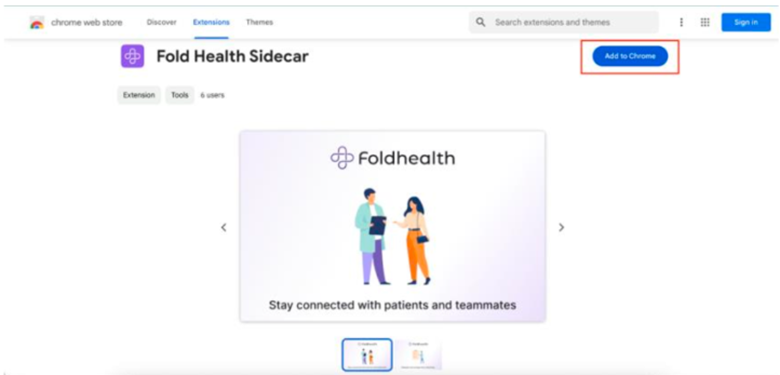
3. A confirmation message will appear. Click on “Add Extension.”
4. The extension will now be added to your browser.
5. Pin the Fold extension for easy access (optional step).
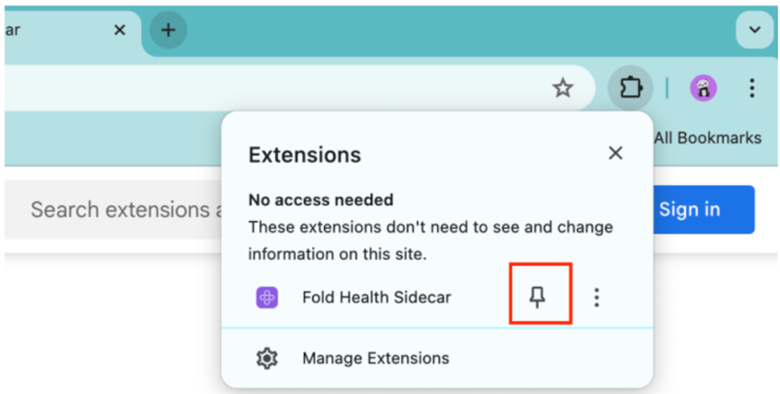
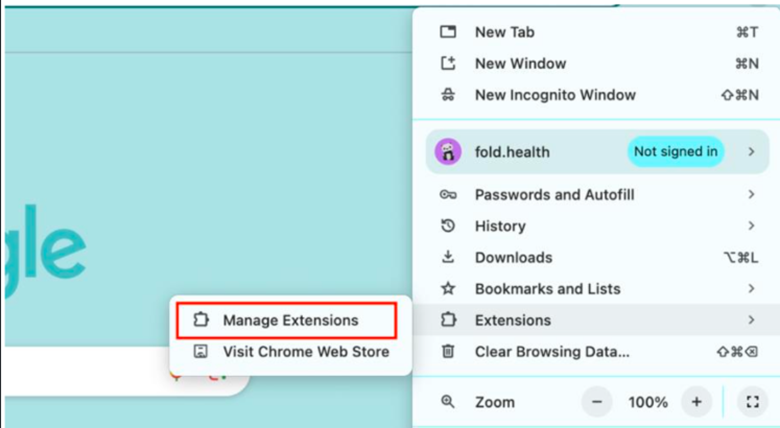
6. You can manage your extension from the browser settings.
B. Login Process for Fold Sidecar
To login to the Fold Sidecar, follow these steps:
For First-time Users
- If you have not logged into the Fold provider web experience before, you will need to do so for the 1st time. This needs to be done only once.
- Once logged into Fold, you can proceed to access the Fold Sidecar from your extensions.
- Open the Fold extension and navigate to the Sidecar login option.
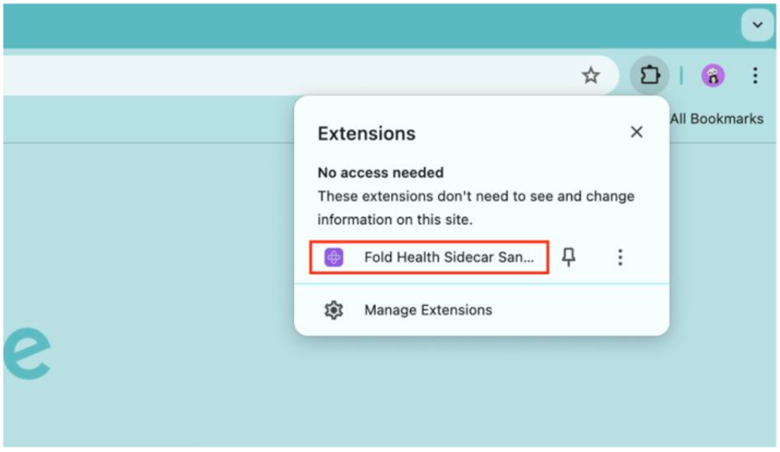
- Enter your Fold login credentials (email and password).
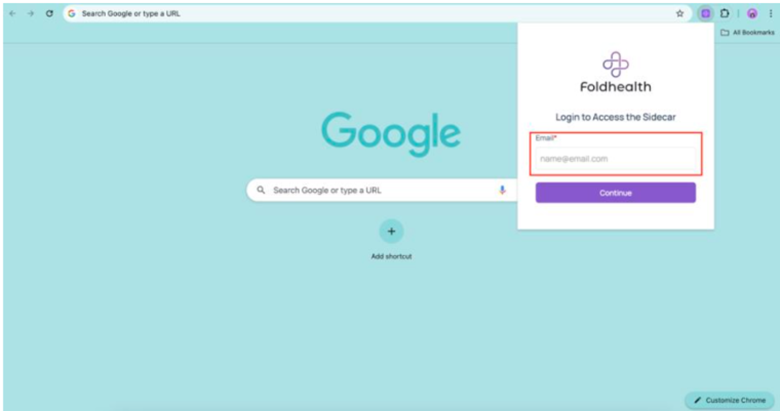
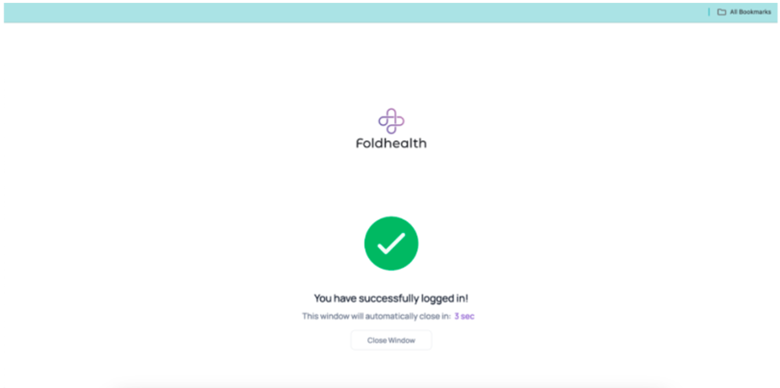
- If the credentials match, you will be logged into the Sidecar successfully.
- Once logged in, the extension pop-up will display account and user details. (This pop-up will close automatically in 10 seconds).
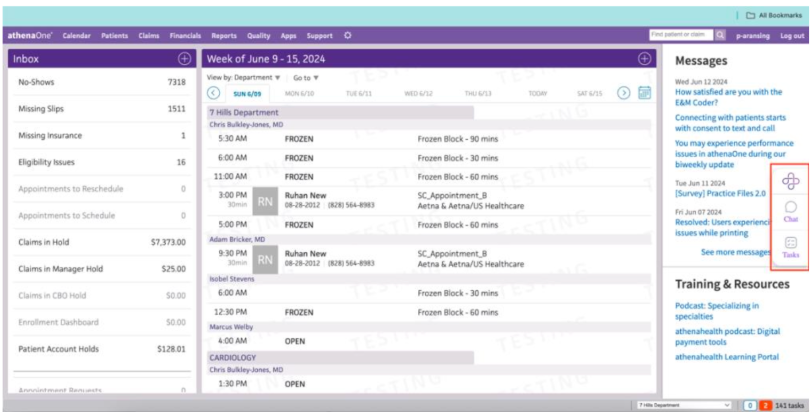
- The Sidecar will then be loaded into the EHR (Athena/Elation) and appear on the right side of your screen.
For Existing Fold Users
- Launch the Fold extension in your browser.
- Enter your Fold login credentials when prompted.
- If the credentials match, you will be seamlessly logged into the Fold Sidecar.
- Once logged in, the extension pop-up will display account and user details. (This pop-up will close automatically in 10 seconds).
- The Sidecar will then be loaded into the EHR (Athena/Elation).
Was this article helpful?
That’s Great!
Thank you for your feedback
Sorry! We couldn't be helpful
Thank you for your feedback
Feedback sent
We appreciate your effort and will try to fix the article