TABLE OF CONTENTS
- What are automations?
- How are automations triggered?
- Which automations are specific to EHRs?
- What are the nodes within an automation?
- Best Practices
- FAQs
What are automations?
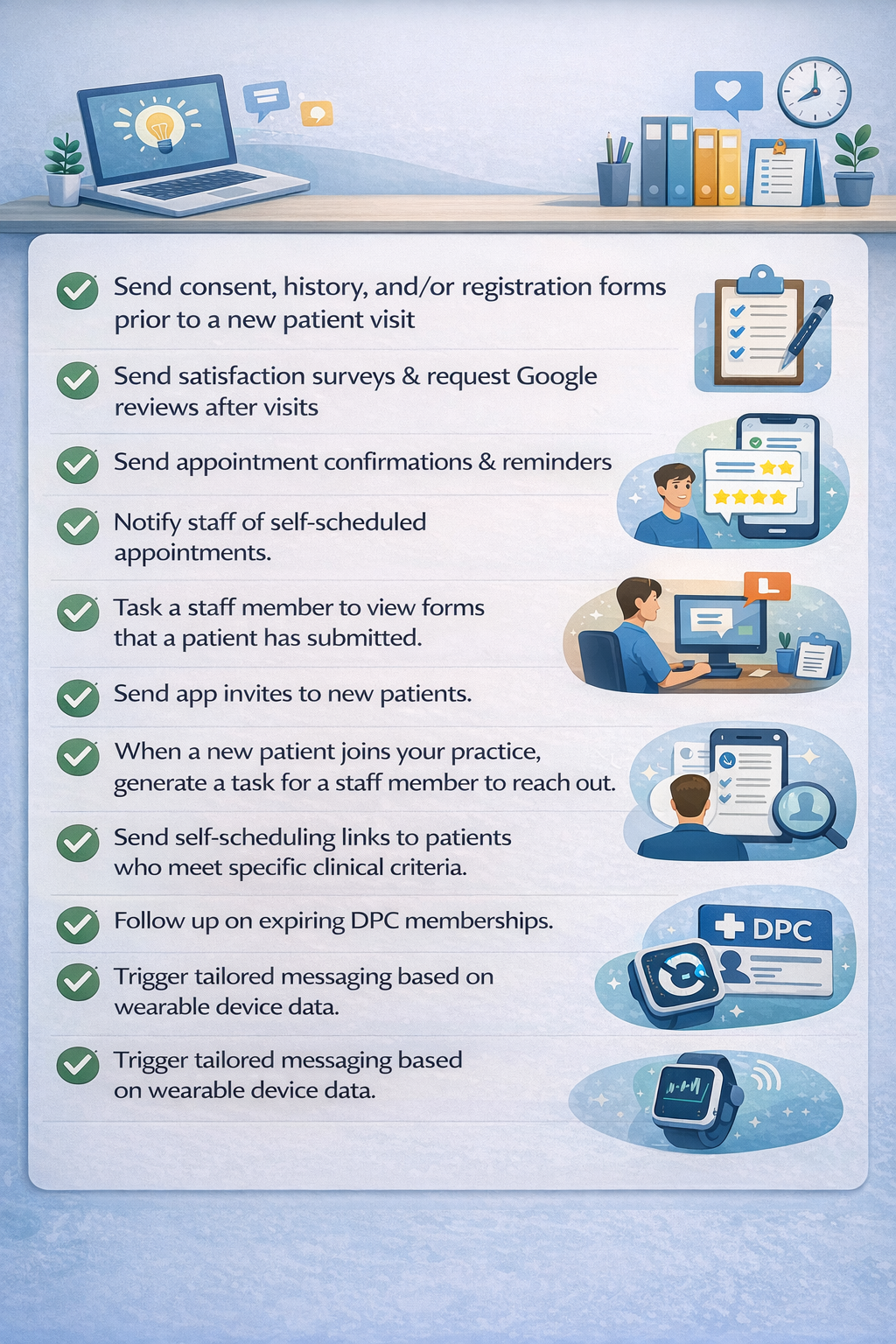
Automations are a powerful tool within Fold that allow users to preprogram triggers and subsequent actions. When those triggers arise within your Fold system, your specified actions are performed, such as sending emails, forms, appointment booking links, tasks, SMS messages or push notifications. The logic for your automations is configurable based on your organization's unique operations and preferences.
Some automations are required to make Fold function in a basic way, like inviting patients to the app when their status becomes active. Some automations are created to make day-to-day operations more efficient, like automatically sending a self-scheduling link to a patient who is overdue for an appointment with their provider. And some automations are created for clinical benefit, like adding an alert to a patient chart when someone's wearable data indicates a lower-than-usual step count.
How are automations triggered?
Active automations are toggled on and are listening for triggers. When a trigger occurs, that automation will execute as long as the automation is toggled on. Toggle automations off and on under Settings → Automations → Status column.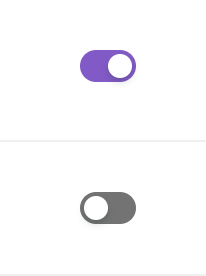
As of January 2025, there are 32 automation triggers across 16 categories:
1) Patient/Leads Automation
- When members match selected conditions
- For every care program or care gap
- When a new prospect is registered in the account
- When a new employee is registered in the account
- When a new patient is registered in the account
- When a patient is added in a population group
- When a patient is removed from a population group
- When a patient’s membership status is updated
- When a care program or care gap is added or updated
- When transitional care event (ADT) is received for a patient
- When patient status changes
2) Communication Automation
- When a member is tagged
- When a conversation status is updated
- When a new message is started
3) Appointments Automation
- For every appointment, on set day(s)
- When a schedule is added or updated
- When a schedule participant is added or updated
4) Forms Automation
- When any form is submitted
5) Journeys Automation
- When a patient care journey status is updated
6) Task Automation
- When provider tasks are assigned for today
- When a provider task is added or updated
- When a patient task is added or updated
7) Labs Automation
- When a lab result is received
8) Note Automation
- When a note is created, signed or amended
9) Micro Automation
- Micro-automation (can be used within another automation)
10) Care Plan Automation
- When a patient care plan added or updated
11) Order Automation
- When prescription or prescription renewal is added/updated
12) Patient Case Automation
- When a patient case is added or updated
13) Patient Referral Automation
- When a patient referral is added or updated
14) Imaging Automation
- When an imaging report is received
15) Vitals Automation
- When vital event is received for a patient
16) Other Automation
- For members who have special day today (e.g., a birthday)
Which automations are specific to EHRs?
Because of variances in the API’s of each EHR, the following is a working list of which automation triggers are available, based on the the EHR you have integrated with Fold Health.
Automations | Athena | Elation |
Patient/Leads Automation | Available | Available |
Communication Automation | Available | Available |
Appointments Automation | Available | Available |
Forms Automation | Available | Available |
Journeys Automation | Available | Available |
Task Automation | Available | Available |
Labs Automation | Available (Enhanced lab filters) | Available (Limited lab filters) |
Note | Available | Not Available |
Micro Automation | Available | Available |
Care Plan Automation | Not Available | Available |
Order Automation | Available | Not Available |
Patient Case Automation | Available | Not Available |
Patient Referral Automation | Available | Not Available |
Imaging Automation | Available | Available |
Vitals Automation | Available | Available |
Other Automation | Available | Available |
What are the nodes within an automation?
The Fold automation interface works like a flowchart made up of interconnected nodes. Each box in an automation is called a node. You start with a trigger node, then define any special parameters using a condition node, and then add subsequent action nodes to dictate what you want to happen next.
Action Nodes
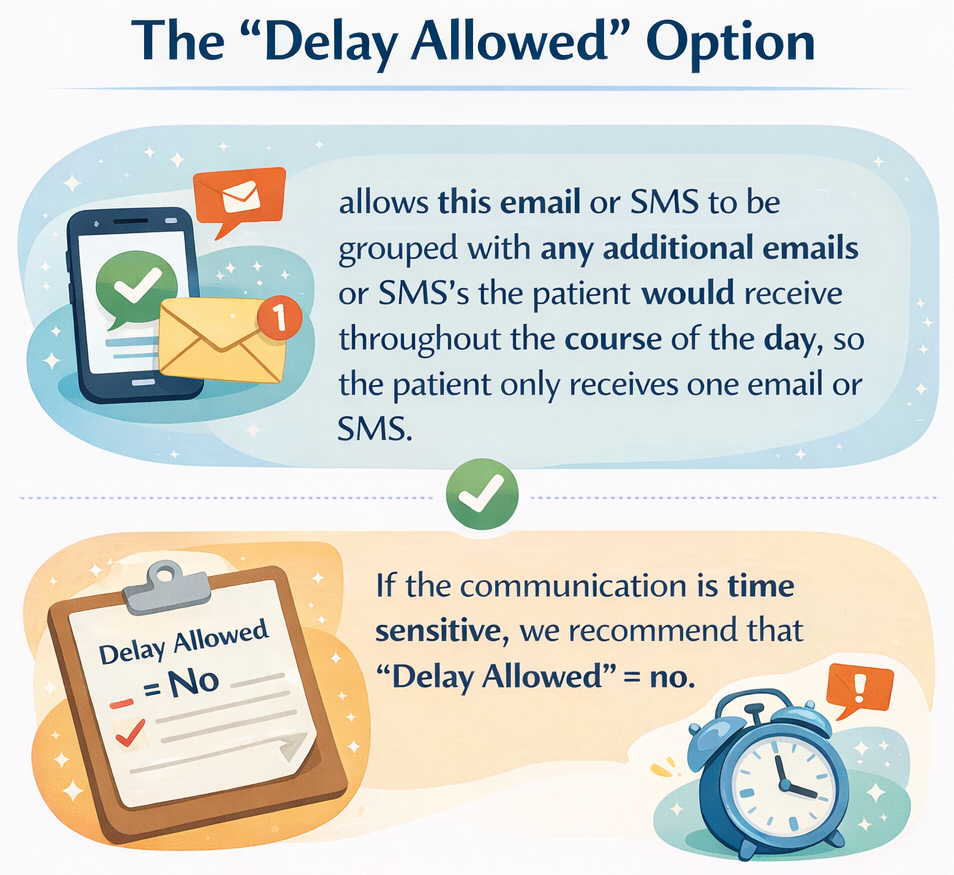 Email: You can choose to send an email to a patient or a staff member.
- SMS: You can choose to send an SMS to a patient, staff member, or caregiver.
- Push Notification: You can choose to send a push notification to either a patient via the Fold Care Patient App or to a staff member through the Fold Grow Provider App. The Push Notification Node will also create a notification on the Web App.
- Forms: Sends a form to a patient and creates a task for the patient on the patient app, which is automatically marked as complete when the form is submitted.
- The Max Frequency field sets the maximum time a patient can receive the same form via automations. For example, a max frequency of one month will make sure that the staff member will only receive the designated form once per month from ANY automation.
- If the Skip email if form list empty field = “Yes” then no email will be sent.
- You can choose to send a form via email, SMS, app, or any combination of the three.
- If you wish to send forms via SMS or email, then the SMS and email templates must be in the “Multiple Patient Forms” Category.
- You can perform follow-up actions (add subsequent nodes) when a form is submitted or if the form is not submitted within a certain time period.
- App Invitation: Send an app invite to patients. You can select which patients receive an app invite: Everyone (all patients); members who have not received an invite to the patient app; or all patients who are not using the patient app.
- Content: Sends articles located in Settings → Content, using the default template in the “Patient Education Content” category. You can choose to send content via email, SMS, app, or any combination of the three.
- Appointment Booking Link: Sends an appointment booking link for a specific appointment type for specific staff members.
- Notify supporting members over email: Sends an email to specific supporting members.
- For Every Participant in Appointment: Cycles through all participants in an appointment (ideal for group appointments). This can only be used in an automation with the “When a Schedule is Added or Updated” trigger.
Operator Nodes:
- Delay: Inserts a delay between two nodes.
- AND: Will pass through if ALL inputs are True. Needs at least two inputs to work.
- OR: Will pass through if ANY input is True. Needs at least one input to work.
- Repeat: Nodes added after a repeat node will repeat at the set frequency.
Condition Nodes:
- Member Preferred Mode of Communication: Allows you to send communications through Email, Phone or SMS messages.
- When Member Matches Selected Conditions: Allows filtering patients by membership status, contact type, login status, gender, sex at birth, age, membership type, when members are registered for weekly check-ins, last appointment, location, employers, employee membership start, employee enrollment status, tags, consent received, communication mode, PCP, care manager, active membership length, dependent status, or by your custom fields.
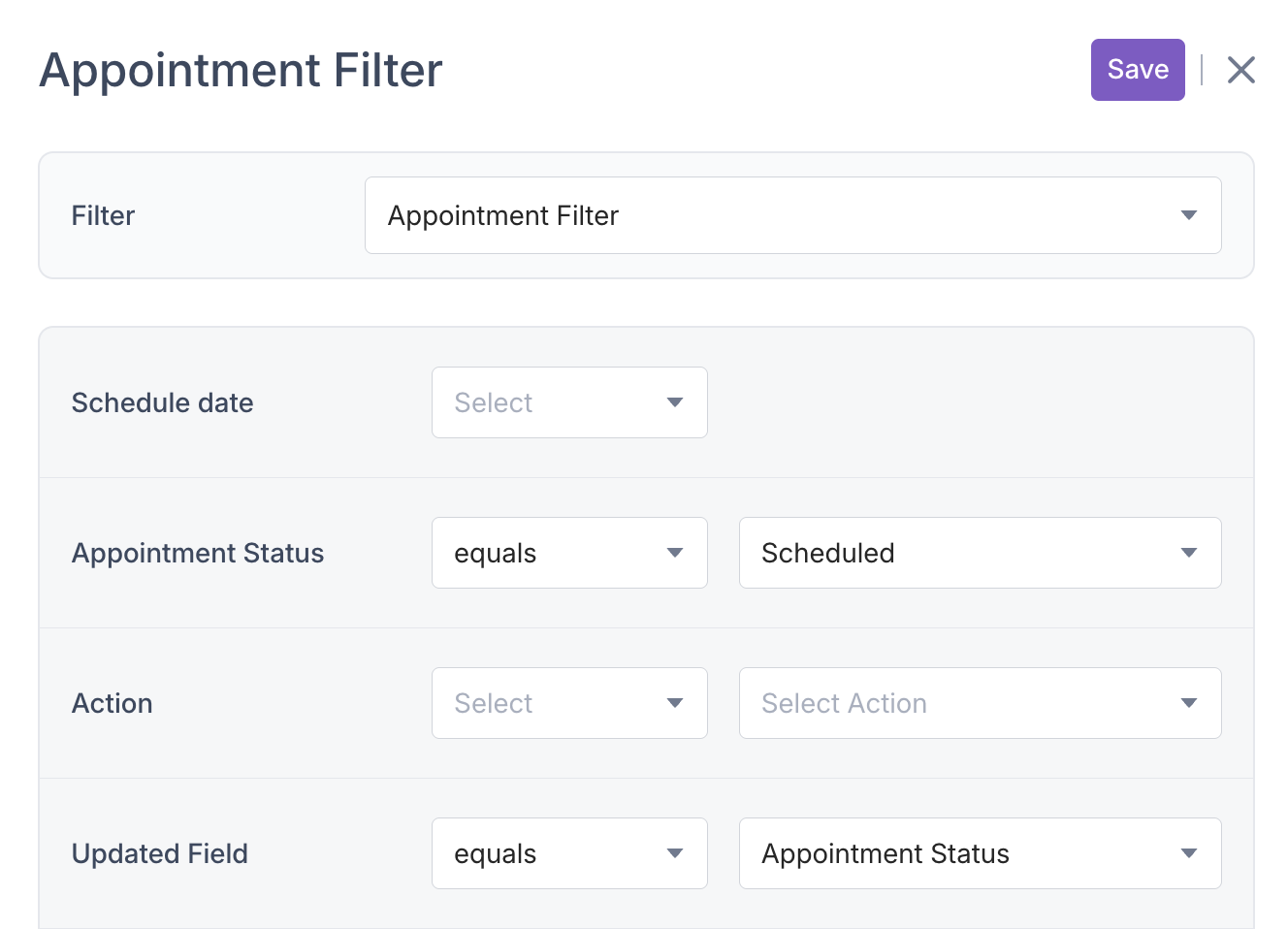
- Appointment Filter (only found in Appointments Automations) Allows filtering the schedule by date, appointment status, action, updated field, mode of appointment, added/updated by, appointment type, location, recurrences, or # previous completed encounters.
- Using the Updated Field filter alone will trigger the automation any time the specified field is updated in an appointment, which can lead to unwanted notifications:

- We recommend using the Updated Field filter in combination with other filters, which allows for more refined automations. For example, the following filters will cause the automation to trigger only when an appointment is scheduled:
- Using the Updated Field filter alone will trigger the automation any time the specified field is updated in an appointment, which can lead to unwanted notifications:
- Check Execution History: Allows users to enter a unique context and frequency; when an automation with the same context recurs within the specified frequency, the automation will not re-execute.
- If context is not entered, the automation will skip the check execution history node and will continue with the automation.
- Example: Automation #1 has the context = "welcome" and Automation #2 also has the context = "welcome." If Automation #1 is executed for a patient, then Automation #2 will not execute as the context is same.
- Communications Filter (only found in Communications Automations)
- Forms Filter (only found in Forms Automations)
- Journeys Filter (only found in Journeys Automations)
- Task Results Filter (only found in Labs Automations)
- Note Filter (only found in Visit-Notes Automations): Filter notes by template, note status, or if there’s a shareable document available.
Other Nodes
- General Task
- Micro-Automation
- Patient Form History Filter
- Form Response Received Time refers to the time when the patient submitted/responded to the form.
- When you wish to filter across a range of time, use a less than (<) or less than or equal to (≤) operator instead of equals (=). Example: Form response received < than 5 days filters out forms submitted within the past 5 days. Form response received = 5 days filters out only those forms submitted exactly 5 days ago.
- Form Request Sent Time refers to the time the form was sent to the patient. This field is optional and can be left empty if not required for filtering.
Best Practices
- Always test an automation on a test patient or group before sending. Test by adding a tag to a test patient's profile. Next, add a "when members match selected conditions" filter after the trigger node, and include the test tag, so that the automation only runs on the patients with the test tag.
- If you are using delays and reminder nodes, we recommend selecting the checkbox that prevents messages from being sent outside of business hours.

- Both active and inactive automations can be triggered via the Play button

FAQs
How do I test an automation?
- Patient/Leads automations can be tested via the ‘Play’ button in Settings → Automations. If the Patient/Leads automation is set as Inactive, the delays and reminders nodes are not followed when testing an automation.
- Other automation types can be tested by adding a tag to a test patient's profile; add a "when members match selected conditions" filter after the trigger node, and include the test tag, so that the automation only runs on the patients with the test tag.
How do I see which actions an automation has executed?
Settings → Automations will take you to your automations dashboard. Click on the green bar graph icon to view Analytics for the automation. Alternatively, when the Automation is open, you can click on the Analytics button in the top right of the screen.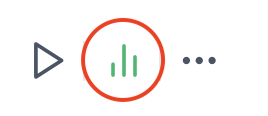
Can an Automation be cancelled mid-execution?
At the moment there’s no way to cancel an automation once it has triggered for a patient. If you would like your automation cancelled for a patient, please submit a ticket on FreshDesk.
If an automation is changed from Active to Inactive, does it continue to run?
If an automation is made inactive, the automation will no longer listen for triggers, so no new automations will be created. Any automations that are in progress will pause. Resuming the automation will cause the paused automation to pick up after X days of inactivity, NOT where the automation left off.
If an automation is changed from Active to Inactive and then made Active, will paused automations resume?
Yes, previously Active automations will resume when they are made active, but will not resume from the date they were paused. For example, if an Automation is designed to send 100 SMS messages on 100 consecutive days, starting with a “Day #1” SMS and ending with “Day #100” SMS and the automation is stopped after 50 days and resumed 10 days later, the patient will experience the following:
One SMS per day from Day #1 to Day #50.
9 Days of no SMS messages.
On the 10th day, an SMS message stating “Day #60”.
Which phone number will my automation send an SMS from?
In Settings > Account > Locations, each location has the option to set a default communication phone number. Patients at that location will receive their SMS from that default phone number. Priority is always given to the location's default number. 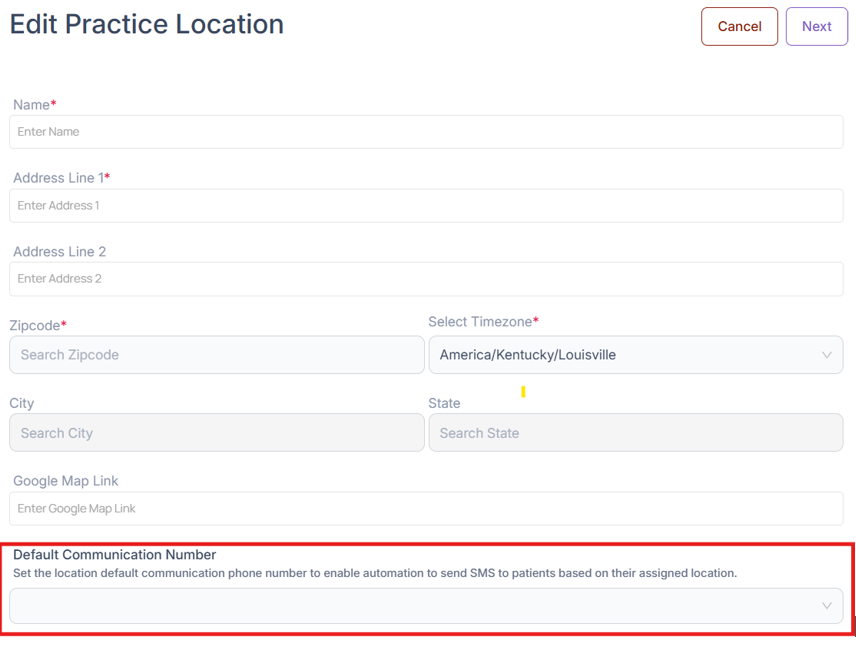
If the location does not have a default communication number listed, then the SMS will be sent from the account-level default number set for SMS in Settings > Calls. 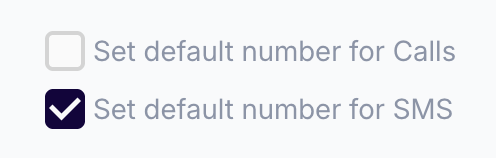
How does one check if an Automation sent an email, SMS or a notification?
Every automation has Analytics. To access analytics, click on the green bar graph to the right of the automation in Settings → Automations or click on the Analytic button inside the Automation. Analytics give a detailed breakdown of emails, SMS and app notifications sent over a period of time.
A patient didn’t receive an email or SMS. What could be the issue?
The patient doesn’t have a valid email and/or phone number on file.
(Email Only) Ask the patient to check their spam or promotions folder in their email.
The filters exclude the individuals from receiving an email or SMS. For example, the App Invite Node is often only set to send only to individuals who have never logged into the App.
The exact same email or SMS was sent within the past 60 minutes. Fold does not allow users to send identical emails or SMS messages more than once per hour.
(SMS only) No ‘default number’ is chosen in the Location or Call Settings.
The SMS contained a restricted word blocked by the carrier. Some carriers block medication names in SMS messages.
Reference : Confluence
Was this article helpful?
That’s Great!
Thank you for your feedback
Sorry! We couldn't be helpful
Thank you for your feedback
Feedback sent
We appreciate your effort and will try to fix the article